
Quick Start with Atlas System
Prepare your Web3 wallet, connect to BNB Smart Chain and create your first Smart Cycle. The entire process usually takes only a few minutes.
 Web3 walletConnect safely
 BNB Smart ChainSelect the network
 USDT + BNBAmount and gas
 Smart CycleCreate your first cycle
Before you begin
1. Prepare your wallet and BNB Smart Chain
- Install MetaMask from its official source and securely save your recovery phrase offline.
- Open the network selector and choose BNB Smart Chain. If the network is not listed, add it through MetaMask’s official network flow.
- Transfer USDT (BEP-20) and a small amount of BNB to the same wallet address.
- Before sending, verify that the withdrawal network is BSC / BEP-20. Assets sent through another network will not appear in the required balance.
2. Connect to Atlas System
- Open the official Atlas System application.
- Click Connect Wallet and select your wallet.
- Check the website address in the wallet window, then approve the connection.
- If requested, switch the wallet to BNB Smart Chain. Connecting the wallet does not transfer funds by itself.
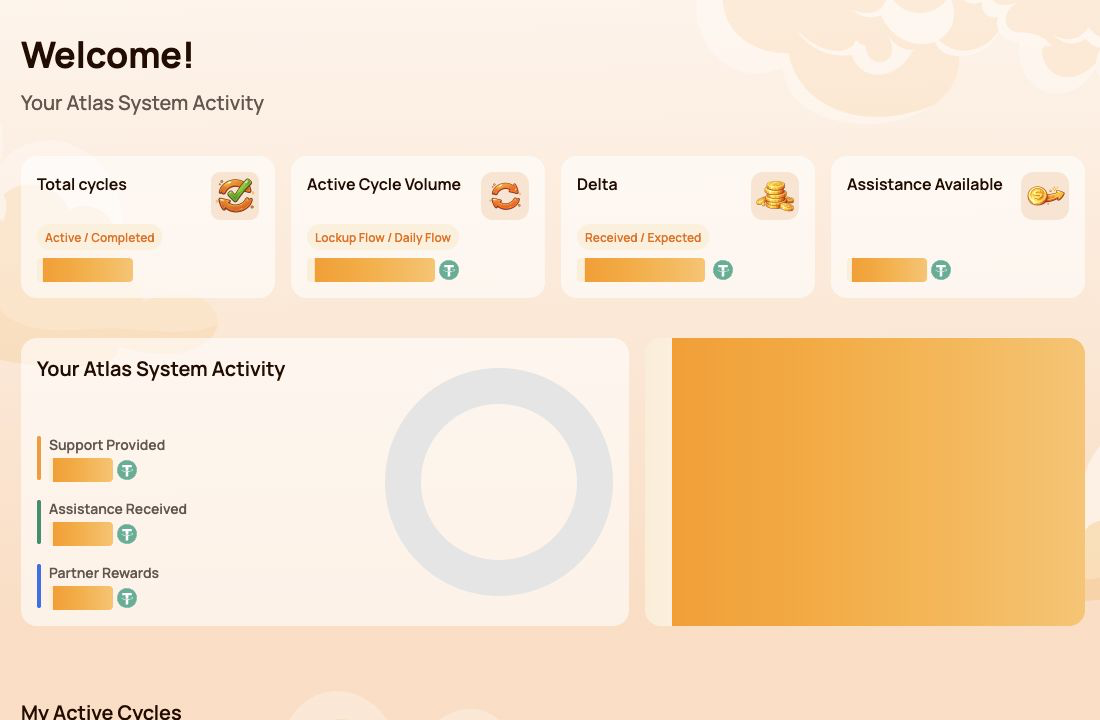
3. Choose the Smart Cycle type
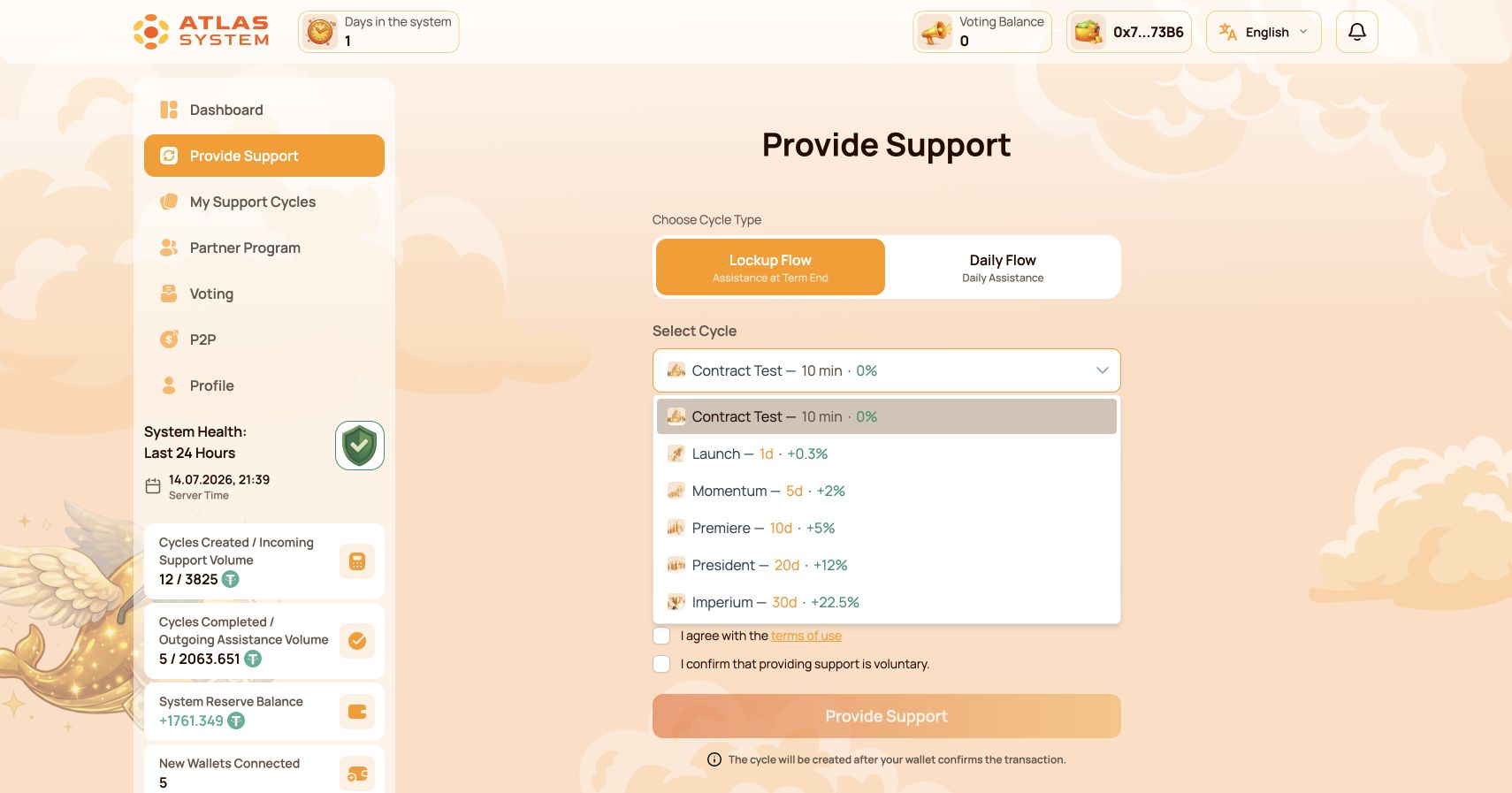
Open Provide Support and first choose between Lockup Flow and Daily Flow. Use this comparison before reviewing individual cycles and plans.
| Parameter | Lockup Flow | Daily Flow |
|---|---|---|
| How assistance is requested | Once, after the selected term ends | Daily, according to the smart-contract terms |
| Term | From 10 minutes to 30 days | 200 days |
| Original support amount | Requested together with the calculated delta at the end of the term | Included in the daily assistance calculations |
| Options | Six cycles with different terms and calculated delta | Core and Elite, depending on the support amount |
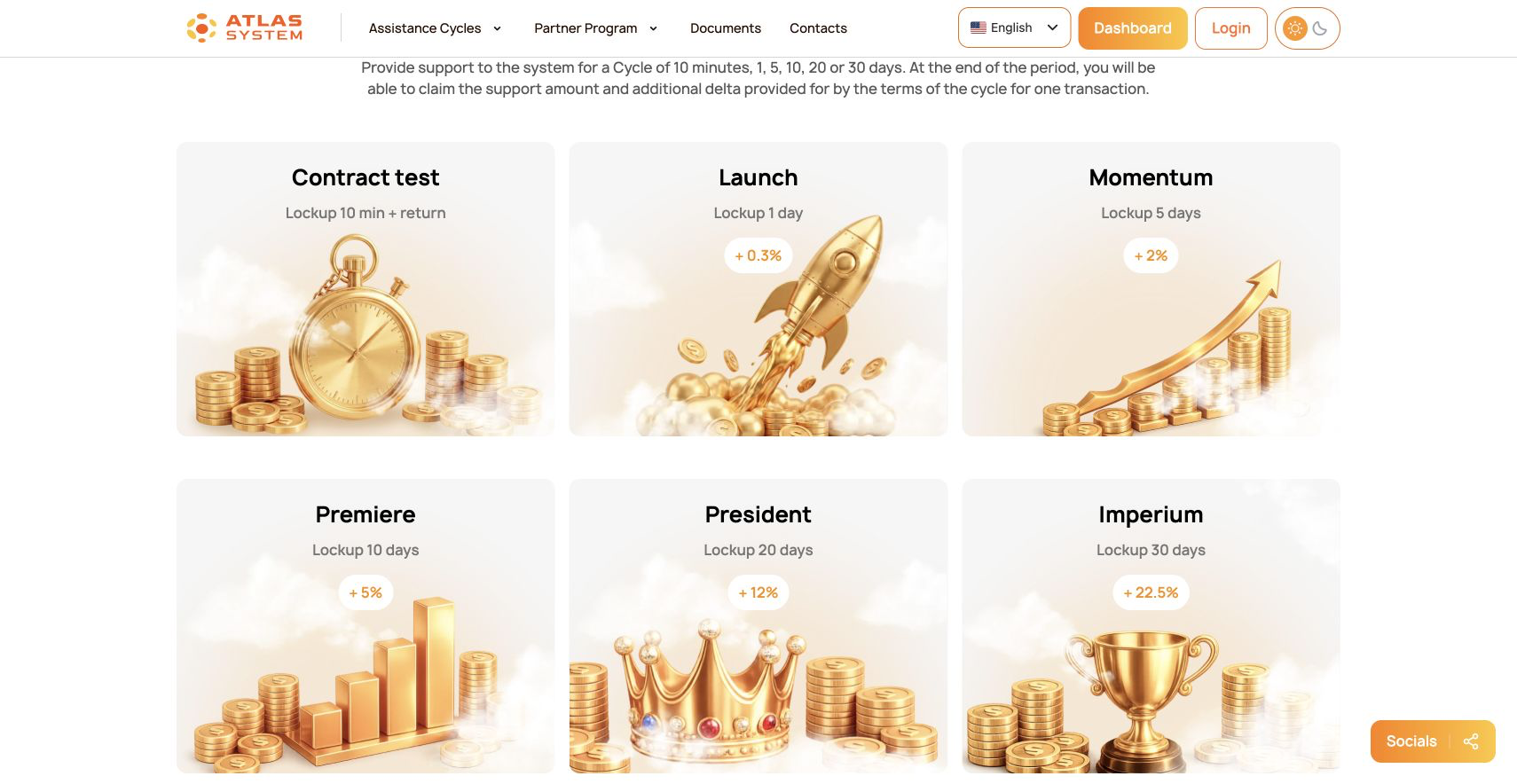
3.1 Lockup Flow cycles
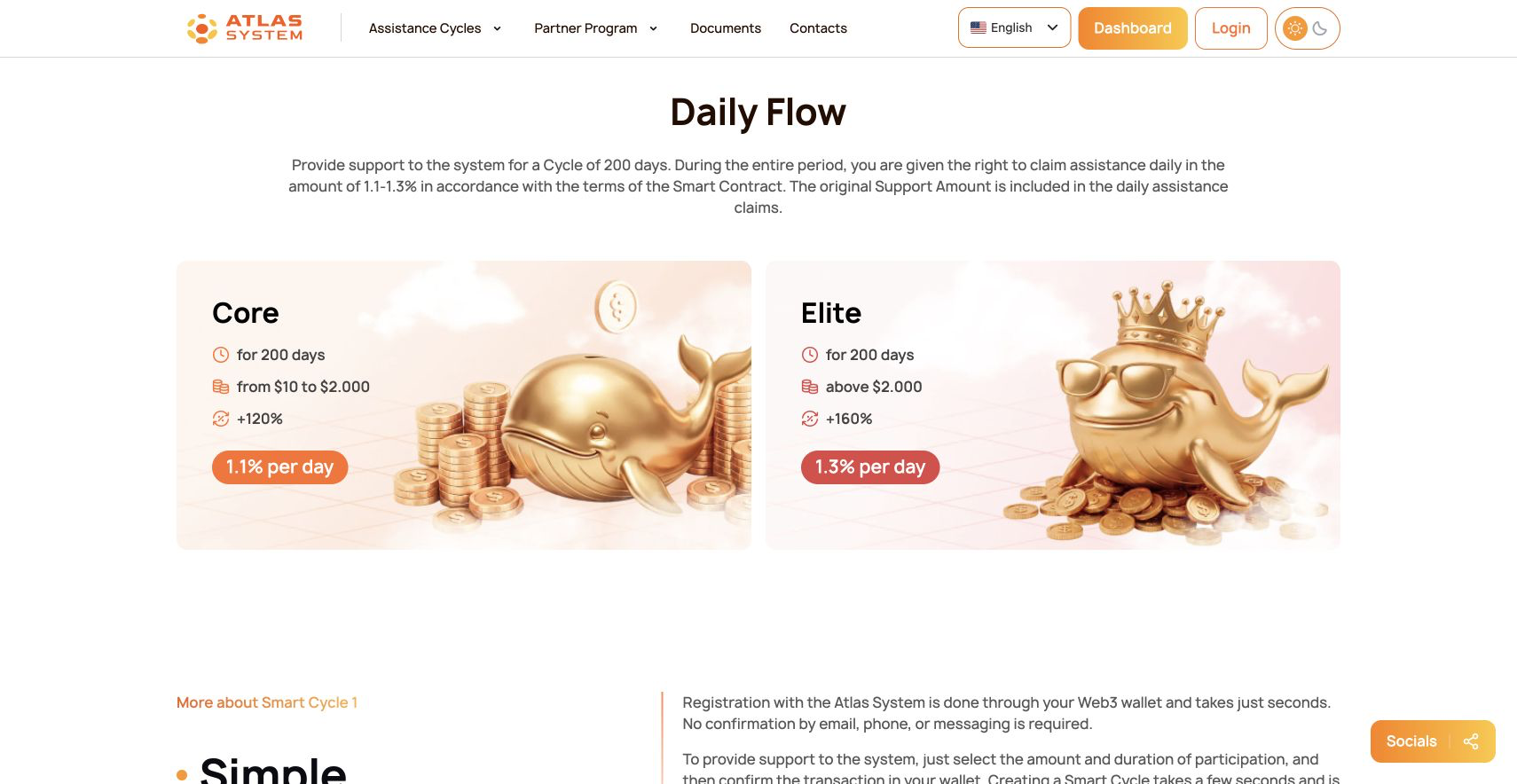
3.2 Daily Flow plans
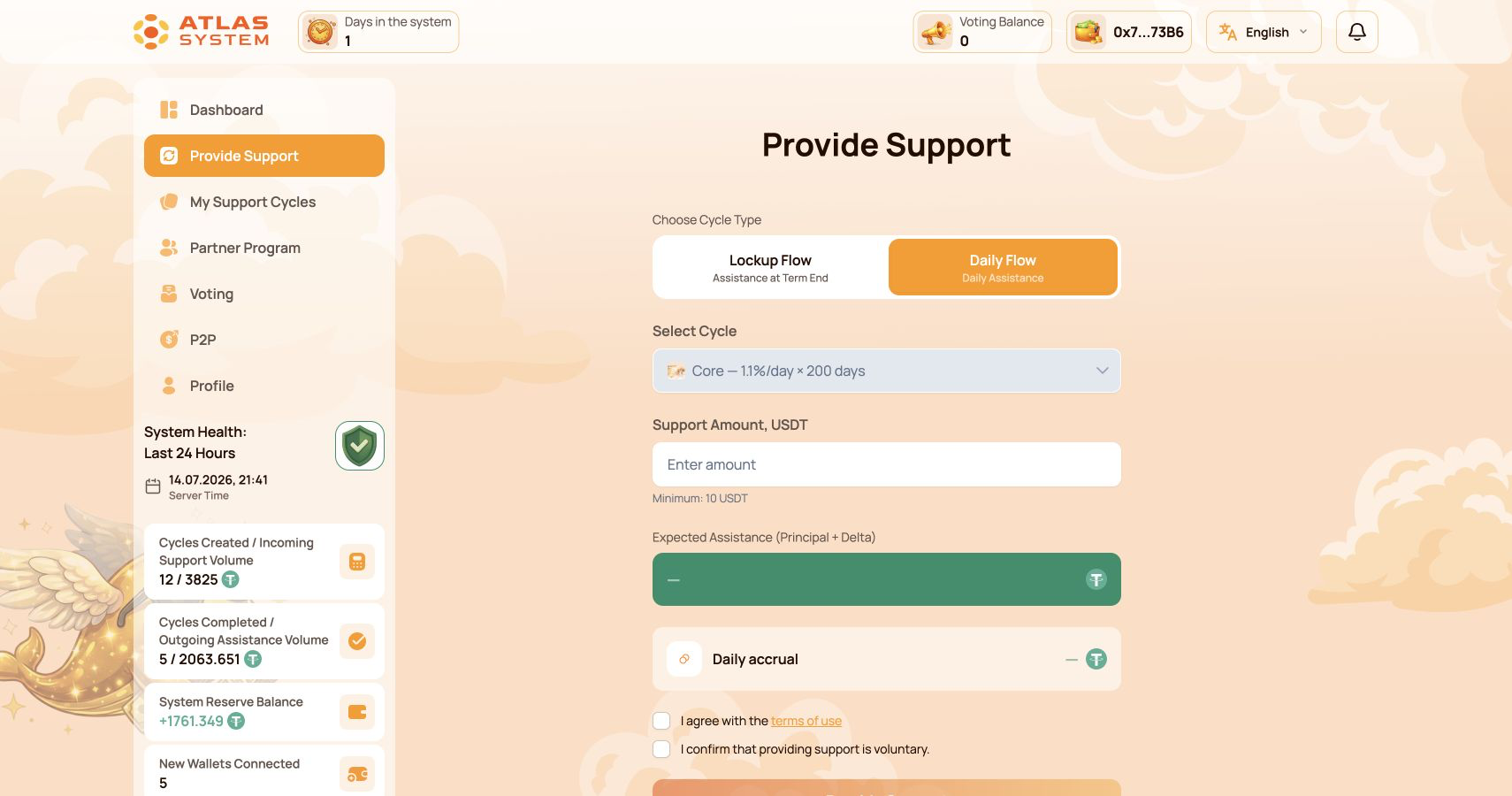
4. Create your first cycle
For your first transaction, we recommend the optional Contract Test: 10 USDT for 10 minutes with 0% delta. It helps you check the full process with a minimal amount before choosing another cycle.
- Choose Lockup Flow → Contract Test.
- Enter 10 USDT.
- Review the amount, term and expected assistance.
- Read and accept the terms and confirm that providing support is voluntary.
- Click Provide Support.
- Approve the USDT spending request if your wallet shows one, then confirm the support transaction. Each blockchain transaction uses a small amount of BNB.
5. Track the cycle status
Open My Support Cycles. The new cycle appears under the corresponding Lockup Flow or Daily Flow tab. You can review the support amount, status, start and end dates and calculated values.
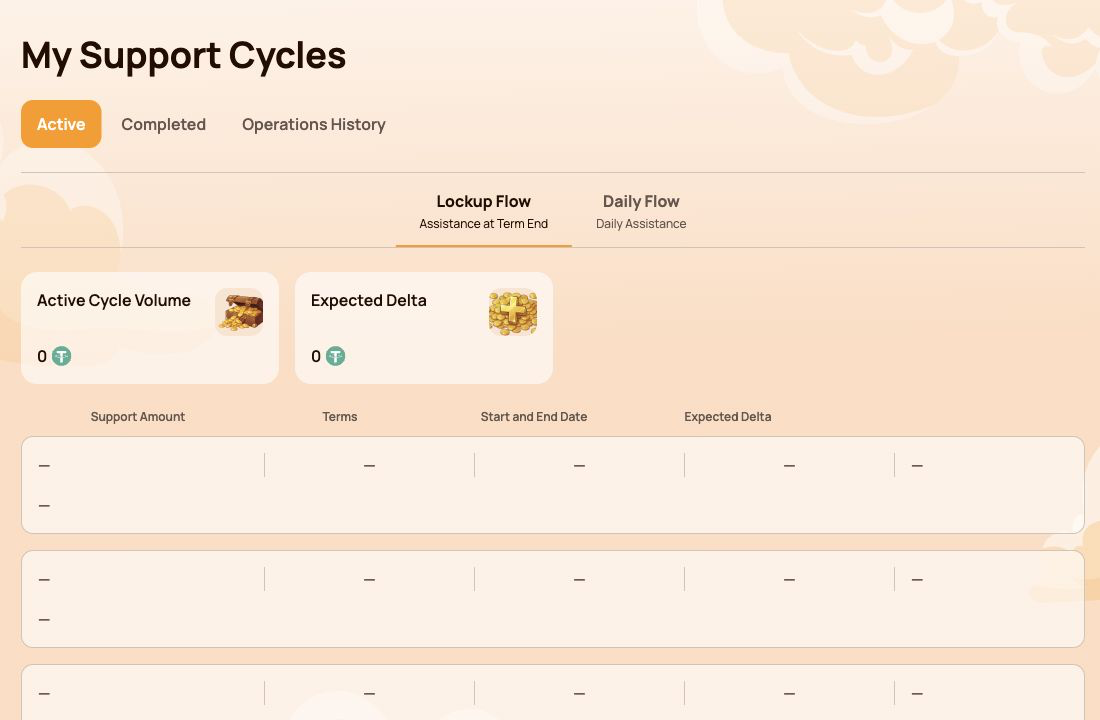
6. Use Claim after completion
- Open the completed cycle and review its final values.
- Click Claim when the action is available.
- Check the website, network and transaction details in your wallet.
- Confirm the transaction and keep enough BNB available for the network fee.
- Wait for blockchain confirmation, then verify the result in Operations History.
For Daily Flow, assistance can be requested according to the cycle terms and available contract liquidity. The original support amount is included in the daily assistance calculations.
Quick checklist
- Wallet installed and recovery phrase stored safely.
- BNB Smart Chain selected.
- USDT uses the BEP-20 network.
- A small BNB reserve is available for network fees.
- The website address is checked before every wallet confirmation.
- The first Contract Test cycle is visible in My Support Cycles.
Never approve a transaction you do not understand. If the wallet displays an unexpected network, contract or amount, reject the transaction and verify the official links.

