
সমস্যা সমাধান
Find the problem before repeating the action
Most Atlas issues can be located by checking five layers: the official website, the connected MetaMask account, BNB Smart Chain, the transaction on BscScan and the Personal Dashboard. This guide gives a safe next step for each common symptom.
Do not repeat an on-chain action until the previous transaction has a clear final status. First find its Tx Hash and check BscScan.


Diagnostic route
| What you see | First source to check | Typical next step |
|---|---|---|
| Wallet does not connect | MetaMask account, BSC and site permission | Reconnect the correct account |
| Transaction is Pending or Failed | Tx Hash on BscScan | Wait or correct the confirmed cause |
| Cycle or Claim is not shown | Account, cycle status and on-chain result | Refresh only after checking the hash |
1. Run five checks before trying again
Start here even if the error message seems obvious. These checks prevent most duplicate transactions and wrong-account problems.
 Official domainatlas-system.tech
 Correct accountExpected public address
 BNB Smart ChainBSC selected
 USDT + BNBAmount and gas
 Previous Tx HashFinal status first
1. Official domain
Open Atlas from atlas-system.tech and verify the complete address before connecting the wallet.
2. Correct MetaMask account
The account in MetaMask must be the same public address used for the relevant Atlas profile, Smart Cycle or Claim.
3. BNB Smart Chain
Atlas uses BNB Smart Chain (BSC). USDT used for an Atlas action must be on the BEP20 network.
4. Separate the two balances
- USDT covers the selected Support Amount or other token amount.
- BNB covers the BSC network gas fee.
Keeping approximately $5 in BNB is a practical starting reference, but the actual fee changes. Always review the estimate shown by MetaMask.
5. Previous Tx Hash
If an action was already submitted, check its Tx Hash on BscScan before clicking again. A slow Dashboard update is not a reason to create a duplicate transaction.
2. MetaMask does not connect or Atlas does not see the wallet
Common symptoms include an inactive Connect Wallet button, MetaMask not opening, Atlas continuing to ask for a connection or a different wallet address appearing in the Dashboard.
Check in this order
- Confirm that the official MetaMask extension is installed and enabled.
- Unlock MetaMask before pressing Connect Wallet.
- Select the intended account.
- Select BNB Smart Chain.
- Check that
app.atlas-system.techis allowed to connect to the account. - Allow the wallet pop-up if the browser blocked it.
- Refresh the Atlas page and reconnect.
On a phone, open Atlas through the browser inside MetaMask Mobile when a normal mobile browser cannot pass the connection to the wallet.
The address changed after connection
Switching the selected MetaMask account changes the public address shown to Atlas. A different account may have a different profile, cycles and Partner Program data. Reconnect the original wallet before assuming that data is missing.
Atlas support does not need your Secret Recovery Phrase, private key or MetaMask password to diagnose a connection problem.
3. Wrong network, missing USDT or insufficient balance
Action amountUSDT on the BEP20 networkNetwork gasBSC transaction feeWrong network
Switch MetaMask to BNB Smart Chain, return to Atlas and refresh the page. Do not confirm an Atlas transaction on an unexplained network.
USDT is not visible
Check that the token is USDT on BEP20 and that the intended account is selected. If the token is hidden in MetaMask, add it only by using the official token contract reference.
Tokens sent through another network may not appear in Atlas. Recovery can be difficult or impossible, so verify the network and destination before every transfer.
Insufficient funds
Check USDT and BNB separately:
| Message or symptom | Balance to check | Why |
|---|---|---|
| Support Amount is unavailable | USDT BEP20 | The token amount is too low for the selected action. |
| Insufficient funds for gas | BNB | The wallet cannot pay the BSC network fee. |
| Amount is visible but Confirm fails | USDT, BNB and spending permission | One of the action requirements may still be missing. |
Do not send tokens again until the original transfer, network and receiving address have been verified.
4. MetaMask rejects the request or shows an unclear error
MetaMask messages describe different stages. First identify whether the request was cancelled before submission or failed after being sent to the network.
User rejectedNo hash usually means nothing was submitted.Verify, then restart if neededInsufficient gasThe connected account needs more BNB.Check the MetaMask estimate Cannot estimate gasA contract condition may not be satisfied.Cancel and verify the actionUnexpected requestThe request does not match your click.Reject and check the domain
User rejected / Cancelled
The request was cancelled in the wallet. If no Tx Hash was created, an on-chain transaction was normally not submitted. Return to Atlas, verify the values and start again only if the action is still required.
Insufficient funds for gas
Add enough BNB to the connected account for the estimated network fee. The gas fee is separate from the USDT Support Amount.
Cannot estimate gas / Execution reverted
The contract may reject the current conditions: the action may not yet be available, the amount or permission may be incorrect, or the state may have changed. Do not raise the fee blindly. Cancel the request and verify the cycle, amount, contract and previous transaction.
Unexpected or unreadable request
Select Reject. Check the official domain, the action that opened MetaMask and the contract address. If the purpose is still unclear, contact official support before confirming.
Connect, Sign, Approve and Confirm are different requests. See the Security guide before approving an action you do not recognise.
5. The transaction is Pending
What Pending means
The transaction has been submitted but does not yet have a final confirmed result. Pending does not by itself mean that funds are lost.
What to do
- Copy the Tx Hash from MetaMask or Atlas operation history.
- Open it on the official BscScan website.
- Confirm that the network is BNB Smart Chain and the sender is the expected wallet.
- Wait for a final Success or Failed status.
- Refresh Atlas only after the on-chain status is clear.
What not to do
- Do not create another Smart Cycle while the first creation transaction is Pending.
- Do not press Claim repeatedly while the first Claim is Pending.
- Do not assume that closing the browser cancels a submitted transaction.
Speed Up or Cancel may be available in the wallet. Each option can create another on-chain action and require BNB gas. Use it only when the wallet offers it for that exact transaction and you understand the result.
6. The transaction Failed or cannot be found
Status: Failed
Check the following before trying again:
- enough BNB for gas;
- the selected BNB Smart Chain network;
- enough USDT for the action;
- the intended account;
- the official Atlas contract address;
- the error or contract message shown by BscScan.
A failed transaction may still consume a BNB network fee because validators processed the attempted execution. Correct the identified cause before resubmitting.
Tx Hash is not found on BscScan
- Confirm that the link opens the BSC explorer, not an explorer for another network.
- Copy the complete Tx Hash again.
- Check whether MetaMask shows the operation as submitted.
- Wait briefly and refresh BscScan once.
If no Tx Hash was created, the action may have been rejected, only signed as a message or never submitted. If MetaMask shows a hash but BscScan still cannot find it, send that hash and a screenshot to support.
7. A Smart Cycle is missing or shows the wrong status
 PendingWait. Do not create a duplicate.FailedCorrect the confirmed cause.
 Success but missingRefresh Dashboard, then contact support with the hash.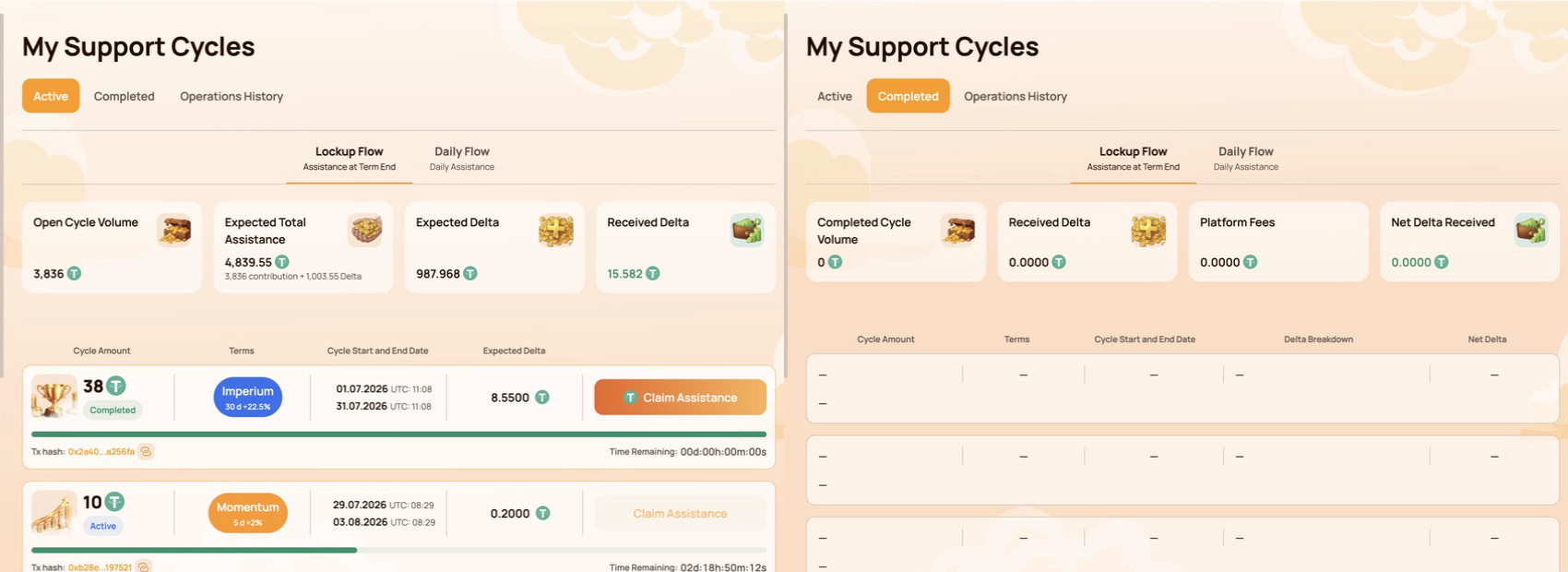
Check the wallet first
Confirm that Atlas is connected to the address that created the cycle. A different MetaMask account displays different activity.
Then check the creation transaction
| BscScan result | What it means | Next step |
|---|---|---|
| Pending | Creation is not final | Wait; do not create a duplicate cycle. |
| Failed | The cycle was not created by that transaction | Correct the confirmed cause before retrying. |
| Success | The contract call executed | Refresh the Dashboard and verify the contract and token transfer. |
If BscScan shows Success for the official contract but the cycle is still absent after the Dashboard refreshes, contact support with the wallet address and Tx Hash.
A Dashboard delay is not evidence that the cycle or funds are lost. Use the public on-chain record to establish what happened first.
8. Claim is unavailable, Pending or Failed
 Button missingCheck account, BSC, cycle status, term and available amount.PendingOpen the Tx Hash and wait. Do not repeat Claim.FailedCheck gas, availability and the on-chain error.
The Claim button is missing
Check:
- the connected MetaMask account;
- BNB Smart Chain;
- the Smart Cycle status and completion time;
- whether the interface shows an available amount;
- whether a previous Claim is already Pending;
- the cycle and contract data on BscScan.
Claim appears only when it is available under the selected Smart Cycle rules. A completed calendar period alone does not replace the current contract state displayed by Atlas.
Claim is Pending
Open the Tx Hash on BscScan and wait for a final result. Do not send another Claim while the first transaction is Pending.
Claim Failed
Check BNB gas, the network, the connected account, Claim availability and the error shown by the contract or BscScan. Retry only after the reason has been corrected.
Which asset pays the fee?
The standard BSC gas fee is paid in BNB. If the connected wallet supports Gas Station or a similar USDT gas feature, the wallet shows the available payment method and exact fee before Confirm. This network fee is separate from any Atlas Platform Fee.
No legitimate support agent needs an extra transfer, seed phrase or private key to “unlock” Claim.
9. Dashboard balance or history is delayed
Three interfaces can show different views of the same activity.
BscScanPublic on-chain status and token transfers→
 Connected walletAssets and activity for the selected address
→
Atlas DashboardProcessed interface view that may update later
BscScan
Shows the public transaction status, sender, contract interaction, token transfers and network fee.
MetaMask
Shows assets and activity for the currently selected public address. A hidden token or different selected account can make a balance appear different.
Atlas Dashboard
Displays Atlas activity and processed contract data. The interface may update after the blockchain transaction has already reached Success.
Verification order
- Confirm the public wallet address.
- Check the Tx Hash and Status on BscScan.
- Review BEP-20 Token Transfers and the amount.
- Refresh the Personal Dashboard.
- If on-chain Success is not reflected, send the evidence to support.
10. Stop and do not repeat the action
Select Reject or Cancel and stop if:
- MetaMask opened without an action you initiated;
- the website domain or contract address does not match an official reference;
- the wallet request is unreadable or does not match the selected action;
- the previous transaction is still Pending;
- the wallet or Secret Recovery Phrase may be compromised;
- someone asks for a transfer to “verify the wallet” or “unlock Claim”.
Save the public evidence, open Atlas manually through atlas-system.tech and use an official support channel. For wallet compromise, follow the separate Security guide immediately.
11. Contact support with a complete diagnostic packet
Support can investigate faster when the first message contains the public technical facts.
WalletPublic addressTx HashOr “not created”NetworkBNB Smart ChainAtlas actionPage and button ExpectedIntended resultActualError and screenshot
Include
- public wallet address;
- Tx Hash;
- BNB Smart Chain;
- the Atlas page, section and action;
- date and approximate time;
- expected result and what actually happened;
- screenshot of the error with secret information removed.
Never include
- Secret Recovery Phrase or seed phrase;
- private key;
- MetaMask password;
- access or verification codes;
- complete device backups or remote access.
Support can review the wallet address, network, hash, transaction status, MetaMask message and Dashboard display. Support cannot cancel a confirmed blockchain transaction or restore a Secret Recovery Phrase.
Copyable message template
Wallet: 0x…
Network: BNB Smart Chain
Atlas section/action: …
Tx Hash: 0x… / not created
Date and time: …
Expected: …
Actual result or error: …
12. Quick symptom reference
| What you see | Check first | Do not do |
|---|---|---|
| Wallet not connected | MetaMask, account, BSC and site permission | Never enter a seed phrase. |
| Wrong network | BNB Smart Chain | Do not confirm on an unexplained network. |
| Insufficient funds | USDT amount ও BNB gas আলাদাভাবে | দুটি ব্যালেন্স গুলিয়ে ফেলবেন না। |
| Pending | Tx Hash on BscScan | একই কাজ আবার তৈরি করবেন না। |
| Failed | Gas, balance, network ও contract condition | কারণ শনাক্ত না করে আবার চেষ্টা করবেন না। |
| Cycle missing | অ্যাকাউন্ট, তৈরির Tx Hash ও ড্যাশবোর্ড sync | সঙ্গে সঙ্গে দ্বিতীয় সাইকেল তৈরি করবেন না। |
| Claim missing | সাইকেলের স্ট্যাটাস, মেয়াদ ও উপলভ্য পরিমাণ | Claim ‘unlock’ করার জন্য কখনো অর্থ দেবেন না। |
| Dashboard delay | অন-চেইন status ও Token Transfer | Interface delay-কে ক্ষতির প্রমাণ ভাববেন না। |
One rule to remember: establish the on-chain status first, then decide whether to wait, correct the cause or contact support.

