
Personal Dashboard
The Personal Dashboard is the participant-facing interface for viewing activity, creating support cycles, tracking Smart Cycles, requesting assistance, using the Partner Program and managing profile information.
Use only the official address: app.atlas-system.tech.
The personal dashboard is an interface, not a crypto wallet. Funds remain controlled through the connected non-custodial wallet. Transaction results can be independently verified on BscScan.
1. Interface map
The main navigation remains available across the personal dashboard. Before performing an action, make sure the correct wallet and language are selected.
Top bar
| Element | What it shows | Why it matters |
|---|---|---|
| Days in the system | Time since the wallet first connected to Atlas System | Shows the participation age associated with the connected wallet |
| Voting Balance | The voting weight currently displayed by the interface | Eligibility and calculation follow the governance rules active at that time |
| Connected wallet | Shortened address of the active wallet | Always compare it with the wallet you intend to use before creating a cycle or making a Claim |
| Language | Current interface language | Changes the language of the personal dashboard |
| Notifications | Access to system messages | Opens All, Read and Unread messages |
The connected wallet address is intentionally excluded from the guide screenshots.
Side navigation
| Section | What it is for |
|---|---|
| ড্যাশবোর্ড | Overview of personal activity, active cycles and partner indicators |
| Provide Support | Creation of a new Lockup Flow or Daily Flow cycle |
| My Support Cycles | Active cycles, completed cycles and Operations History |
| পার্টনার প্রোগ্রাম | Partner wallet, accruals, team structure and statistics |
| Profile | Personal information, contacts, visibility and communication settings |
| Knowledge base | Opens the official Atlas System Knowledge Hub |
How to move around the dashboard
- Select a section in the left menu.
- Check the connected wallet before any transaction-related action.
- Use the language selector if the interface is not displayed in the required language.
- Return to ড্যাশবোর্ড whenever you need a general overview.
- Use Logout when you finish working on a shared or public device.
What to check
- The official domain is
app.atlas-system.tech. - The expected wallet is connected.
- BNB Smart Chain is selected for transaction-related actions.
- No person or support representative should request your seed phrase or private key.
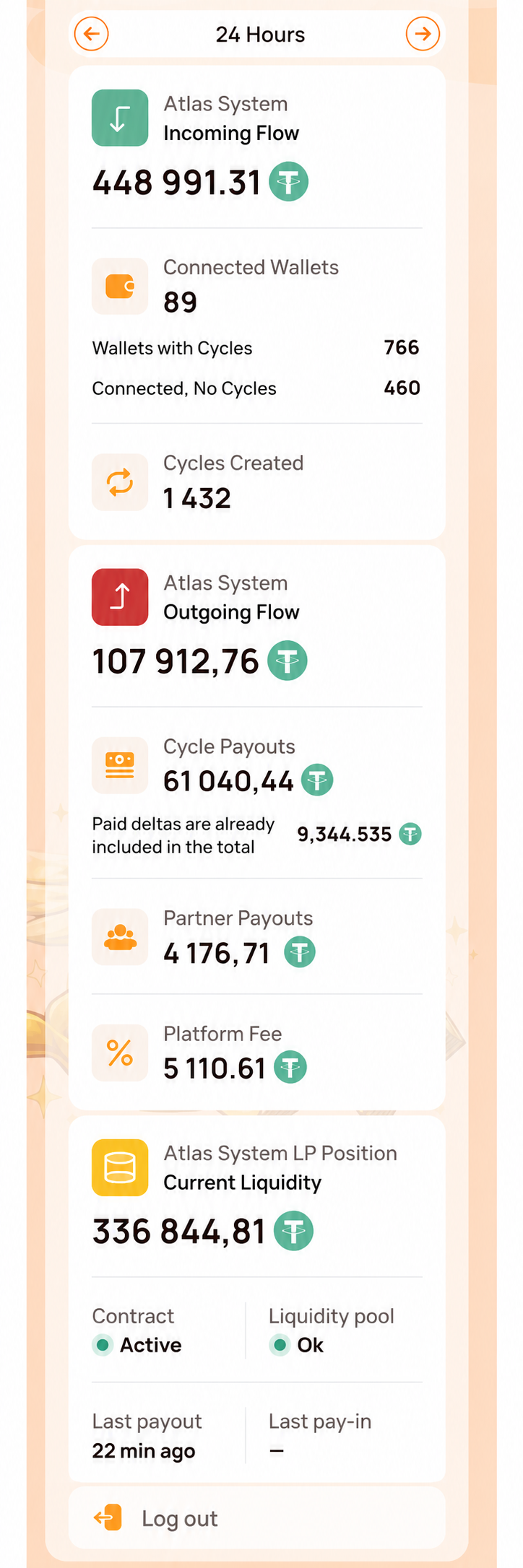
The screenshot begins below the top bar so that the participant's wallet address is not displayed. It focuses only on the side navigation and System Health panel. The main Dashboard area is shown separately in the next visual.
2. Dashboard
What it is
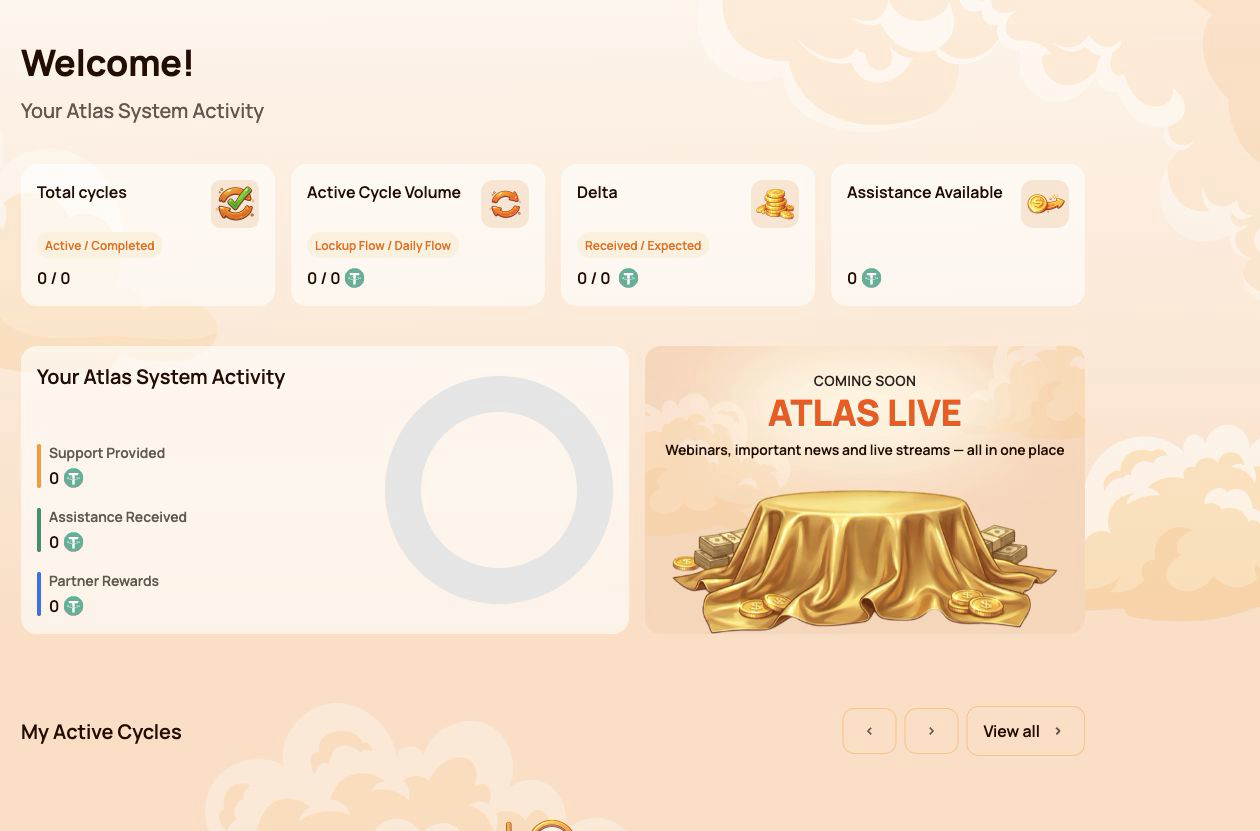
ড্যাশবোর্ড is the main overview screen. It summarises the participant's cycles, activity, available assistance and partner progress without requiring the user to open each section separately.
Why it is needed
Use Dashboard to:
- see the number of active and completed cycles;
- compare Lockup Flow and Daily Flow activity;
- check received and expected Delta;
- see whether assistance is currently available;
- review total support, assistance and partner rewards;
- open current cycles or partner information for more detail.
Main summary cards
Total cycles
Shows the number of Active / Completed cycles.
- Active — cycles currently running under their smart contract conditions.
- Completed — cycles that have finished under the rules of the selected flow.
A newly created cycle may take a short time to appear while the blockchain transaction is being confirmed.
Active Cycle Volume
Shows the active Support Amount broken down by Lockup Flow / Daily Flow.
This is the value assigned to active cycles. It is not the spendable USDT balance in the connected wallet.
Delta
Shows Received / Expected Delta.
- Received Delta — additional assistance already received above the amount of provided support.
- Expected Delta — additional assistance calculated under the current Smart Cycle conditions.
Expected Delta is a calculation, not a guaranteed balance. Availability depends on the smart contract rules and available liquidity.
Assistance Available
Shows the amount currently available to request through Claim.
Before making a Claim, check:
- the relevant cycle;
- connected wallet;
- BNB Smart Chain network;
- BNB balance for gas;
- the amount shown in the wallet confirmation.
Your Atlas System Activity
This block compares three types of participant activity:
| Indicator | Meaning |
|---|---|
| Support Provided | Total amount of support directed into Smart Cycles |
| Assistance Received | Assistance already received through completed Claims |
| Partner Rewards | Rewards received through the Partner Program |
These figures represent different categories and should not be added together as if they were a wallet balance.
My Active Cycles
This block provides quick access to current cycles. Open My Support Cycles when you need the full cycle card, dates, terms, status, Expected Delta, Claim action or transaction information.
If there are no active cycles, the block may be empty.
Partner Status
The Dashboard shows a compact partner summary:
- Current Partner Status;
- Personal Active Cycle Volume;
- First-Line Active Cycle Volume;
- Partner Structure Active Cycle Volume;
- remaining requirements for the next status.
The detailed qualification rules, weighted Partner Structure Volume, structure coefficients and reward examples belong in the separate পার্টনার প্রোগ্রাম guide.
How to use Dashboard
- Open ড্যাশবোর্ড in the side menu.
- Check the four summary cards at the top.
- Review the activity block to distinguish support, assistance and partner rewards.
- Open My Active Cycles if a cycle requires attention.
- Open the Partner Program section when the partner summary requires more detail.
What to check when values look incorrect
- Confirm that the same wallet used for the operation is connected.
- Wait for blockchain confirmation and refresh the page.
- Compare the information with My Support Cycles → Operations History.
- Verify the transaction on BscScan.
- If the confirmed transaction is still missing, contact support and provide the transaction hash.
Numeric values shown in screenshots are examples and may change at any time.
3. Provide Support
What it is
Provide Support is the section used to create a new Smart Cycle. It contains the same basic sequence for both modes: select a flow, review its conditions, enter the Support Amount, accept the terms and confirm the transaction in the connected wallet.
Use this section when you are ready to create a cycle. To review an existing cycle or make a Claim, open My Support Cycles instead.
Why it is needed
Provide Support allows the participant to:
- choose between Lockup Flow and Daily Flow;
- select or identify the applicable cycle tariff;
- specify the Support Amount in USDT;
- review Expected Assistance before confirming;
- confirm voluntary participation and the terms of use;
- send the transaction request to the connected wallet.
Fields available in both modes
| Field | What it means | What to check |
|---|---|---|
| Choose Cycle Type | Selects Lockup Flow or Daily Flow | Make sure the required mode is highlighted |
| Select Cycle | Shows the selected tariff and its conditions | Check the tariff name, term and calculation |
| Support Amount, USDT | Amount of support directed into the cycle | Use USDT on BNB Smart Chain and check the minimum amount |
| Expected Assistance (Principal + Delta) | Calculated principal and additional assistance | Treat this as a calculation under the smart contract rules, not a guaranteed wallet balance |
| Terms of use | Rules governing participation | Open and read the terms before accepting |
| Voluntary confirmation | Confirms that the participant is acting voluntarily | Both confirmations are required before the button becomes available |
| Provide Support | Sends the operation to the connected wallet | The cycle is not created until the wallet transaction is confirmed |
3.1 Lockup Flow
What it is
Lockup Flow creates a cycle with a fixed term. Assistance becomes available for Claim after the selected term ends, subject to the relevant smart contract rules and available liquidity.
What is shown
- Lockup Flow — Assistance at Term End selector;
- cycle tariff with its term and calculated percentage;
- Support Amount in USDT;
- Expected Assistance shown as Principal + Delta;
- required confirmations;
- Provide Support button;
- notice that the cycle is created only after wallet confirmation.
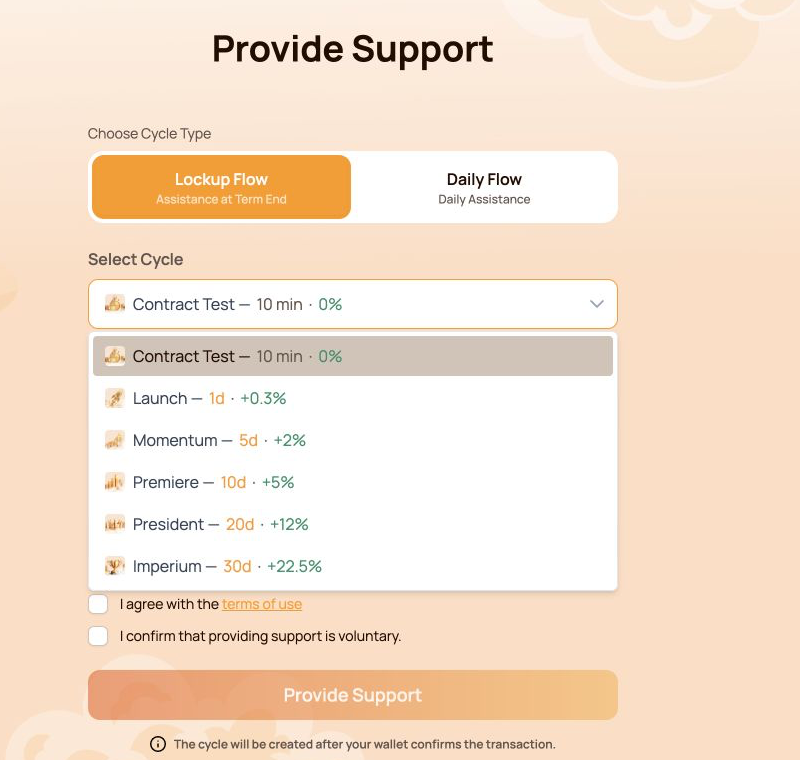
The Contract Test tariff uses a fixed Support Amount of 10 USDT. Its purpose is to let the participant test the full interaction with the smart contract over a short period. Other Lockup Flow tariffs use their own terms and calculations.
Available Lockup Flow cycles
| Cycle | Term | Calculated Delta |
|---|---|---|
| Contract Test | 10 minutes | — |
| Launch | 1 day | +0.3% |
| Momentum | 5 days | +2% |
| Premiere | 10 days | +5% |
| President | 20 days | +12% |
| Imperium | 30 days | +22.5% |
The open selector in the screenshot shows all six options together. Before choosing, compare the term and calculated Delta with the amount you are prepared to direct into the cycle.
How to use it
- Open Provide Support.
- Select Lockup Flow.
- Open Select Cycle and choose the required tariff.
- Check the term and calculated percentage shown next to the tariff.
- Enter the Support Amount. For Contract Test, the amount is fixed at 10 USDT.
- Review Expected Assistance (Principal + Delta).
- Open and accept the terms of use.
- Confirm that providing support is voluntary.
- Click Provide Support.
- Verify the network, token, amount and gas fee in the wallet, then confirm the transaction.
3.2 Daily Flow
What it is
Daily Flow creates a 200-day cycle with the right to request assistance daily under the smart contract conditions. The original Support Amount is included in the daily assistance Claims.
What is different from Lockup Flow
- the cycle lasts 200 days;
- the applicable tariff depends on the Support Amount;
- the form shows Daily accrual;
- assistance can be requested daily according to the contract conditions;
- assistance is not deferred to a single end-of-term Claim.
Current tariff ranges:
| Tariff | Support Amount | Term | Daily payout | Calculated Delta |
|---|---|---|---|---|
| Core | 10–2,000 USDT | 200 days | 1.1% per day | +120% |
| Elite | Above 2,000 USDT | 200 days | 1.3% per day | +160% |
The interface may determine the Daily Flow tariff automatically according to the entered Support Amount.
The original Support Amount is included in the daily assistance Claims. The daily payout and Delta shown in the interface are calculations under the current smart contract conditions and available liquidity.
How to use it
- Open Provide Support.
- Select Daily Flow.
- Check the tariff displayed in Select Cycle.
- Enter the Support Amount. The current minimum is 10 USDT.
- Review Expected Assistance (Principal + Delta) and Daily accrual.
- Open and accept the terms of use.
- Confirm that providing support is voluntary.
- Click Provide Support.
- Verify the transaction details in the wallet and confirm.
- After blockchain confirmation, open My Support Cycles to check the new cycle.
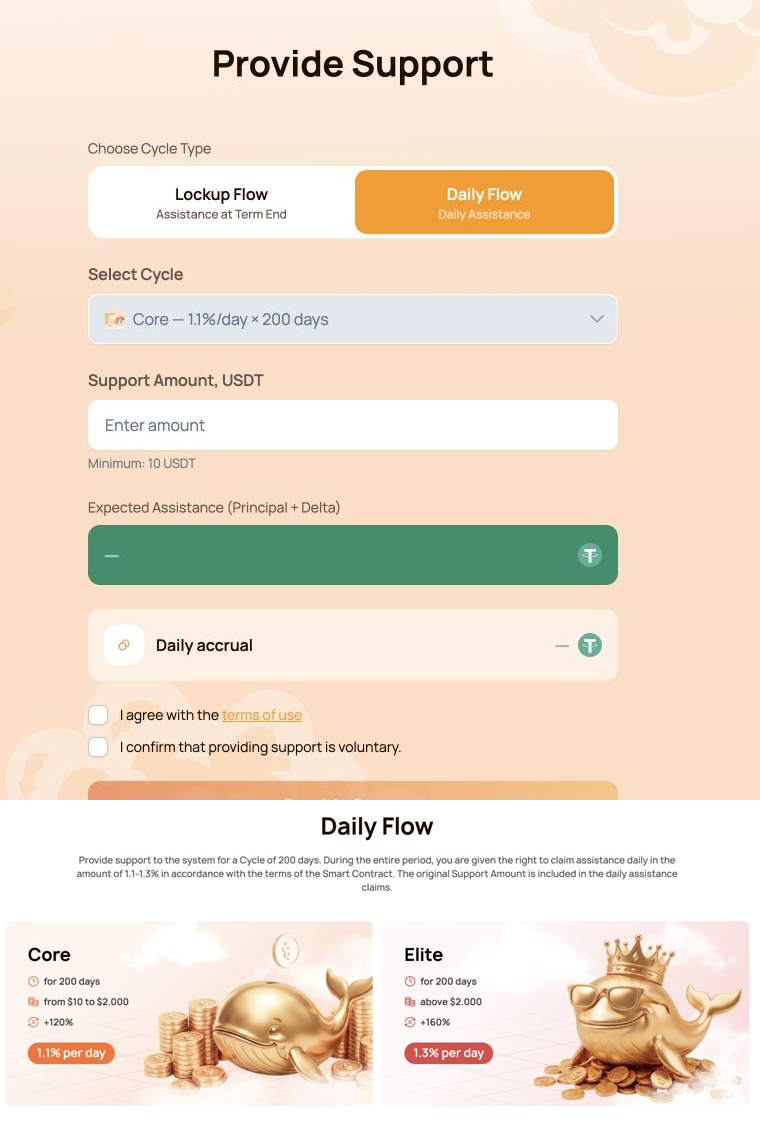
The combined visual shows the Daily Flow form first and the Core/Elite comparison directly below it.
3.3 Wallet confirmation
The Provide Support button does not move funds by itself. It creates a transaction request that must be reviewed and signed in the connected wallet.
Before confirming, check:
- the wallet is connected to BNB Smart Chain;
- the token is USDT BEP-20;
- the Support Amount matches the form;
- the wallet contains enough BNB for gas;
- the destination is the official Atlas System smart contract;
- the transaction was opened from
app.atlas-system.tech.
For the first USDT operation, the wallet may request two confirmations:
- USDT approval for the smart contract;
- creation of the Smart Cycle.
Both transactions require BNB gas. Never enter a seed phrase or private key into the Atlas System website.
If the button is unavailable
Check that:
- the Support Amount meets the minimum and tariff limits;
- both confirmations are selected;
- the wallet is connected;
- the correct network is active;
- the form does not show a validation error.
Lockup Flow tariffs, Daily Flow calculations, cycle statuses and Claim are covered in the separate Smart Cycle guide.
4. My Support Cycles
What it is
My Support Cycles is the section for monitoring cycles after they have been created. It separates current cycles, finished cycles and the history of cycle creation and received assistance.
Use this section to:
- confirm that a new cycle appeared after the blockchain transaction;
- track active Lockup Flow and Daily Flow cycles;
- check terms, dates and calculated Delta;
- find completed cycles;
- review cycle creation and assistance history;
- BscScan verification বা support request-এর জন্য দরকারি information খুঁজুন।
The section contains three main tabs: Active, Completed and Operations History.
4.1 সক্রিয়
What it shows
Active tab-এ smart contract-এর শর্ত অনুযায়ী বর্তমানে চলমান cycle থাকে।
উপরের flow selector যেগুলো আলাদা করে:
- Lockup Flow — Assistance at Term End;
- Daily Flow — Daily Assistance.
সংক্ষিপ্ত indicator:
| Indicator | Meaning |
|---|---|
| Active Cycle Volume | Selected flow-এর active cycle-এ বর্তমানে assigned total Support Amount |
| Expected Delta | দেখানো সক্রিয় সাইকেলগুলোর জন্য হিসাবকৃত অতিরিক্ত সহায়তা |
সাইকেলের তথ্যে থাকতে পারে:
- Support Amount;
- Term;
- Start ও end date;
- প্রত্যাশিত Delta;
- Current status;
- Available Claim action;
- সংশ্লিষ্ট blockchain transaction।
How to use it
- Open আমার সহায়তা চক্র → সক্রিয়.
- Lockup Flow বা Daily Flow নির্বাচন করুন।
- Support Amount, term বা date দিয়ে প্রয়োজনীয় cycle খুঁজুন।
- বর্তমান স্ট্যাটাস ও হিসাব দেখুন।
- Claim উপলভ্য হলে amount দেখে wallet-এ transaction confirm করুন।
Daily Flow-এ দৈনিক হিসাব ও সম্পন্ন Claim অনুযায়ী উপলভ্য সহায়তা বদলাতে পারে।
4.2 সম্পন্ন
What it shows
Completed tab-এ selected flow-এর rule অনুযায়ী শেষ হওয়া cycle থাকে, যেগুলো আর active হিসেবে দেখানো হয় না।
সংক্ষিপ্ত indicator:
| Indicator | Meaning |
|---|---|
| সম্পন্ন সাইকেলের পরিমাণ | Selected flow-এর completed cycle-এর সঙ্গে associated total Support Amount |
| Received Delta | দেখানো সম্পন্ন সাইকেল থেকে ইতিমধ্যে প্রাপ্ত Delta |
একই Lockup Flow ও Daily Flow selector available। Historical cycle information Support Amount, term, date, calculation ও related transaction যাচাইয়ে উপযোগী।
How to use it
- Open আমার সহায়তা চক্র → সম্পন্ন.
- প্রয়োজনীয় flow নির্বাচন করুন।
- Amount, term বা date দিয়ে cycle খুঁজুন।
- এর তথ্য অপারেশনের ইতিহাসের সঙ্গে মিলিয়ে দেখুন।
- BscScan-এ independent verification-এর জন্য transaction information ব্যবহার করুন।
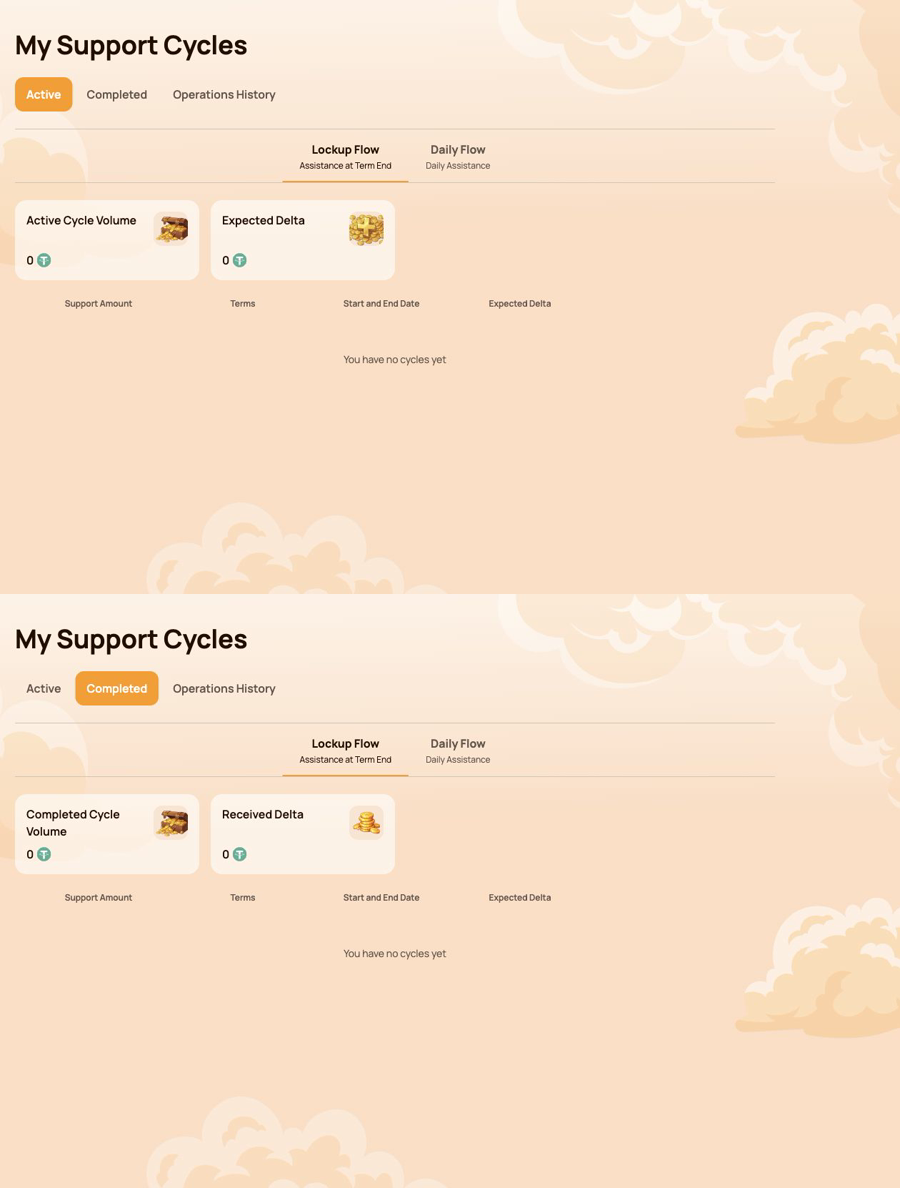
Combined visual-এ প্রথমে Active এবং তার ঠিক নিচে Completed দেখানো হয়েছে। Sample wallet-এ কোনো cycle নেই, তাই screenshot-গুলো অংশগ্রহণকারীর data প্রকাশ না করে empty state ও available control দেখায়।
4.3 অপারেশনের ইতিহাস
Operations History records the two main types of participant activity related to Smart Cycles.
সাইকেল তৈরি
Connected wallet থেকে তৈরি cycle যাচাই করতে এই tab ব্যবহার করুন।
প্রদর্শিত field:
- সাইকেল তৈরির তারিখ;
- সাইকেলের নাম;
- শর্ত;
- Support Amount।
Cycle creation transaction confirm হওয়ার পর cycle কখন ও কোন condition-এ তৈরি হয়েছিল তা যাচাই করতে এই view উপযোগী।
Assistance Received
Completed assistance Claim review করতে এই tab ব্যবহার করুন।
সংক্ষিপ্ত indicator:
- প্রাপ্ত সহায়তা Claim;
- প্রাপ্ত সহায়তার পরিমাণ।
প্রদর্শিত field:
- সাইকেল;
- সাইকেল তৈরির তারিখ;
- Payout-এর পরিমাণ;
- স্মার্ট কন্ট্র্যাক্ট;
- Status।
Smart contract ও Status field dashboard record-কে on-chain verification-এর সঙ্গে মিলাতে সাহায্য করে।
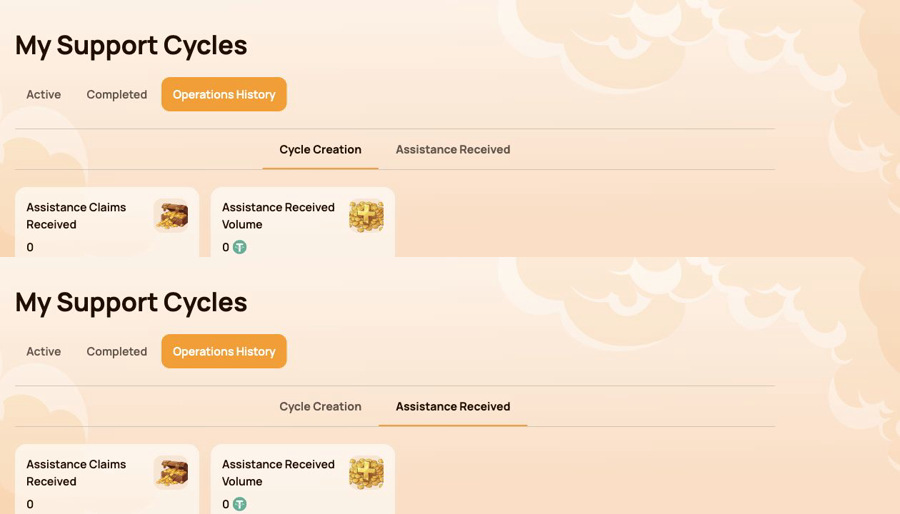
Combined visual-এ প্রথমে Cycle Creation এবং তার নিচে Assistance Received দেখানো হয়েছে।
4.4 কোনো সাইকেল বা অপারেশন দেখা না গেলে
- Transaction-এ ব্যবহৃত একই wallet connected আছে কি না নিশ্চিত করুন।
- BNB Smart Chain নির্বাচিত আছে কি না দেখুন।
- Blockchain confirmation-এর জন্য অপেক্ষা করে ব্যক্তিগত ড্যাশবোর্ড refresh করুন।
- Lockup Flow ও Daily Flow—দুটি filter-ই দেখুন।
- সক্রিয়, সম্পন্ন ও অপারেশনের ইতিহাস দেখুন।
- Wallet বা BscScan-এ transaction খুলুন।
- If the transaction is confirmed but the record is still missing, contact support and provide:
- connected wallet address;
- Transaction hash;
- Cycle type ও amount;
- Operation-এর আনুমানিক সময়;
- Relevant tab-এর screenshot।
Cycle statuses and Claim conditions are explained in Smart Cycle. Transaction verification is covered in Contracts & BscScan.
5. পার্টনার প্রোগ্রাম
The পার্টনার প্রোগ্রাম section brings together partner rewards, team structure, status progress and activity statistics. Use it to monitor your own partner account and the activity associated with your referral structure.
This section explains the personal dashboard interface. Status rules, qualification volumes, reward calculation and worked examples are covered in the separate পার্টনার প্রোগ্রাম guide.
Section-টিতে চারটি tab রয়েছে:
- Partner Wallet;
- Accrual History;
- My Team;
- পরিসংখ্যান.
5.1 পার্টনার ওয়ালেট
Partner Wallet shows the current state of partner rewards.
| Indicator | Meaning |
|---|---|
| Account Balance | ড্যাশবোর্ডে বর্তমানে উপলভ্য হিসেবে দেখানো পার্টনার পুরস্কার |
| Total Accrued | Program rule অনুযায়ী জমা হওয়া মোট পার্টনার পুরস্কার |
| Rewards Received | ইতিমধ্যে পাওয়া পার্টনার পুরস্কার |
The Withdrawal History table records withdrawals and displays:
- উত্তোলনের তারিখ;
- উত্তোলনের পরিমাণ;
- Status;
- Tx Hash।
Use Tx Hash to open the related transaction on BscScan and verify it independently. The information tooltip next to Account Balance explains how automatic payouts work.
5.2 জমার ইতিহাস
Accrual History shows how partner rewards were accrued. When accruals are available, the table includes:
- Accrual Date;
- বোনাস;
- Accrued Reward Amount.
যে bonus accrual তৈরি করেছে তা শনাক্ত করতে এই tab ব্যবহার করুন। জমা হওয়া reward ও পাওয়া payout আলাদা stage: আগে এখানে accrual দেখুন, তারপর পার্টনার ওয়ালেট ও তার উত্তোলনের ইতিহাস দেখুন।
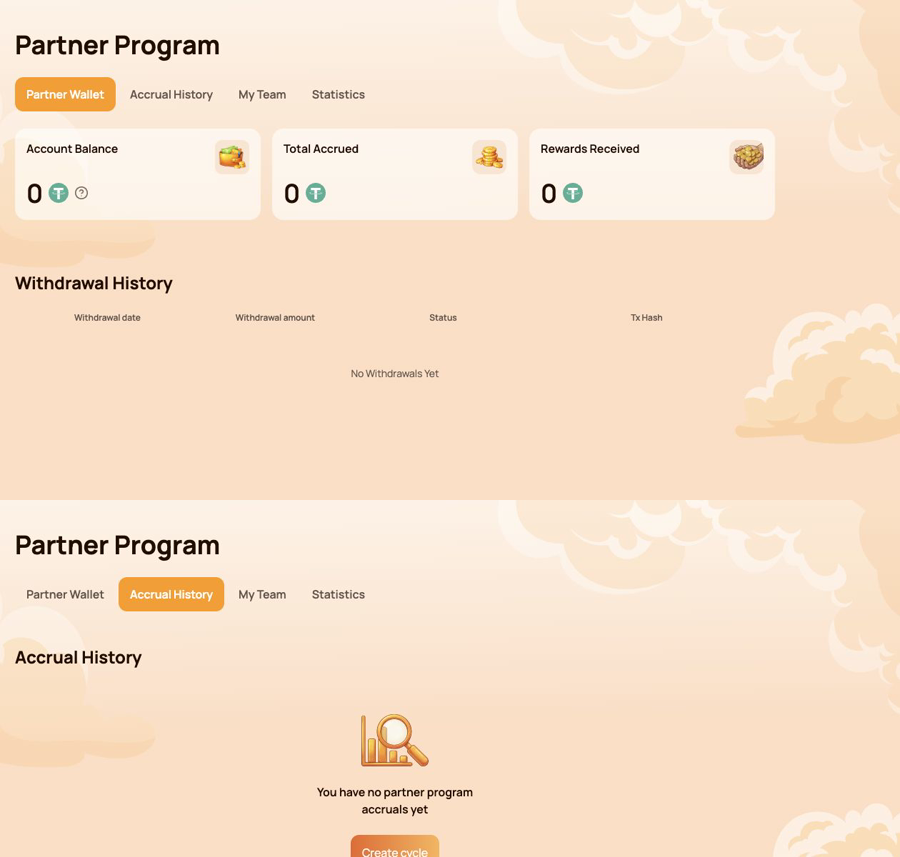
Combined visual-এ প্রথমে পার্টনার ওয়ালেট এবং তার ঠিক নিচে জমার ইতিহাস দেখানো হয়েছে।
5.3 আমার টিম
My Team is the main workspace for status progress and referral structure.
পার্টনারের তথ্য
উপরের panel-এ দেখায়:
- Partner Status — the current status and its reward rate;
- My Referral Link — the personal link used to invite new participants;
- My Referrer (Wallet Address) — the wallet whose referral link was used;
- Referrer Status — the current status of that referrer.
The personal referral link becomes available after the first qualifying Smart Cycle of 10 USDT or more. If the field shows Not Available, check the cycle and status conditions described in the Partner Program guide.
পরবর্তী Status-এর শর্ত
তিনটি volume-এর অগ্রগতি দেখানো হয়:
- Personal Active Cycle Volume;
- First-Line Active Cycle Volume;
- Partner Structure Active Cycle Volume.
For each requirement, compare Current, Required and Remaining. This makes it clear which condition has already been met and which volume is still needed for the next status.
Status-এর শর্ত ও কাঠামো
The Status Requirements table compares all statuses by:
- ব্যক্তিগত active cycle volume;
- First-line-এর active cycle volume;
- Partner structure-এর active cycle volume;
- Unlimited depth-সহ structure reward rate;
- Matching reward rate।
Below the table, use Structure Lines and Search by Wallet Address to navigate the structure. The results identify the participant wallet and status. The Leaders statistics in the structure section helps identify the most active parts of the team.
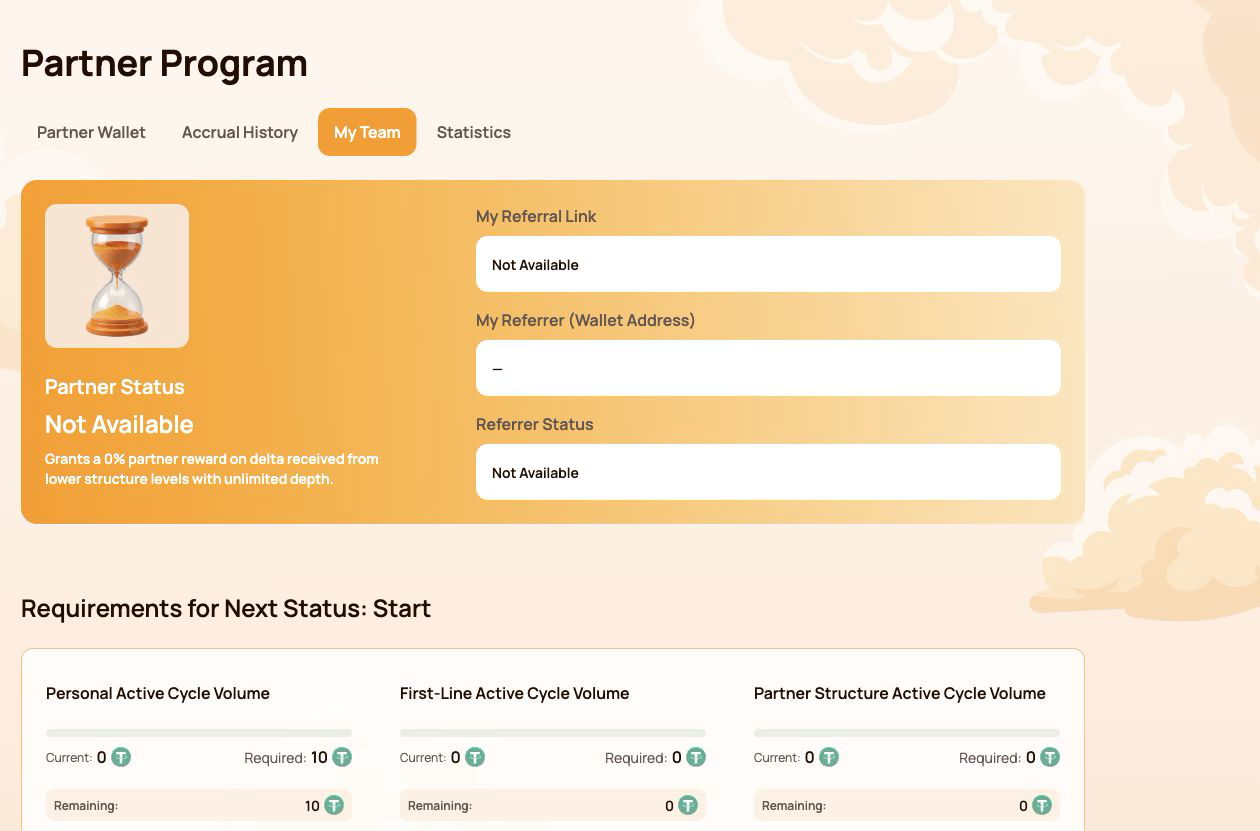
Screenshot-এ active পার্টনার স্ট্যাটাস নেই এমন account ব্যবহার করা হয়েছে এবং কোনো অংশগ্রহণকারীর wallet address প্রকাশ করা হয়নি।
5.4 পরিসংখ্যান
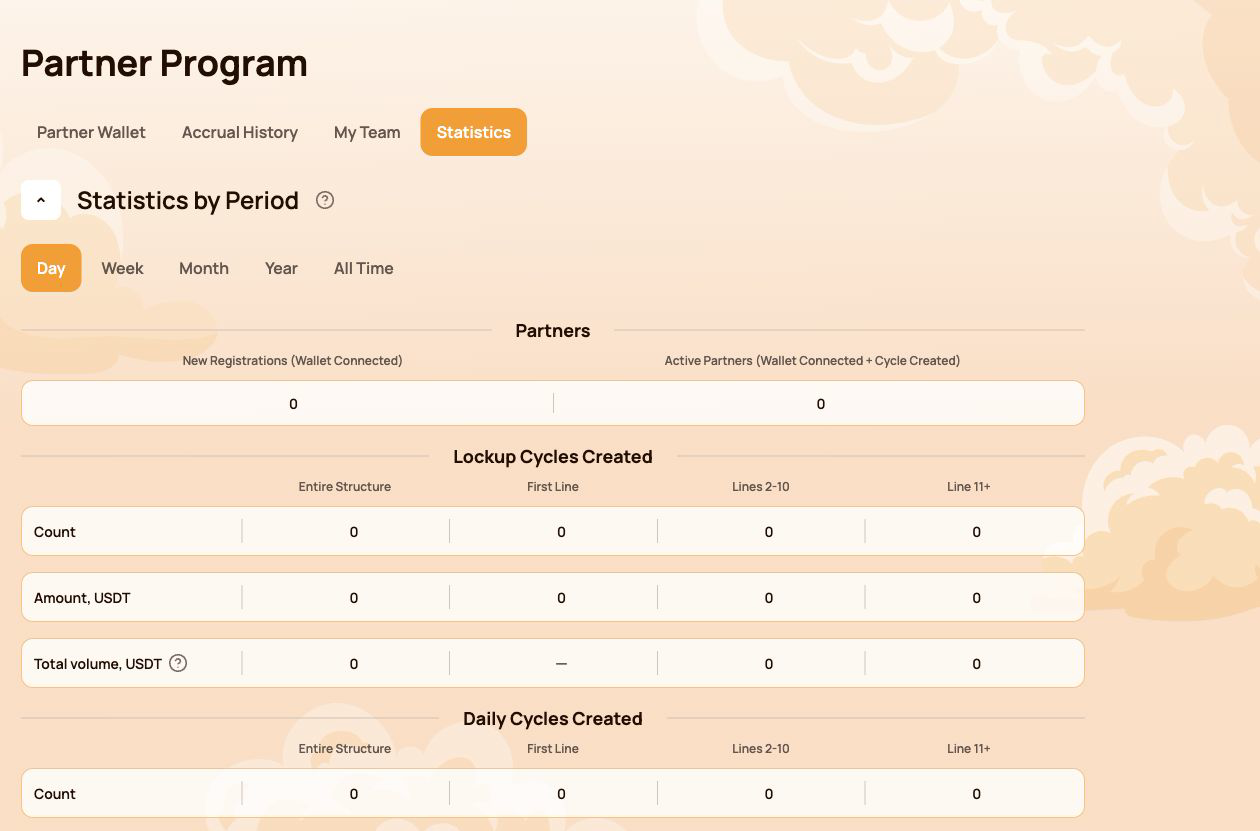
পরিসংখ্যান summarizes partner activity for the selected period. Available filters are Day, Week, Month, Year and All Time.
পার্টনাররা
- New Registrations (Wallet Connected) — wallets newly connected through the structure;
- Active Partners (Wallet Connected + Cycle Created) — connected partners who also created a cycle.
তৈরি করা সাইকেল
Lockup Flow ও Daily Flow আলাদাভাবে দেখানো হয়। প্রতিটি flow-এর জন্য ড্যাশবোর্ড activity-কে নিচের ভিত্তিতে ভাগ করে:
- সম্পূর্ণ কাঠামো;
- প্রথম লাইন;
- লাইন 2–10;
- লাইন 11+।
Table-এ cycle-এর সংখ্যা, USDT amount এবং system metric-এ অন্তর্ভুক্ত total volume দেখানো হয়।
কাঠামোর গভীরতা পূর্ণ volume-কে কীভাবে প্রভাবিত করে
The information tooltip next to Total volume explains the coefficients used for structure depth:
| Structure depth | গণনা করা volume |
|---|---|
| প্রথম লাইন | প্রথম লাইন ও সীমাহীন গভীরতার মেট্রিকের জন্য 100% |
| লাইন 2–5 | সীমাহীন গভীরতার মেট্রিকের জন্য 100% |
| Lines 6–10 | 50% |
| Line 11+ | 10% |
Most Active Lines highlights the leading structure lines and shows their partner count and USDT volume.
5.5 গুরুত্বপূর্ণ নোট
- Account Balance in Partner Wallet is a dashboard partner balance; it is not the same as the USDT balance displayed by your wallet application.
- Blockchain confirmation ও dashboard synchronization-এর পর নতুন accrual, withdrawal ও statistic দেখা যেতে পারে।
- পার্টনার ডেটা দেখার আগে সব সময় সঠিক ওয়ালেট সংযুক্ত আছে কি না যাচাই করুন।
- অনুমতি ছাড়া screenshot-এ referral বা participant wallet data প্রকাশ করবেন না।
- On-chain check-এর জন্য transaction hash ও official contract registry ব্যবহার করুন।
Status conditions, qualification volumes and reward examples are explained in পার্টনার প্রোগ্রাম. Terms are defined in শব্দকোষ.
6. প্রোফাইল
The Profile section stores the participant information used for communication and partner-facing features. It does not store wallet access credentials and does not replace the connected wallet address.
Open Profile from the left navigation. After making changes, select Save at the bottom of the page.
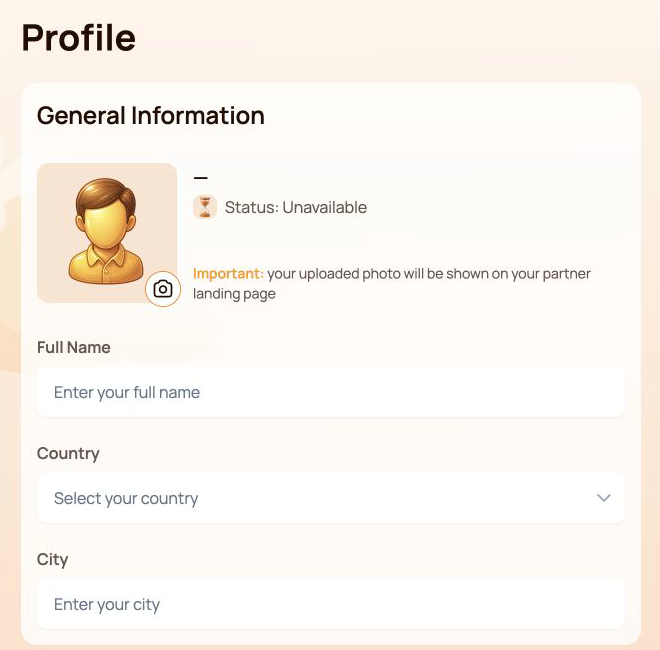
6.1 সাধারণ তথ্য
উপরের panel-এ রয়েছে:
- Avatar — select the camera icon to add or replace the profile image;
- Status — the current partner status associated with the connected wallet;
- Full Name;
- Country;
- City.
The interface warns that the uploaded photo may be shown on the participant's partner landing page. Use only an image that you are comfortable displaying there.
6.2 যোগাযোগের তথ্য
This section contains Phone Number and Email.
The Visible to partners switch controls the partner visibility setting for the contact information block. Before enabling it, check that the entered details are intended to be shared with partners.
6.3 সামাজিক মাধ্যম
Available field-গুলো হলো:
- Facebook — username or profile link;
- Instagram — username or profile link;
- WhatsApp — phone number or link;
- Telegram — username, link or phone number.
Social networks have their own Visible to partners switch. This setting is separate from the visibility switch in Contact Information.
কোনো service ব্যবহার না করলে বা profile-এ রাখতে না চাইলে field খালি রাখতে পারেন।
6.4 যোগাযোগের সেটিংস
যোগাযোগের ভাষা
যোগাযোগের ভাষা records the participant's preferred language for communication. Select one of the supported Atlas System languages listed in Notifications and interface language below.
This field is different from the language selector in the top bar: the top-bar control changes the dashboard interface language, while যোগাযোগের ভাষা belongs to the saved profile settings.
পছন্দের যোগাযোগ পদ্ধতি
আপনি যে channel-এ যোগাযোগ করতে চান তা নির্বাচন করুন:
- Telegram;
- WhatsApp;
- ইমেইল।
পছন্দের method বেছে নেওয়ার আগে সংশ্লিষ্ট contact বা social-network field পূরণ করুন। একাধিক channel উপযুক্ত হলে একাধিক checkbox বেছে নেওয়া যায়।
Select Save after changing the language, communication methods or any other profile field.
6.5 গোপনীয়তা ও নিরাপত্তা
- Enable Visible to partners only for information you intend to share.
- দুটি visibility switch আলাদাভাবে ব্যবহার করুন: একটি contact detail এবং অন্যটি social network-এ প্রযোজ্য।
- Profile-এর কোনো field-এ কখনো seed phrase, private key, wallet password, one-time security code বা exchange password লিখবেন না।
- প্রোফাইলের সমস্যা যাচাই করতে Atlas System সহায়তার ওয়ালেট access credential দরকার হয় না।
- Top bar-এর shortened wallet address connected wallet চিহ্নিত করে; এটি Profile থেকে edit করা হয় না।
6.6 পরিবর্তন সংরক্ষিত না হলে
- সব required field প্রত্যাশিত format ব্যবহার করছে কি না নিশ্চিত করুন।
- Select Save and wait for the interface response.
- Page refresh করে value-গুলো থাকে কি না যাচাই করুন।
- একই wallet এখনো connected আছে কি না নিশ্চিত করুন।
- Value আবার হারালে support-এ যোগাযোগ করে private credential না দেখিয়ে screenshot দিন।
Partner status and the partner landing page are explained in পার্টনার প্রোগ্রাম. Safe data sharing is covered in নিরাপত্তা.
7. বিজ্ঞপ্তি ও ইন্টারফেসের ভাষা
Notification bell ও interface language selector top bar-এ থাকে এবং পুরো ব্যক্তিগত ড্যাশবোর্ড জুড়ে available থাকে।
7.1 বিজ্ঞপ্তি
Select the Notifications bell to open the notification center. Messages are grouped into three tabs:
| ট্যাব | What it shows |
|---|---|
| সব বার্তা | উপলভ্য সব বিজ্ঞপ্তি |
| Read | যেসব notification ইতিমধ্যে খোলা হয়েছে বা read হিসেবে চিহ্নিত |
| অপঠিত | যেসব notification এখনো পড়া হয়নি; bracket-এর সংখ্যা বর্তমান unread count |
If the page shows You have no notifications yet, there are currently no messages for the connected account. This is a normal empty state and does not indicate an error.
গুরুত্বপূর্ণ সীমাবদ্ধতা
ড্যাশবোর্ডের বিজ্ঞপ্তি কেবল তথ্যের জন্য। এটি নিচের বিষয়গুলোর বিকল্প নয়:
- Wallet transaction-এর status;
- Blockchain confirmation;
- BscScan-এর transaction record;
- the current cycle status in My Support Cycles.
Notification ও on-chain transaction-এ অমিল দেখালে আগে wallet address, transaction hash ও smart contract যাচাই করুন।
7.2 ইন্টারফেসের ভাষা
Top bar-এ current language নির্বাচন করুন, তারপর প্রয়োজনীয় interface language বেছে নিন:
- English;
- Bahasa Indonesia;
- Bahasa Melayu;
- Deutsch;
- Español;
- Français;
- Русский;
- Português;
- Tiếng Việt;
- Türkçe;
- हिन्दी;
- 中文;
- ไทย.
Selected option Atlas System-এর ব্যক্তিগত ড্যাশবোর্ডের ভাষা বদলায়। Wallet extension, BscScan ও অন্য external service নিজেদের language setting বজায় রাখে।
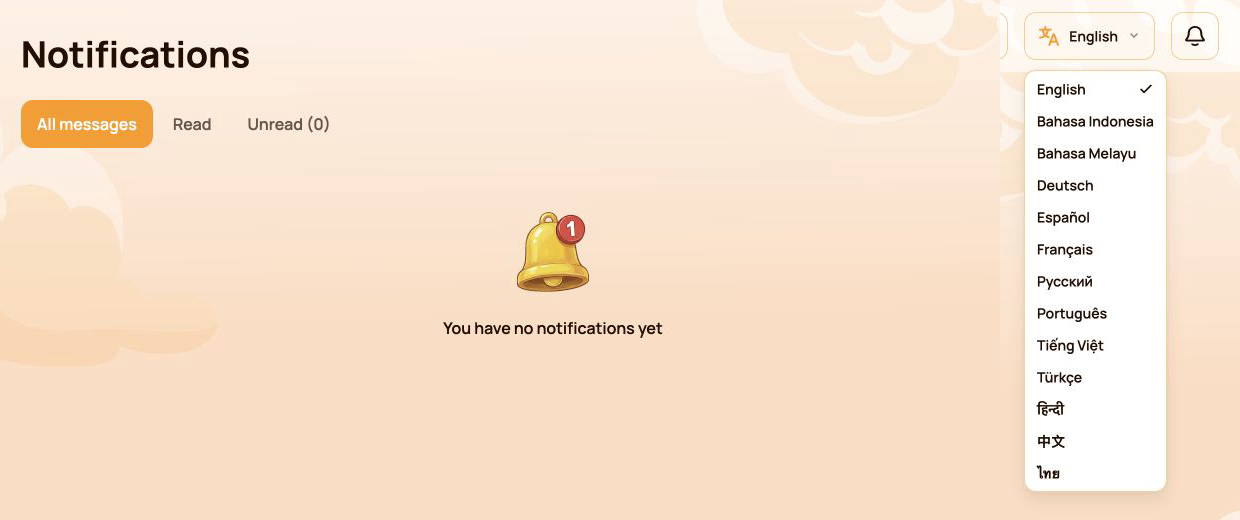
Visual-এ সম্পূর্ণ interface language list দেখানো হয়েছে।
7.3 ইন্টারফেসের ভাষা ও যোগাযোগের ভাষা
এই দুই setting-এর উদ্দেশ্য আলাদা:
| সেটিং | অবস্থান | Purpose |
|---|---|---|
| ইন্টারফেসের ভাষা | Top bar | ব্যক্তিগত ড্যাশবোর্ডের ইন্টারফেসে ব্যবহৃত ভাষা পরিবর্তন করে |
| যোগাযোগের ভাষা | Profile | Records the participant's preferred language for communication |
If you want both settings to match, change the top-bar language and then select the same language in Profile → Communication Language and save the profile.
7.4 বিজ্ঞপ্তি বা অনুবাদ আপডেট না হলে
- সঠিক wallet connected আছে কি না নিশ্চিত করুন।
- ড্যাশবোর্ড refresh করুন।
- Notification center বা language selector আবার খুলুন।
- নির্বাচিত ভাষা top bar-এ দেখা যাচ্ছে কি না দেখুন।
- প্রত্যাশিত message না থাকলে সংশ্লিষ্ট dashboard section ও BscScan-এ related cycle বা transaction যাচাই করুন।
- Dashboard অসামঞ্জস্যপূর্ণ থাকলে support-এ যোগাযোগ করুন; প্রযোজ্য হলে screenshot ও transaction hash দিন।
Official translated labels are collected in শব্দকোষ. Related issues are covered in সমস্যা সমাধান.
8. সিস্টেমের অবস্থা
The Health of System panel is located below the main navigation. It provides an at-a-glance view of system-wide activity and operational status. Use All time or Last 24 hours to select the displayed period.
These indicators describe Atlas System as a whole. They are not the connected participant's wallet balance, personal cycle volume or guaranteed assistance amount.
8.1 সূচক
| Indicator | What it means |
|---|---|
| সার্ভারের সময় | বর্তমান health snapshot দেখানোর সময় dashboard যে date ও time ব্যবহার করে |
| তৈরি সাইকেল / আগত সহায়তার পরিমাণ | প্রদর্শিত সময়ে তৈরি cycle-এর সংখ্যা এবং তাদের সম্মিলিত incoming Support Volume |
| সম্পন্ন সাইকেল / বহির্গত সহায়তার পরিমাণ | প্রদর্শিত সময়ে সম্পন্ন cycle-এর সংখ্যা এবং তাদের সম্মিলিত outgoing Assistance Volume |
| স্মার্ট কন্ট্র্যাক্ট ব্যালান্স | The current contract balance shown by the dashboard; it is not the participant's wallet balance |
| সব সংযুক্ত ওয়ালেট | প্রদর্শিত সময়ে dashboard-এ record হওয়া wallet-এর সংখ্যা |
| পরিশোধিত Delta | দেখানো সময়ে সম্পন্ন সহায়তা অপারেশনে অন্তর্ভুক্ত Delta |
| পার্টনার প্রোগ্রামের payout | প্রদর্শিত সময়ে record হওয়া পার্টনার পুরস্কারের transfer |
| প্ল্যাটফর্ম ফি | প্রদর্শিত সময়ে record হওয়া প্ল্যাটফর্ম ফি; network gas আলাদা |
| কন্ট্র্যাক্ট | Current dashboard status of the Atlas System smart contracts, such as Active |
| সর্বশেষ পেমেন্ট | System-এ সর্বশেষ recorded payout-এর পর কেটে যাওয়া সময় |
| লিকুইডিটি পুল | Current dashboard health status of the liquidity pool, such as OK |
দুটি cycle indicator-এ প্রথম value cycle-এর সংখ্যা, দ্বিতীয় value USDT volume।
Screenshot-এ সম্পূর্ণ System Health panel দেখানো হয়েছে। সব number capture-এর মুহূর্তের example এবং সময়ের সঙ্গে বদলাবে।
8.2 প্যানেল কীভাবে বুঝবেন
- সবুজ সামগ্রিক health shield বর্তমান ড্যাশবোর্ডের অবস্থার দ্রুত দৃশ্যমান সারাংশ দেয়।
- Contracts: Active means the dashboard currently reports the contracts as operational.
- Liquidity Pool: OK means the dashboard currently reports the pool health check as normal.
- সর্বশেষ পেমেন্ট is an activity timestamp. A longer interval does not by itself prove that the system is unavailable.
- Smart contract balance ও system-wide volume কোনো নির্দিষ্ট অংশগ্রহণকারী Claim করতে পারবেন কি না তা নির্ধারণ করে না।
- প্যানেল সুস্থ দেখালেও নির্দিষ্ট ওয়ালেট লেনদেনের স্ট্যাটাস BscScan-এ যাচাই করার প্রয়োজন শেষ হয় না।
8.3 কোনো সূচক বিলম্বিত বা অনুপলভ্য মনে হলে
- Check সার্ভারের সময় to understand when the displayed snapshot was recorded.
- ড্যাশবোর্ড একবার refresh করে indicator-গুলো আবার দেখুন।
- Open the official সিস্টেমের অবস্থা page for service-wide incidents or maintenance.
- BscScan-এ সরকারি contract address ও সাম্প্রতিক transaction দেখুন।
- For a personal transaction, verify its transaction hash and check My Support Cycles or Operations History.
- If the discrepancy remains, contact support with:
- Affected indicator;
- Panel-এ দেখানো Server Time;
- connected wallet address;
- প্রযোজ্য হলে transaction hash;
- Panel-এর screenshot।
Detailed availability is published in সিস্টেমের অবস্থা. Official addresses and on-chain verification are covered in Contracts & BscScan.
9. দ্রুত কাজের সূচি
কী করতে চান জানা থাকলেও dashboard-এর কোন section খুলবেন নিশ্চিত না হলে এই table ব্যবহার করুন।
| I want to… | Open… |
|---|---|
| সামগ্রিক ব্যক্তিগত activity দেখুন | ড্যাশবোর্ড |
| Lockup বা Daily cycle তৈরি করুন | Provide Support and select the required flow |
| চলমান সাইকেল বা Claim দেখুন | আমার সহায়তা চক্র → সক্রিয় |
| সম্পন্ন সাইকেল খুঁজুন | আমার সহায়তা চক্র → সম্পন্ন |
| সাইকেল তৈরি বা প্রাপ্ত সহায়তা দেখুন | Operations History |
| পার্টনার পুরস্কার, জমা বা withdrawal দেখুন | পার্টনার প্রোগ্রাম → পার্টনার ওয়ালেট / জমার ইতিহাস |
| Referral link copy করুন বা status progress দেখুন | Partner Program → My Team |
| Structure search করুন বা activity তুলনা করুন | পার্টনার প্রোগ্রাম → My Team / পরিসংখ্যান |
| ব্যক্তিগত তথ্য বা visibility update করুন | Profile |
| যোগাযোগের ভাষা বা channel নির্ধারণ করুন | Profile → যোগাযোগের setting |
| ড্যাশবোর্ডের ভাষা পরিবর্তন করুন | Top bar-এর language selector |
| System message পড়ুন | Notifications |
| সামগ্রিক operational indicator দেখুন | সিস্টেমের অবস্থা → All time / Last 24 hours |
| Transaction স্বাধীনভাবে যাচাই করুন | Wallet transaction-এর detail ও BscScan |
নতুন অংশগ্রহণকারীর জন্য প্রস্তাবিত পথ
- Open ড্যাশবোর্ড and confirm that the correct wallet is connected.
- Open Provide Support and review Lockup Flow and Daily Flow before selecting a cycle.
- After the transaction is confirmed, open আমার সহায়তা চক্র → সক্রিয়.
- Use Operations History to review cycle creation and assistance received.
- Use Notifications for system messages and Health of System for overall operational indicators.
For wallet setup, network selection, USDT and BNB requirements, start with দ্রুত শুরু before using the personal dashboard.

