
Solución de problemas
Encuentra el problema antes de repetir la acción
La mayoría de los problemas de Atlas se pueden localizar revisando cinco capas: el sitio web oficial, la cuenta de MetaMask conectada, BNB Smart Chain, la transacción en BscScan y el Panel Personal. Esta guía ofrece un siguiente paso seguro para cada síntoma común.
No repitas una acción en la cadena hasta que la transacción anterior tenga un estado final claro. Primero busque su hash de transacción y verifique en BscScan.


Ruta de diagnóstico
| Lo que ves | Primera fuente para verificar | Siguiente paso típico |
|---|---|---|
| La billetera no se conecta | Cuenta de MetaMask, BSC y permiso del sitio | Vuelve a conectar la cuenta correcta |
| La transacción está pendiente o ha fallado | Hash de Tx en BscScan | Espera o corrige la causa confirmada |
| Ciclo o Reclamación no se muestra | Cuenta, estado del ciclo y resultado en la cadena | Actualizar solo después de comprobar el hash |
1. Realiza cinco comprobaciones antes de volver a intentarlo
Empieza por aquí, incluso si el mensaje de error parece obvio. Estas comprobaciones evitan la mayoría de las transacciones duplicadas y los problemas de cuenta incorrecta.
 Dominio oficialatlas-system.tech
 Cuenta correctaDirección pública esperada
 BNB Smart ChainBSC seleccionado
 USDT + BNBCantidad y gas
 Hash de transacción anteriorEstado final primero
1. Dominio oficial
Abrir Atlas desde atlas-system.tech y verifica la dirección completa antes de conectar la billetera.
2. Cuenta correcta de MetaMask
La cuenta en MetaMask debe ser la misma dirección pública utilizada para el perfil de Atlas correspondiente, Smart Cycle o Reclamación.
3. BNB Smart Chain
Atlas usa BNB Smart Chain (BSC). USDT utilizado para una acción de Atlas debe estar en la BEP20 red.
4. Separa los dos saldos
- USDT cubre el Monto de Apoyo seleccionado u otra cantidad de tokens.
- BNB cubre la comisión de gas de la red BSC.
Manteniendo aproximadamente $5 en BNB es una referencia práctica de inicio, pero la comisión real cambia. Revisa siempre la estimación mostrada por MetaMask.
5. Hash de transacción anterior
Si una acción ya fue enviada, verifica su Hash de Tx en BscScan antes de hacer clic nuevamente. Una actualización lenta del Panel no es motivo para crear una transacción duplicada.
2. MetaMask no se conecta o Atlas no ve la billetera
Entre los síntomas más comunes se encuentra una inactividad Conectar billetera botón, MetaMask no se abre, Atlas sigue solicitando una conexión o aparece una dirección de monedero diferente en el panel de control.
Compruébalo en este orden
- Confirma que la extensión oficial de MetaMask está instalada y habilitada.
- Desbloquea MetaMask antes de pulsar Conectar billetera.
- Seleccione la cuenta deseada.
- Seleccionar BNB Smart Chain.
- Comprueba que
app.atlas-system.techse le permite conectarse a la cuenta. - Permite que aparezca la ventana emergente de la cartera si el navegador la ha bloqueado.
- Actualiza la página de Atlas y vuelve a conectarte.
En un teléfono, abre Atlas a través del navegador web que hay dentro MetaMask Mobile cuando un navegador móvil normal no puede pasar la conexión a la billetera.
La dirección cambió tras la conexión
Cambiar la cuenta de MetaMask seleccionada cambia la dirección pública que se muestra a Atlas. Es posible que una cuenta diferente tenga un perfil, ciclos y datos del Programa de Socios distintos. Vuelve a conectar la billetera original antes de asumir que faltan datos.
El soporte de Atlas no necesita tu frase de recuperación secreta, clave privada o contraseña de MetaMask para diagnosticar un problema de conexión.
3. Red incorrecta, falta de USDT o saldo insuficiente
Importe de la acciónUSDT en la red BEP20Gas de redtarifa de transacción de BSCRed incorrecta
Cambiar MetaMask a BNB Smart Chain, return to Atlas and refresh the page. Do not confirm an Atlas transaction on an unexplained network.
USDT is not visible
Check that the token is USDT on BEP20 and that the intended account is selected. If the token is hidden in MetaMask, add it only by using the official token contract reference.
Tokens sent through another network may not appear in Atlas. Recovery can be difficult or impossible, so verify the network and destination before every transfer.
Insufficient funds
Check USDT and BNB separately:
| Message or symptom | Balance to check | Why |
|---|---|---|
| Support Amount is unavailable | USDT BEP20 | The token amount is too low for the selected action. |
| Insufficient funds for gas | BNB | The wallet cannot pay the BSC network fee. |
| Amount is visible but Confirm fails | USDT, BNB and spending permission | One of the action requirements may still be missing. |
Do not send tokens again until the original transfer, network and receiving address have been verified.
4. MetaMask rejects the request or shows an unclear error
MetaMask messages describe different stages. First identify whether the request was cancelled before submission or failed after being sent to the network.
User rejectedNo hash usually means nothing was submitted.Verify, then restart if neededInsufficient gasThe connected account needs more BNB.Check the MetaMask estimate Cannot estimate gasA contract condition may not be satisfied.Cancel and verify the actionUnexpected requestThe request does not match your click.Reject and check the domain
User rejected / Cancelled
The request was cancelled in the wallet. If no Tx Hash was created, an on-chain transaction was normally not submitted. Return to Atlas, verify the values and start again only if the action is still required.
Insufficient funds for gas
Add enough BNB to the connected account for the estimated network fee. The gas fee is separate from the USDT Support Amount.
Cannot estimate gas / Execution reverted
The contract may reject the current conditions: the action may not yet be available, the amount or permission may be incorrect, or the state may have changed. Do not raise the fee blindly. Cancel the request and verify the cycle, amount, contract and previous transaction.
Unexpected or unreadable request
Seleccionar Reject. Check the official domain, the action that opened MetaMask and the contract address. If the purpose is still unclear, contact official support before confirming.
Connect, Sign, Approve and Confirm are different requests. See the Security guide before approving an action you do not recognise.
5. The transaction is Pending
What Pending means
The transaction has been submitted but does not yet have a final confirmed result. Pending does not by itself mean that funds are lost.
What to do
- Copy the Tx Hash from MetaMask or Atlas operation history.
- Open it on the official BscScan website.
- Confirm that the network is BNB Smart Chain and the sender is the expected wallet.
- Wait for a final Éxito o Fallido status.
- Refresh Atlas only after the on-chain status is clear.
What not to do
- Do not create another Smart Cycle while the first creation transaction is Pending.
- Do not press Claim repeatedly while the first Claim is Pending.
- Do not assume that closing the browser cancels a submitted transaction.
Speed Up o Cancel may be available in the wallet. Each option can create another on-chain action and require BNB gas. Use it only when the wallet offers it for that exact transaction and you understand the result.
6. The transaction Failed or cannot be found
Status: Failed
Check the following before trying again:
- enough BNB for gas;
- the selected BNB Smart Chain network;
- enough USDT for the action;
- the intended account;
- the official Atlas contract address;
- the error or contract message shown by BscScan.
A failed transaction may still consume a BNB network fee because validators processed the attempted execution. Correct the identified cause before resubmitting.
Tx Hash is not found on BscScan
- Confirm that the link opens the BSC explorer, not an explorer for another network.
- Copy the complete Tx Hash again.
- Check whether MetaMask shows the operation as submitted.
- Wait briefly and refresh BscScan once.
If no Tx Hash was created, the action may have been rejected, only signed as a message or never submitted. If MetaMask shows a hash but BscScan still cannot find it, send that hash and a screenshot to support.
7. A Smart Cycle is missing or shows the wrong status
 PendienteWait. Do not create a duplicate.FallidoCorrect the confirmed cause.
 Success but missingRefresh Dashboard, then contact support with the hash.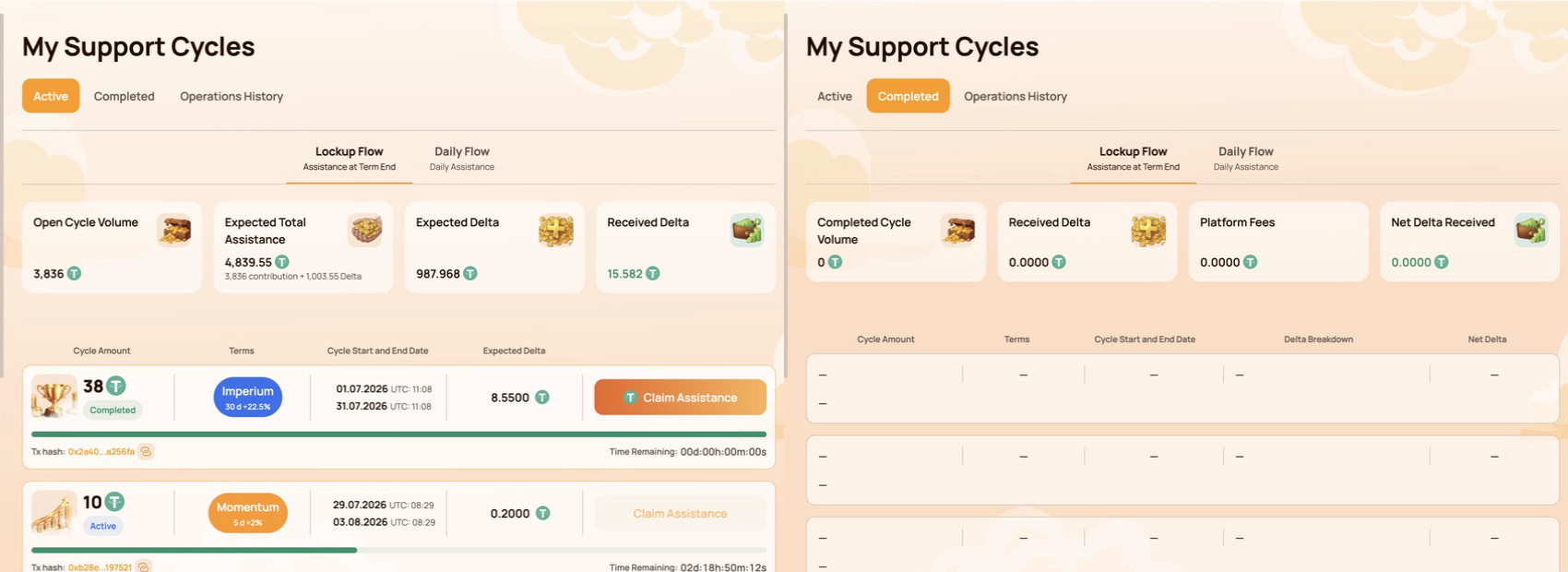
Check the wallet first
Confirm that Atlas is connected to the address that created the cycle. A different MetaMask account displays different activity.
Then check the creation transaction
| BscScan result | Qué significa | Siguiente paso |
|---|---|---|
| Pendiente | Creation is not final | Wait; do not create a duplicate cycle. |
| Fallido | The cycle was not created by that transaction | Correct the confirmed cause before retrying. |
| Éxito | The contract call executed | Refresh the Dashboard and verify the contract and token transfer. |
If BscScan shows Éxito for the official contract but the cycle is still absent after the Dashboard refreshes, contact support with the wallet address and Tx Hash.
A Dashboard delay is not evidence that the cycle or funds are lost. Use the public on-chain record to establish what happened first.
8. Claim is unavailable, Pending or Failed
 Button missingCheck account, BSC, cycle status, term and available amount.PendienteOpen the Tx Hash and wait. Do not repeat Claim.FallidoCheck gas, availability and the on-chain error.
The Claim button is missing
Check:
- the connected MetaMask account;
- BNB Smart Chain;
- the Smart Cycle status and completion time;
- whether the interface shows an available amount;
- whether a previous Claim is already Pending;
- the cycle and contract data on BscScan.
Claim appears only when it is available under the selected Smart Cycle rules. A completed calendar period alone does not replace the current contract state displayed by Atlas.
Claim is Pending
Open the Tx Hash on BscScan and wait for a final result. Do not send another Claim while the first transaction is Pending.
Claim Failed
Check BNB gas, the network, the connected account, Claim availability and the error shown by the contract or BscScan. Retry only after the reason has been corrected.
Which asset pays the fee?
The standard BSC gas fee is paid in BNB. If the connected wallet supports Gas Station or a similar USDT gas feature, the wallet shows the available payment method and exact fee before Confirm. This network fee is separate from any Atlas Platform Fee.
No legitimate support agent needs an extra transfer, seed phrase or private key to “unlock” Claim.
9. Dashboard balance or history is delayed
Three interfaces can show different views of the same activity.
BscScanPublic on-chain status and token transfers→
 Cartera conectadaAssets and activity for the selected address
→
Atlas DashboardProcessed interface view that may update later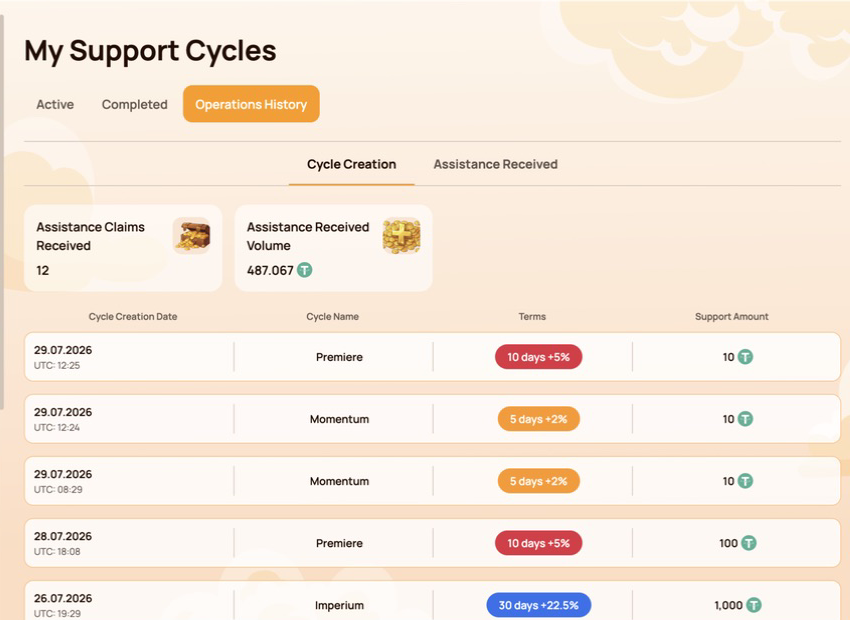
BscScan
Shows the public transaction status, sender, contract interaction, token transfers and network fee.
MetaMask
Shows assets and activity for the currently selected public address. A hidden token or different selected account can make a balance appear different.
Atlas Dashboard
Displays Atlas activity and processed contract data. The interface may update after the blockchain transaction has already reached Success.
Verification order
- Confirm the public wallet address.
- Check the Tx Hash and Status on BscScan.
- Review BEP-20 Token Transfers and the amount.
- Refresh the Personal Dashboard.
- If on-chain Success is not reflected, send the evidence to support.
10. Stop and do not repeat the action
Seleccionar Reject o Cancel and stop if:
- MetaMask opened without an action you initiated;
- the website domain or contract address does not match an official reference;
- the wallet request is unreadable or does not match the selected action;
- the previous transaction is still Pending;
- the wallet or Secret Recovery Phrase may be compromised;
- someone asks for a transfer to “verify the wallet” or “unlock Claim”.
Save the public evidence, open Atlas manually through atlas-system.tech and use an official support channel. For wallet compromise, follow the separate Security guide immediately.
11. Contact support with a complete diagnostic packet
Support can investigate faster when the first message contains the public technical facts.
CarteraPublic addressTx HashOr “not created”RedBNB Smart ChainAtlas actionPage and button ExpectedIntended resultActualError and screenshot
Include
- public wallet address;
- Tx Hash;
- BNB Smart Chain;
- the Atlas page, section and action;
- date and approximate time;
- expected result and what actually happened;
- screenshot of the error with secret information removed.
Never include
- Secret Recovery Phrase or seed phrase;
- private key;
- MetaMask password;
- access or verification codes;
- complete device backups or remote access.
Support can review the wallet address, network, hash, transaction status, MetaMask message and Dashboard display. Support cannot cancel a confirmed blockchain transaction or restore a Secret Recovery Phrase.
Copyable message template
Wallet: 0x…
Red: BNB Smart Chain
Atlas section/action: …
Tx Hash: 0x… / not created
Date and time: …
Expected: …
Actual result or error: …
12. Quick symptom reference
| Lo que ves | Check first | Do not do |
|---|---|---|
| Wallet not connected | MetaMask, account, BSC and site permission | Never enter a seed phrase. |
| Red incorrecta | BNB Smart Chain | Do not confirm on an unexplained network. |
| Insufficient funds | El importe en USDT y el gas en BNB por separado | No confunda los dos saldos. |
| Pendiente | Hash de Tx en BscScan | No cree una acción duplicada. |
| Fallido | Gas, saldo, red y condición del contrato | No repita la acción sin identificar la causa. |
| Cycle missing | Cuenta, Tx Hash de creación y sincronización del Panel | No cree inmediatamente un segundo ciclo. |
| Claim missing | Estado del ciclo, plazo e importe disponible | Nunca pague para «desbloquear» Claim. |
| Retraso del panel | Estado en cadena y Token Transfers | No considere un retraso de la interfaz como prueba de una pérdida. |
One rule to remember: establish the on-chain status first, then decide whether to wait, correct the cause or contact support.

