
Dépannage
Trouvez le problème avant de répéter l'action
La plupart des problèmes liés à Atlas peuvent être résolus en vérifiant cinq couches : le site Web officiel, le compte MetaMask connecté, la BNB Smart Chain, la transaction sur BscScan et le tableau de bord personnel. Ce guide propose une prochaine étape sûre pour chaque symptôme courant.
Ne répétez pas une action on-chain tant que la transaction précédente n'a pas un statut final clair. Trouvez d'abord son hachage de transaction (Tx Hash) et vérifiez sur BscScan.


Parcours de soins
| Ce que vous voyez | Première source à vérifier | Étape suivante classique |
|---|---|---|
| Le portefeuille ne se connecte pas | Compte MetaMask, BSC et autorisation du site | Reconnecter le bon compte |
| La transaction est en attente ou a échoué | Identifiant de transaction (Tx Hash) sur BscScan | Attendre ou corriger la cause confirmée |
| Cycle ou Réclamation n'est pas affiché | Compte, statut du cycle et résultat sur la chaîne | Actualiser uniquement après avoir vérifié le hachage |
1. Effectuez cinq vérifications avant de réessayer
Commencez ici même si le message d'erreur semble évident. Ces vérifications préviennent la plupart des doublons de transactions et des problèmes de mauvais compte.
 Domaine officielatlas-system.tech
 Compte correctAdresse publique prévue
 BNB Smart ChainBSC sélectionné
 USDT + BNBMontant et gaz
 Précédent Tx HashStatut final d'abord
1. Domaine officiel
Ouvrir Atlas depuis atlas-system.tech et vérifiez l'adresse complète avant de connecter le portefeuille.
2. Corriger le compte MetaMask
Le compte dans MetaMask doit être la même adresse publique que celle utilisée pour le profil Atlas, le Smart Cycle ou la réclamation concernés.
3. BNB Smart Chain
Atlas utilise BNB Smart Chain (BSC). L'USDT utilisé pour une action Atlas doit se trouver sur le BEP20 réseau.
4. Séparez les deux soldes
- USDT couvre le montant de soutien sélectionné ou un autre montant de jeton.
- BNB couvre les frais de réseau BSC.
En conservant approximativement $5 en BNB est une référence de départ pratique, mais les frais réels changent. Examinez toujours l'estimation affichée par MetaMask.
5. Hash de la Tx précédente
Si une action a déjà été soumise, vérifiez son hachage de transaction (Tx Hash) sur BscScan avant de cliquer à nouveau. Un ralentissement de la mise à jour du tableau de bord n'est pas une raison pour créer une transaction en double.
2. MetaMask ne se connecte pas ou Atlas ne détecte pas le portefeuille
Les symptômes courants incluent une inactivité Connecter le portefeuille bouton, MetaMask ne s'ouvrant pas, Atlas continuant à demander une connexion ou une adresse de portefeuille différente apparaissant dans le Tableau de bord.
Vérifiez dans cet ordre
- Confirmez que l'extension officielle MetaMask est installée et activée.
- Déverrouillez MetaMask avant d'appuyer Connecter le portefeuille.
- Sélectionnez le compte souhaité.
- Sélectionner BNB Smart Chain.
- Vérifiez cela
app.atlas-system.techest autorisé à se connecter au compte. - Autorisez la fenêtre contextuelle du portefeuille si le navigateur l'a bloquée.
- Actualisez la page Atlas et reconnectez-vous.
Sur un téléphone, ouvrez Atlas via le navigateur intégré MetaMask Mobile lorsqu'un navigateur mobile normal ne peut pas transmettre la connexion au portefeuille.
L'adresse a changé après la connexion
Le fait de changer le compte MetaMask sélectionné modifie l'adresse publique affichée sur Atlas. Un compte différent peut avoir un profil, des cycles et des données de programme partenaires différents. Reconnectez le portefeuille d'origine avant de supposer que des données sont manquantes.
Le support d'Atlas n'a pas besoin de votre phrase de récupération secrète, de votre clé privée ou de votre mot de passe MetaMask pour diagnostiquer un problème de connexion.
3. Mauvais réseau, USDT manquants ou solde insuffisant
Montant de l'actionUSDT sur le réseau BEP20Gaz de réseaufrais de transaction BSCMauvais réseau
Basculer MetaMask vers BNB Smart Chain, retournez sur Atlas et actualisez la page. Ne confirmez pas de transaction Atlas sur un réseau inexpliqué.
USDT is not visible
Check that the token is USDT on BEP20 and that the intended account is selected. If the token is hidden in MetaMask, add it only by using the official token contract reference.
Tokens sent through another network may not appear in Atlas. Recovery can be difficult or impossible, so verify the network and destination before every transfer.
Insufficient funds
Check USDT and BNB separately:
| Message or symptom | Balance to check | Why |
|---|---|---|
| Support Amount is unavailable | USDT BEP-20 | The token amount is too low for the selected action. |
| Insufficient funds for gas | BNB | The wallet cannot pay the BSC network fee. |
| Amount is visible but Confirm fails | USDT, BNB and spending permission | One of the action requirements may still be missing. |
Do not send tokens again until the original transfer, network and receiving address have been verified.
4. MetaMask rejects the request or shows an unclear error
MetaMask messages describe different stages. First identify whether the request was cancelled before submission or failed after being sent to the network.
User rejectedNo hash usually means nothing was submitted.Verify, then restart if neededInsufficient gasThe connected account needs more BNB.Check the MetaMask estimate Cannot estimate gasA contract condition may not be satisfied.Cancel and verify the actionUnexpected requestThe request does not match your click.Reject and check the domain
User rejected / Cancelled
The request was cancelled in the wallet. If no Tx Hash was created, an on-chain transaction was normally not submitted. Return to Atlas, verify the values and start again only if the action is still required.
Insufficient funds for gas
Add enough BNB to the connected account for the estimated network fee. The gas fee is separate from the USDT Support Amount.
Cannot estimate gas / Execution reverted
The contract may reject the current conditions: the action may not yet be available, the amount or permission may be incorrect, or the state may have changed. Do not raise the fee blindly. Cancel the request and verify the cycle, amount, contract and previous transaction.
Unexpected or unreadable request
Sélectionner Reject. Check the official domain, the action that opened MetaMask and the contract address. If the purpose is still unclear, contact official support before confirming.
Connect, Sign, Approve and Confirm are different requests. See the Security guide before approving an action you do not recognise.
5. The transaction is Pending
What Pending means
The transaction has been submitted but does not yet have a final confirmed result. Pending does not by itself mean that funds are lost.
What to do
- Copy the Tx Hash from MetaMask or Atlas operation history.
- Open it on the official BscScan website.
- Confirm that the network is BNB Smart Chain and the sender is the expected wallet.
- Wait for a final Succès ou Échec status.
- Refresh Atlas only after the on-chain status is clear.
What not to do
- Do not create another Smart Cycle while the first creation transaction is Pending.
- Do not press Claim repeatedly while the first Claim is Pending.
- Do not assume that closing the browser cancels a submitted transaction.
Speed Up ou Cancel may be available in the wallet. Each option can create another on-chain action and require BNB gas. Use it only when the wallet offers it for that exact transaction and you understand the result.
6. The transaction Failed or cannot be found
Status: Failed
Check the following before trying again:
- enough BNB for gas;
- the selected BNB Smart Chain network;
- enough USDT for the action;
- the intended account;
- the official Atlas contract address;
- the error or contract message shown by BscScan.
A failed transaction may still consume a BNB network fee because validators processed the attempted execution. Correct the identified cause before resubmitting.
Tx Hash is not found on BscScan
- Confirm that the link opens the BSC explorer, not an explorer for another network.
- Copy the complete Tx Hash again.
- Check whether MetaMask shows the operation as submitted.
- Wait briefly and refresh BscScan once.
If no Tx Hash was created, the action may have been rejected, only signed as a message or never submitted. If MetaMask shows a hash but BscScan still cannot find it, send that hash and a screenshot to support.
7. A Smart Cycle is missing or shows the wrong status
 En attenteWait. Do not create a duplicate.ÉchecCorrect the confirmed cause.
 Success but missingRefresh Dashboard, then contact support with the hash.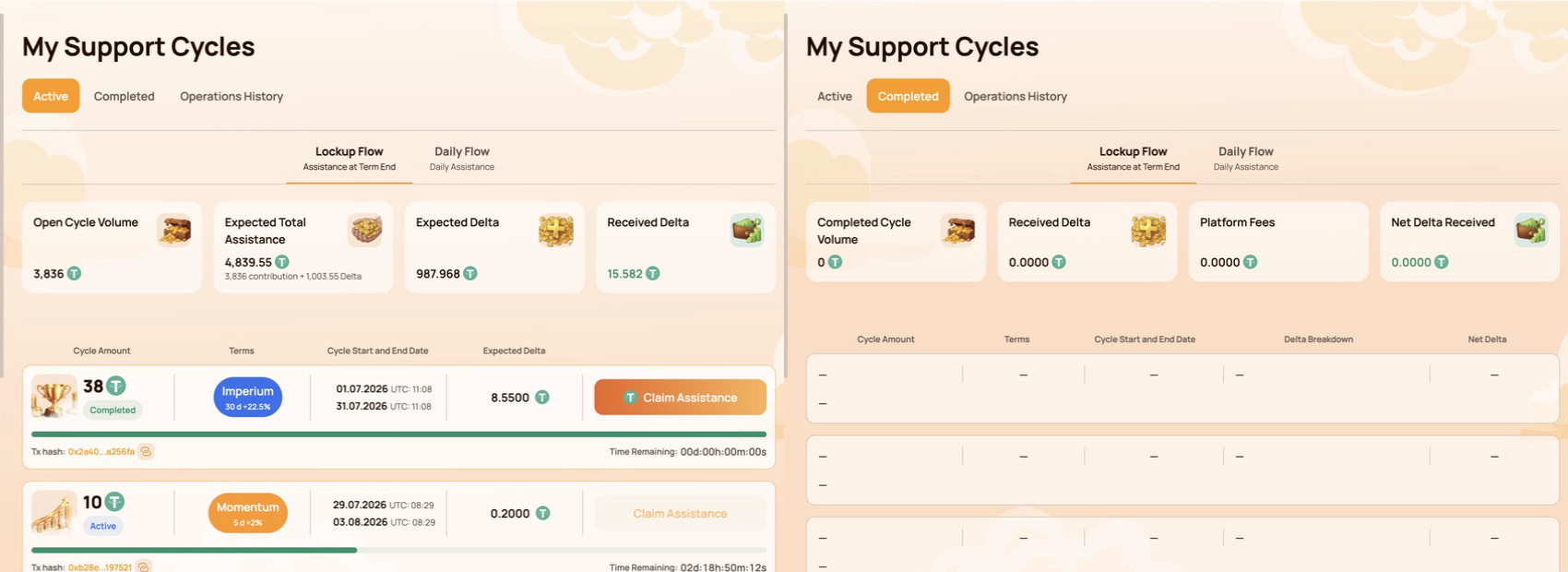
Check the wallet first
Confirm that Atlas is connected to the address that created the cycle. A different MetaMask account displays different activity.
Then check the creation transaction
| BscScan result | Qu'est-ce que cela signifie | Étape suivante |
|---|---|---|
| En attente | Creation is not final | Wait; do not create a duplicate cycle. |
| Échec | The cycle was not created by that transaction | Correct the confirmed cause before retrying. |
| Succès | The contract call executed | Refresh the Dashboard and verify the contract and token transfer. |
If BscScan shows Succès for the official contract but the cycle is still absent after the Dashboard refreshes, contact support with the wallet address and Tx Hash.
A Dashboard delay is not evidence that the cycle or funds are lost. Use the public on-chain record to establish what happened first.
8. Claim is unavailable, Pending or Failed
 Button missingCheck account, BSC, cycle status, term and available amount.En attenteOpen the Tx Hash and wait. Do not repeat Claim.ÉchecCheck gas, availability and the on-chain error.
The Claim button is missing
Check:
- the connected MetaMask account;
- BNB Smart Chain ;
- the Smart Cycle status and completion time;
- whether the interface shows an available amount;
- whether a previous Claim is already Pending;
- the cycle and contract data on BscScan.
Claim appears only when it is available under the selected Smart Cycle rules. A completed calendar period alone does not replace the current contract state displayed by Atlas.
Claim is Pending
Open the Tx Hash on BscScan and wait for a final result. Do not send another Claim while the first transaction is Pending.
Claim Failed
Check BNB gas, the network, the connected account, Claim availability and the error shown by the contract or BscScan. Retry only after the reason has been corrected.
Which asset pays the fee?
The standard BSC gas fee is paid in BNB. If the connected wallet supports Gas Station or a similar USDT gas feature, the wallet shows the available payment method and exact fee before Confirm. This network fee is separate from any Atlas Platform Fee.
No legitimate support agent needs an extra transfer, seed phrase or private key to “unlock” Claim.
9. Dashboard balance or history is delayed
Three interfaces can show different views of the same activity.
BscScanPublic on-chain status and token transfers→
 Portefeuille connectéAssets and activity for the selected address
→
Atlas DashboardProcessed interface view that may update later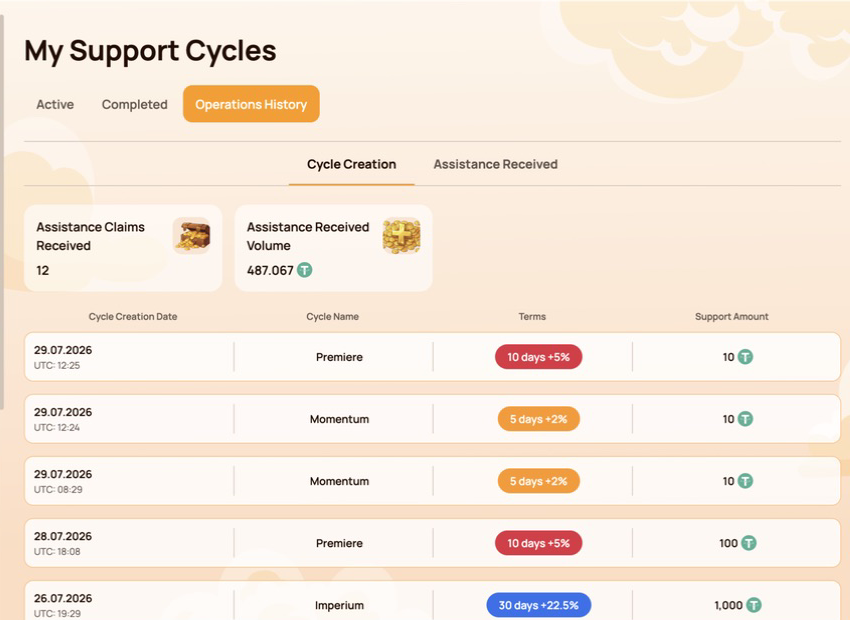
BscScan
Shows the public transaction status, sender, contract interaction, token transfers and network fee.
MetaMask
Shows assets and activity for the currently selected public address. A hidden token or different selected account can make a balance appear different.
Atlas Dashboard
Displays Atlas activity and processed contract data. The interface may update after the blockchain transaction has already reached Success.
Verification order
- Confirm the public wallet address.
- Check the Tx Hash and Status on BscScan.
- Review BEP-20 Token Transfers and the amount.
- Refresh the Personal Dashboard.
- If on-chain Success is not reflected, send the evidence to support.
10. Stop and do not repeat the action
Sélectionner Reject ou Cancel and stop if:
- MetaMask opened without an action you initiated;
- the website domain or contract address does not match an official reference;
- the wallet request is unreadable or does not match the selected action;
- the previous transaction is still Pending;
- the wallet or Secret Recovery Phrase may be compromised;
- someone asks for a transfer to “verify the wallet” or “unlock Claim”.
Save the public evidence, open Atlas manually through atlas-system.tech and use an official support channel. For wallet compromise, follow the separate Security guide immediately.
11. Contact support with a complete diagnostic packet
Support can investigate faster when the first message contains the public technical facts.
PortefeuillePublic addressTx HashOr “not created”RéseauBNB Smart ChainAtlas actionPage and button ExpectedIntended resultActualError and screenshot
Include
- public wallet address;
- Tx Hash;
- BNB Smart Chain;
- the Atlas page, section and action;
- date and approximate time;
- expected result and what actually happened;
- screenshot of the error with secret information removed.
Never include
- Secret Recovery Phrase or seed phrase;
- private key;
- MetaMask password;
- access or verification codes;
- complete device backups or remote access.
Support can review the wallet address, network, hash, transaction status, MetaMask message and Dashboard display. Support cannot cancel a confirmed blockchain transaction or restore a Secret Recovery Phrase.
Copyable message template
Wallet: 0x…
Réseau BNB Smart Chain
Atlas section/action: …
Tx Hash: 0x… / not created
Date and time: …
Expected: …
Actual result or error: …
12. Quick symptom reference
| Ce que vous voyez | Check first | Do not do |
|---|---|---|
| Wallet not connected | MetaMask, account, BSC and site permission | Never enter a seed phrase. |
| Mauvais réseau | BNB Smart Chain | Do not confirm on an unexplained network. |
| Insufficient funds | Montant en USDT et gas en BNB séparément | Ne confondez pas les deux soldes. |
| En attente | Identifiant de transaction (Tx Hash) sur BscScan | Ne créez pas une action en double. |
| Échec | Gas, solde, réseau et état du contrat | Ne recommencez pas sans avoir identifié la cause. |
| Cycle missing | Compte, Tx Hash de création et synchronisation du tableau de bord | Ne créez pas immédiatement un deuxième cycle. |
| Claim missing | Statut du cycle, durée et montant disponible | Ne payez jamais pour « débloquer » Claim. |
| Délai du tableau de bord | Statut on-chain et Token Transfers | Ne considérez pas un retard de l’interface comme une preuve de perte. |
One rule to remember: establish the on-chain status first, then decide whether to wait, correct the cause or contact support.

