
Personal Dashboard
The Personal Dashboard is the participant-facing interface for viewing activity, creating support cycles, tracking Smart Cycles, requesting assistance, using the Partner Program and managing profile information.
Use only the official address: app.atlas-system.tech.
The personal dashboard is an interface, not a crypto wallet. Funds remain controlled through the connected non-custodial wallet. Transaction results can be independently verified on BscScan.
1. Interface map
The main navigation remains available across the personal dashboard. Before performing an action, make sure the correct wallet and language are selected.
Top bar
| Element | What it shows | Why it matters |
|---|---|---|
| Days in the system | Time since the wallet first connected to Atlas System | Shows the participation age associated with the connected wallet |
| Voting Balance | The voting weight currently displayed by the interface | Eligibility and calculation follow the governance rules active at that time |
| Connected wallet | Shortened address of the active wallet | Always compare it with the wallet you intend to use before creating a cycle or making a Claim |
| Language | Current interface language | Changes the language of the personal dashboard |
| Notifications | Access to system messages | Opens All, Read and Unread messages |
The connected wallet address is intentionally excluded from the guide screenshots.
Side navigation
| Section | What it is for |
|---|---|
| ダッシュボード | Overview of personal activity, active cycles and partner indicators |
| Provide Support | Creation of a new Lockup Flow or Daily Flow cycle |
| My Support Cycles | Active cycles, completed cycles and Operations History |
| パートナープログラム | Partner wallet, accruals, team structure and statistics |
| Profile | Personal information, contacts, visibility and communication settings |
| Knowledge base | Opens the official Atlas System Knowledge Hub |
How to move around the dashboard
- Select a section in the left menu.
- Check the connected wallet before any transaction-related action.
- Use the language selector if the interface is not displayed in the required language.
- Return to ダッシュボード whenever you need a general overview.
- Use Logout when you finish working on a shared or public device.
What to check
- The official domain is
app.atlas-system.tech. - The expected wallet is connected.
- BNB Smart Chain is selected for transaction-related actions.
- No person or support representative should request your seed phrase or private key.
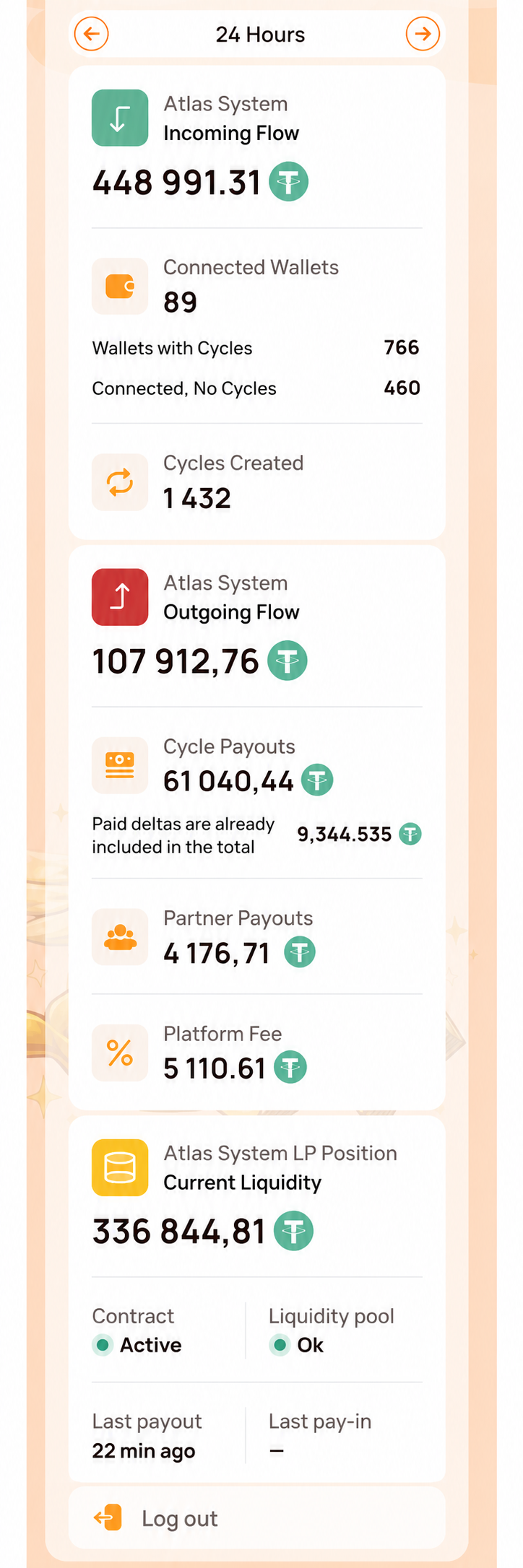
The screenshot begins below the top bar so that the participant's wallet address is not displayed. It focuses only on the side navigation and System Health panel. The main Dashboard area is shown separately in the next visual.
2. Dashboard
What it is
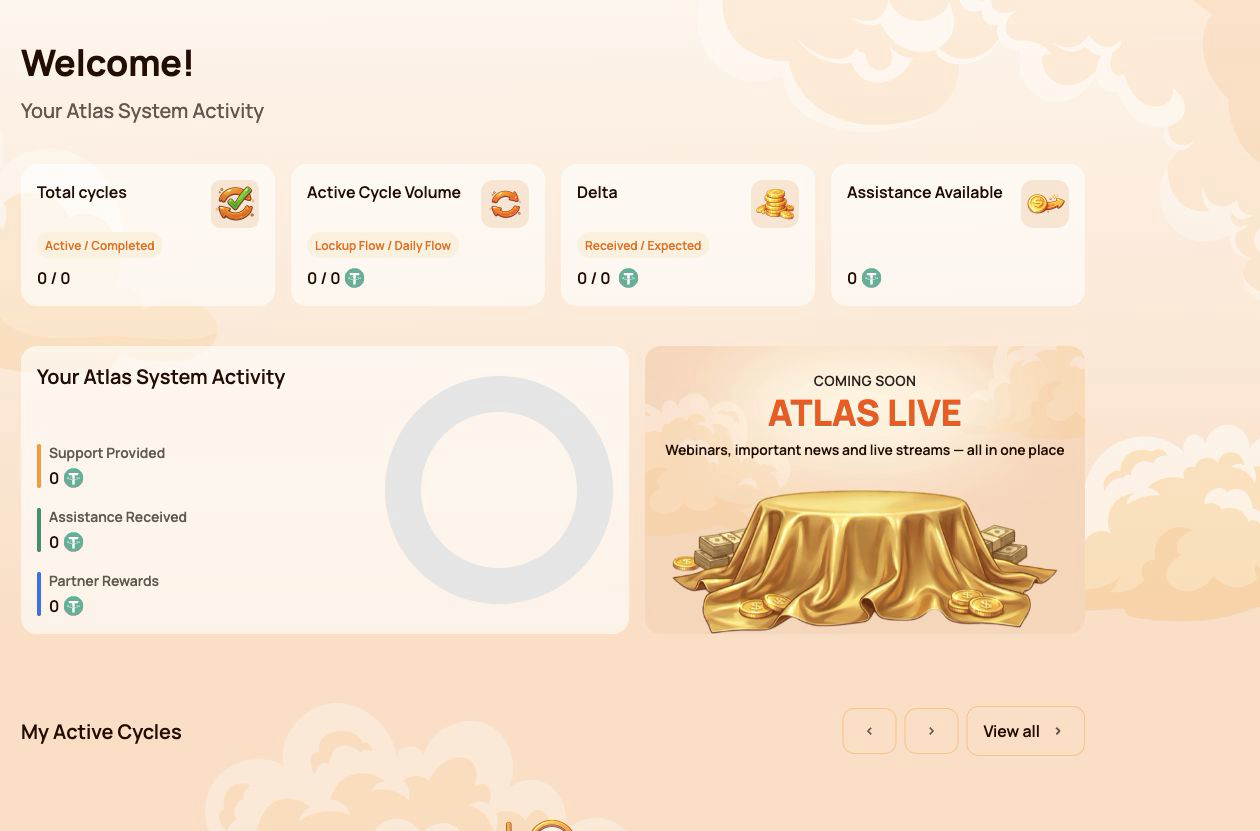
ダッシュボード is the main overview screen. It summarises the participant's cycles, activity, available assistance and partner progress without requiring the user to open each section separately.
Why it is needed
Use Dashboard to:
- see the number of active and completed cycles;
- compare Lockup Flow and Daily Flow activity;
- check received and expected Delta;
- see whether assistance is currently available;
- review total support, assistance and partner rewards;
- open current cycles or partner information for more detail.
Main summary cards
Total cycles
Shows the number of Active / Completed cycles.
- Active — cycles currently running under their smart contract conditions.
- Completed — cycles that have finished under the rules of the selected flow.
A newly created cycle may take a short time to appear while the blockchain transaction is being confirmed.
Active Cycle Volume
Shows the active Support Amount broken down by Lockup Flow / Daily Flow.
This is the value assigned to active cycles. It is not the spendable USDT balance in the connected wallet.
Delta
Shows Received / Expected Delta.
- Received Delta — additional assistance already received above the amount of provided support.
- Expected Delta — additional assistance calculated under the current Smart Cycle conditions.
Expected Delta is a calculation, not a guaranteed balance. Availability depends on the smart contract rules and available liquidity.
Assistance Available
Shows the amount currently available to request through Claim.
Before making a Claim, check:
- the relevant cycle;
- connected wallet;
- BNB Smart Chain network;
- BNB balance for gas;
- the amount shown in the wallet confirmation.
Your Atlas System Activity
This block compares three types of participant activity:
| Indicator | Meaning |
|---|---|
| Support Provided | Total amount of support directed into Smart Cycles |
| Assistance Received | Assistance already received through completed Claims |
| Partner Rewards | Rewards received through the Partner Program |
These figures represent different categories and should not be added together as if they were a wallet balance.
My Active Cycles
This block provides quick access to current cycles. Open My Support Cycles when you need the full cycle card, dates, terms, status, Expected Delta, Claim action or transaction information.
If there are no active cycles, the block may be empty.
Partner Status
The Dashboard shows a compact partner summary:
- Current Partner Status;
- Personal Active Cycle Volume;
- First-Line Active Cycle Volume;
- Partner Structure Active Cycle Volume;
- remaining requirements for the next status.
The detailed qualification rules, weighted Partner Structure Volume, structure coefficients and reward examples belong in the separate パートナープログラム guide.
How to use Dashboard
- Open ダッシュボード in the side menu.
- Check the four summary cards at the top.
- Review the activity block to distinguish support, assistance and partner rewards.
- Open My Active Cycles if a cycle requires attention.
- Open the Partner Program section when the partner summary requires more detail.
What to check when values look incorrect
- Confirm that the same wallet used for the operation is connected.
- Wait for blockchain confirmation and refresh the page.
- Compare the information with My Support Cycles → Operations History.
- Verify the transaction on BscScan.
- If the confirmed transaction is still missing, contact support and provide the transaction hash.
Numeric values shown in screenshots are examples and may change at any time.
3. Provide Support
What it is
Provide Support is the section used to create a new Smart Cycle. It contains the same basic sequence for both modes: select a flow, review its conditions, enter the Support Amount, accept the terms and confirm the transaction in the connected wallet.
Use this section when you are ready to create a cycle. To review an existing cycle or make a Claim, open My Support Cycles instead.
Why it is needed
Provide Support allows the participant to:
- choose between Lockup Flow and Daily Flow;
- select or identify the applicable cycle tariff;
- specify the Support Amount in USDT;
- review Expected Assistance before confirming;
- confirm voluntary participation and the terms of use;
- send the transaction request to the connected wallet.
Fields available in both modes
| Field | What it means | What to check |
|---|---|---|
| Choose Cycle Type | Selects Lockup Flow or Daily Flow | Make sure the required mode is highlighted |
| Select Cycle | Shows the selected tariff and its conditions | Check the tariff name, term and calculation |
| Support Amount, USDT | Amount of support directed into the cycle | Use USDT on BNB Smart Chain and check the minimum amount |
| Expected Assistance (Principal + Delta) | Calculated principal and additional assistance | Treat this as a calculation under the smart contract rules, not a guaranteed wallet balance |
| Terms of use | Rules governing participation | Open and read the terms before accepting |
| Voluntary confirmation | Confirms that the participant is acting voluntarily | Both confirmations are required before the button becomes available |
| Provide Support | Sends the operation to the connected wallet | The cycle is not created until the wallet transaction is confirmed |
3.1 Lockup Flow
What it is
Lockup Flow creates a cycle with a fixed term. Assistance becomes available for Claim after the selected term ends, subject to the relevant smart contract rules and available liquidity.
What is shown
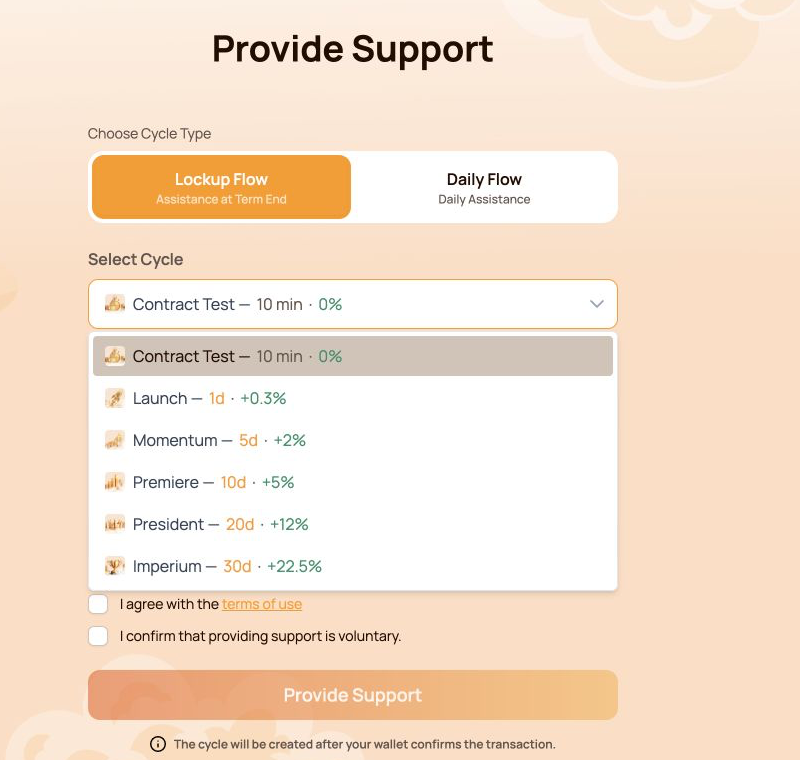
- Lockup Flow — Assistance at Term End selector;
- cycle tariff with its term and calculated percentage;
- Support Amount in USDT;
- Expected Assistance shown as Principal + Delta;
- required confirmations;
- Provide Support button;
- notice that the cycle is created only after wallet confirmation.
The Contract Test tariff uses a fixed Support Amount of 10 USDT. Its purpose is to let the participant test the full interaction with the smart contract over a short period. Other Lockup Flow tariffs use their own terms and calculations.
Available Lockup Flow cycles
| Cycle | Term | Calculated Delta |
|---|---|---|
| Contract Test | 10 minutes | — |
| Launch | 1 day | +0.3% |
| Momentum | 5 days | +2% |
| Premiere | 10 days | +5% |
| President | 20 days | +12% |
| Imperium | 30 days | +22.5% |
The open selector in the screenshot shows all six options together. Before choosing, compare the term and calculated Delta with the amount you are prepared to direct into the cycle.
How to use it
- Open Provide Support.
- Select Lockup Flow.
- Open Select Cycle and choose the required tariff.
- Check the term and calculated percentage shown next to the tariff.
- Enter the Support Amount. For Contract Test, the amount is fixed at 10 USDT.
- Review Expected Assistance (Principal + Delta).
- Open and accept the terms of use.
- Confirm that providing support is voluntary.
- Click Provide Support.
- Verify the network, token, amount and gas fee in the wallet, then confirm the transaction.
3.2 Daily Flow
What it is
Daily Flow creates a 200-day cycle with the right to request assistance daily under the smart contract conditions. The original Support Amount is included in the daily assistance Claims.
What is different from Lockup Flow
- the cycle lasts 200 days;
- the applicable tariff depends on the Support Amount;
- the form shows Daily accrual;
- assistance can be requested daily according to the contract conditions;
- assistance is not deferred to a single end-of-term Claim.
Current tariff ranges:
| Tariff | Support Amount | Term | Daily payout | Calculated Delta |
|---|---|---|---|---|
| Core | 10–2,000 USDT | 200 days | 1.1% per day | +120% |
| Elite | Above 2,000 USDT | 200 days | 1.3% per day | +160% |
The interface may determine the Daily Flow tariff automatically according to the entered Support Amount.
The original Support Amount is included in the daily assistance Claims. The daily payout and Delta shown in the interface are calculations under the current smart contract conditions and available liquidity.
How to use it
- Open Provide Support.
- Select Daily Flow.
- Check the tariff displayed in Select Cycle.
- Enter the Support Amount. The current minimum is 10 USDT.
- Review Expected Assistance (Principal + Delta) and Daily accrual.
- Open and accept the terms of use.
- Confirm that providing support is voluntary.
- Click Provide Support.
- Verify the transaction details in the wallet and confirm.
- After blockchain confirmation, open My Support Cycles to check the new cycle.
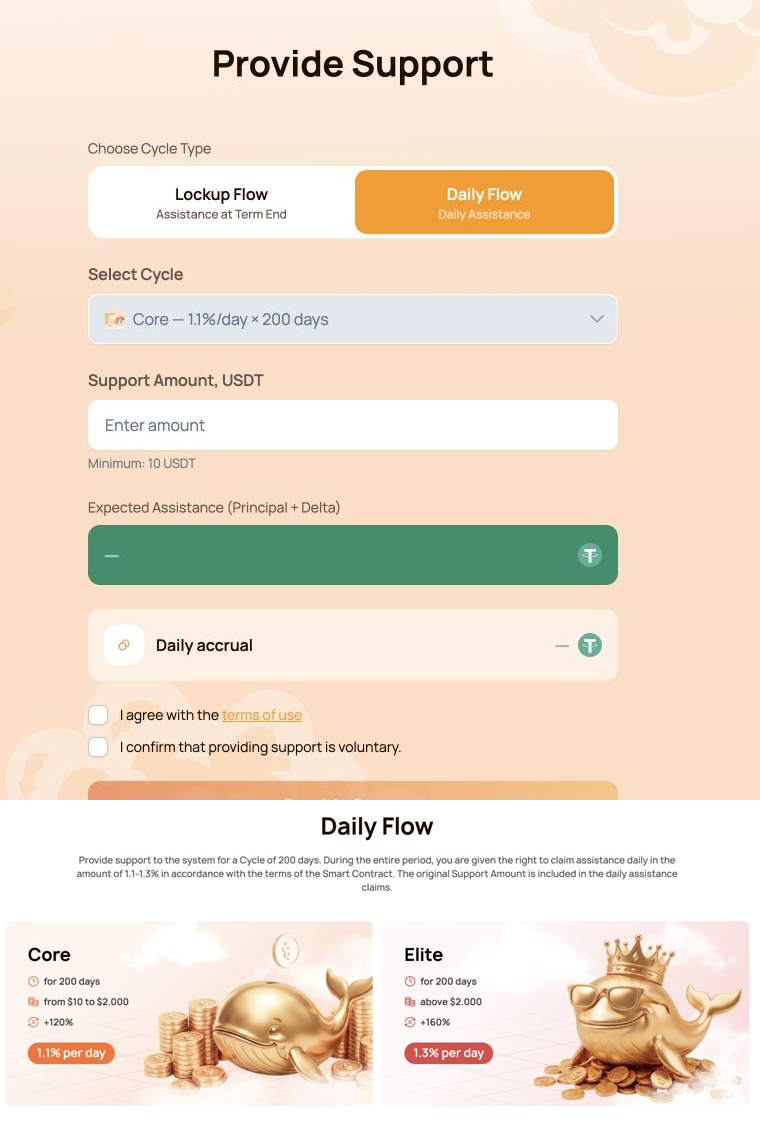
The combined visual shows the Daily Flow form first and the Core/Elite comparison directly below it.
3.3 Wallet confirmation
The Provide Support button does not move funds by itself. It creates a transaction request that must be reviewed and signed in the connected wallet.
Before confirming, check:
- the wallet is connected to BNB Smart Chain;
- the token is USDT BEP-20;
- the Support Amount matches the form;
- the wallet contains enough BNB for gas;
- the destination is the official Atlas System smart contract;
- the transaction was opened from
app.atlas-system.tech.
For the first USDT operation, the wallet may request two confirmations:
- USDT approval for the smart contract;
- creation of the Smart Cycle.
Both transactions require BNB gas. Never enter a seed phrase or private key into the Atlas System website.
If the button is unavailable
Check that:
- the Support Amount meets the minimum and tariff limits;
- both confirmations are selected;
- the wallet is connected;
- the correct network is active;
- the form does not show a validation error.
Lockup Flow tariffs, Daily Flow calculations, cycle statuses and Claim are covered in the separate Smart Cycle guide.
4. My Support Cycles
What it is
My Support Cycles is the section for monitoring cycles after they have been created. It separates current cycles, finished cycles and the history of cycle creation and received assistance.
Use this section to:
- confirm that a new cycle appeared after the blockchain transaction;
- track active Lockup Flow and Daily Flow cycles;
- check terms, dates and calculated Delta;
- find completed cycles;
- review cycle creation and assistance history;
- BscScan での確認やサポート依頼に必要な情報を見つける。
The section contains three main tabs: Active, Completed and Operations History.
4.1 アクティブ
What it shows
Active タブには、スマートコントラクトの条件に従って現在進行中のサイクルが表示されます。
上部のフロー選択メニューで次を分けます:
- Lockup Flow — Assistance at Term End;
- Daily Flow — Daily Assistance.
概要指標:
| Indicator | Meaning |
|---|---|
| Active Cycle Volume | 選択したフローの有効なサイクルに現在割り当てられている Support Amount の合計 |
| Expected Delta | 表示中の有効なサイクルに対して計算された追加支援額 |
サイクル情報に含まれる項目:
- Support Amount;
- 条件。
- 開始日と終了日。
- 想定 Delta;
- 現在のステータス。
- 利用可能な Claim 操作;
- 関連するブロックチェーントランザクション。
How to use it
- Open マイ支援サイクル → アクティブ.
- Lockup Flow または Daily Flow を選択します。
- Support Amount、期間、日付で対象サイクルを探します。
- 現在のステータスと計算内容を確認します。
- Claim が利用可能な場合は、金額を確認し、ウォレットでトランザクションを確定します。
Daily Flow では、受取可能な支援額が日次計算と完了済み Claims に応じて変わる場合があります。
4.2 完了済み
What it shows
Completed タブには、選択したフローのルールに従って完了し、有効として表示されなくなったサイクルが表示されます。
概要指標:
| Indicator | Meaning |
|---|---|
| 完了済みサイクルのボリューム | 選択したフローの完了済みサイクルに関連する Support Amount の合計 |
| Received Delta | 表示中の完了済みサイクルからすでに受け取った Delta |
同じ Lockup Flow と Daily Flow の選択メニューを利用できます。過去のサイクル情報も、Support Amount、期間、日付、計算、関連トランザクションの確認に役立ちます。
How to use it
- Open マイ支援サイクル → 完了.
- 対象のフローを選択します。
- 金額、期間、日付でサイクルを探します。
- その情報を Operations History と照合します。
- トランザクション情報を使って BscScan で独立して検証します。
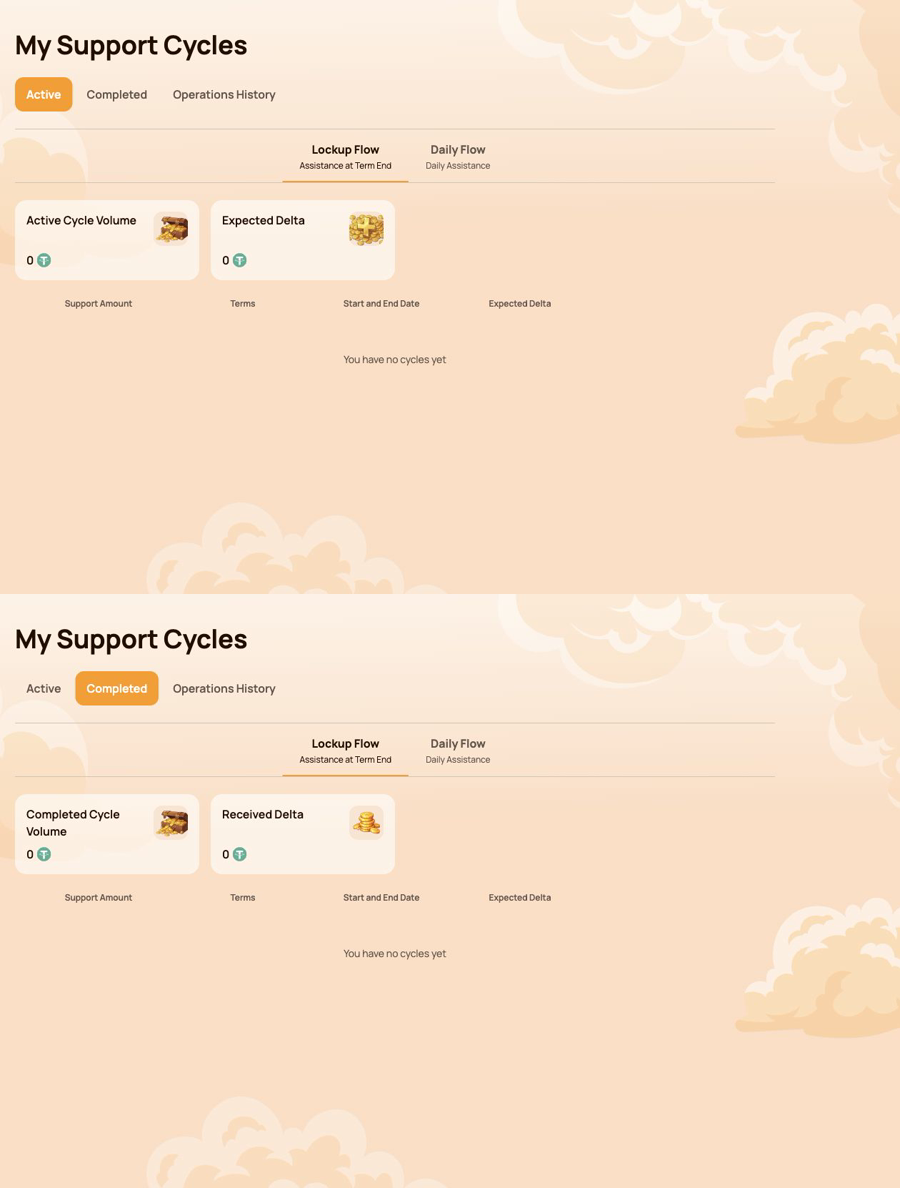
統合画像では Active を先に、その直下に Completed を表示しています。サンプルウォレットにはサイクルがないため、参加者データを公開せずに空の状態と利用可能な操作を示しています。
4.3 操作履歴
Operations History records the two main types of participant activity related to Smart Cycles.
サイクル作成
接続中のウォレットから作成されたサイクルを確認するには、このタブを使用します。
表示項目:
- サイクル作成日;
- サイクル名;
- 期間;
- Support Amount。
サイクル作成トランザクションが確定した後、いつ、どの条件でサイクルが作成されたかを参加者が確認する際に役立つ表示です。
Assistance Received
完了済みの支援 Claims を確認するには、このタブを使用します。
概要指標:
- 受領した Assistance Claims;
- 受領した Assistance のボリューム。
表示項目:
- サイクル;
- サイクル作成日;
- 支払額;
- Smart Contract;
- ステータス。
Smart contract と Status の項目により、ダッシュボード記録とオンチェーン検証を関連付けられます。
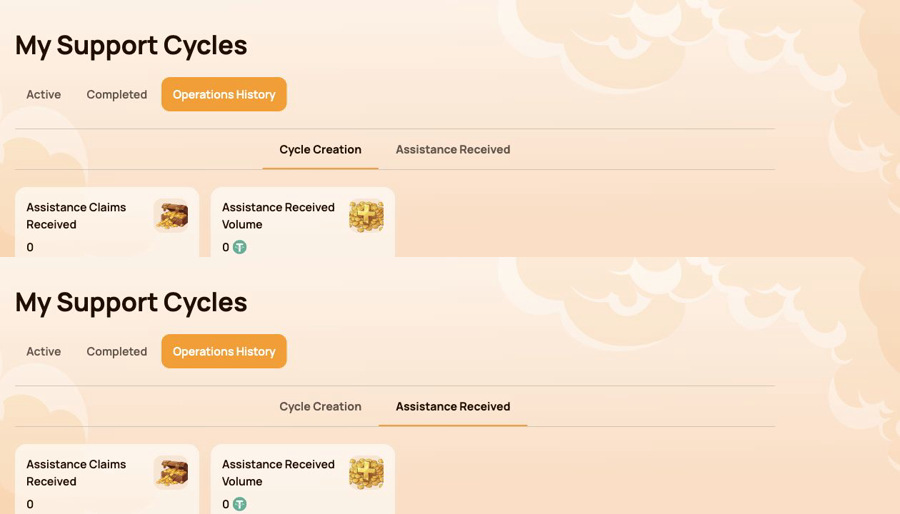
統合画像では Cycle Creation を先に、その下に Assistance Received を表示しています。
4.4 サイクルまたは操作が表示されない場合
- トランザクションに使用したものと同じウォレットが接続されているか確認してください。
- BNB Smart Chain が選択されていることを確認します。
- ブロックチェーンでの確定を待ち、個人ダッシュボードを更新します。
- Lockup Flow と Daily Flow の両方のフィルターを確認します。
- Active、Completed、Operations History を確認します。
- ウォレットまたは BscScan でトランザクションを開きます。
- If the transaction is confirmed but the record is still missing, contact support and provide:
- connected wallet address;
- トランザクションハッシュ。
- サイクルの種類と金額。
- 操作のおおよその時刻;
- 該当するタブのスクリーンショット。
Cycle statuses and Claim conditions are explained in Smart Cycle. Transaction verification is covered in Contracts & BscScan.
5. パートナープログラム
The パートナープログラム section brings together partner rewards, team structure, status progress and activity statistics. Use it to monitor your own partner account and the activity associated with your referral structure.
This section explains the personal dashboard interface. Status rules, qualification volumes, reward calculation and worked examples are covered in the separate パートナープログラム guide.
このセクションには四つのタブがあります:
- Partner Wallet;
- Accrual History;
- My Team;
- 統計.
5.1 パートナーウォレット
Partner Wallet shows the current state of partner rewards.
| Indicator | Meaning |
|---|---|
| Account Balance | 現在ダッシュボードで利用可能と表示されているパートナー報酬 |
| Total Accrued | プログラムルールに基づいて付与されたパートナー報酬の合計 |
| Rewards Received | 受領済みのパートナー報酬 |
The Withdrawal History table records withdrawals and displays:
- 出金日;
- 出金額;
- ステータス;
- Tx Hash。
Use Tx Hash to open the related transaction on BscScan and verify it independently. The information tooltip next to Account Balance explains how automatic payouts work.
5.2 報酬発生履歴
Accrual History shows how partner rewards were accrued. When accruals are available, the table includes:
- Accrual Date;
- ボーナス;
- Accrued Reward Amount.
付与の原因となったボーナスを特定する場合は、このタブを使用します。付与された報酬と受領済み支払いは別の段階です。まずここで付与を確認し、その後パートナーウォレットと出金履歴を確認してください。
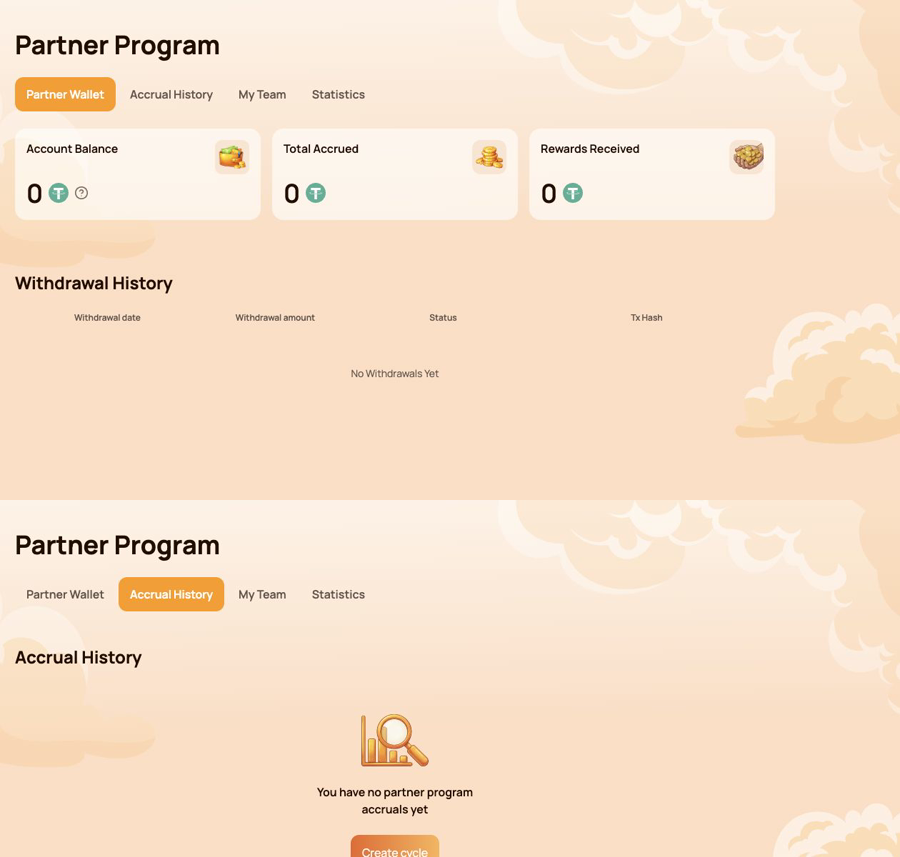
統合画像ではパートナーウォレットを先に、その直下に発生履歴を表示しています。
5.3 マイチーム
My Team is the main workspace for status progress and referral structure.
パートナー情報
上部パネルに表示される項目:
- Partner Status — the current status and its reward rate;
- My Referral Link — the personal link used to invite new participants;
- My Referrer (Wallet Address) — the wallet whose referral link was used;
- Referrer Status — the current status of that referrer.
The personal referral link becomes available after the first qualifying Smart Cycle of 10 USDT or more. If the field shows Not Available, check the cycle and status conditions described in the Partner Program guide.
次のステータスの要件
進捗は三つのボリュームで表示されます:
- Personal Active Cycle Volume;
- First-Line Active Cycle Volume;
- Partner Structure Active Cycle Volume.
For each requirement, compare Current, Required and Remaining. This makes it clear which condition has already been met and which volume is still needed for the next status.
ステータス要件と構造
The Status Requirements table compares all statuses by:
- 個人のアクティブサイクル量。
- 第1ラインのアクティブサイクル量。
- パートナー構造内のアクティブサイクル量。
- 深度無制限の構造報酬率。
- Matching Reward の率。
Below the table, use Structure Lines and Search by Wallet Address to navigate the structure. The results identify the participant wallet and status. The Leaders statistics in the structure section helps identify the most active parts of the team.
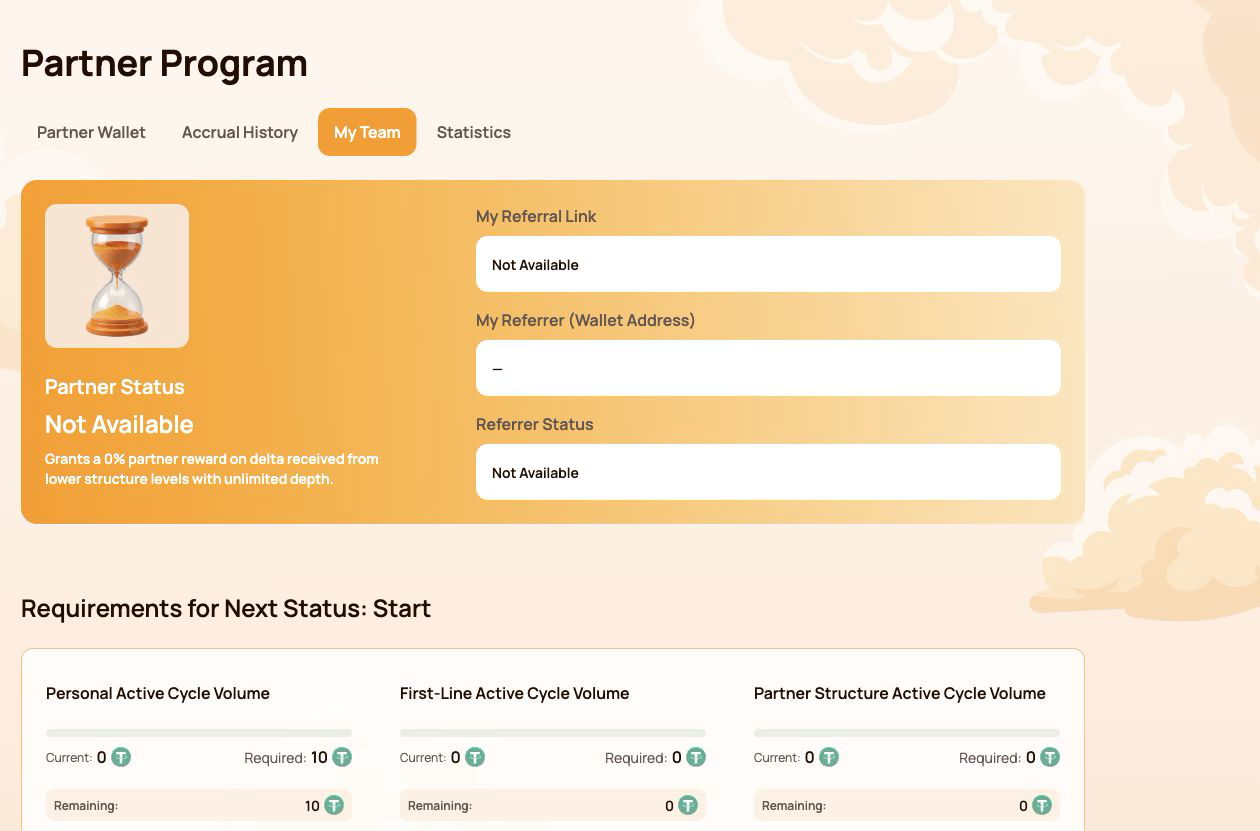
スクリーンショットには有効なパートナーステータスを持たないアカウントを使用し、参加者のウォレットアドレスは表示していません。
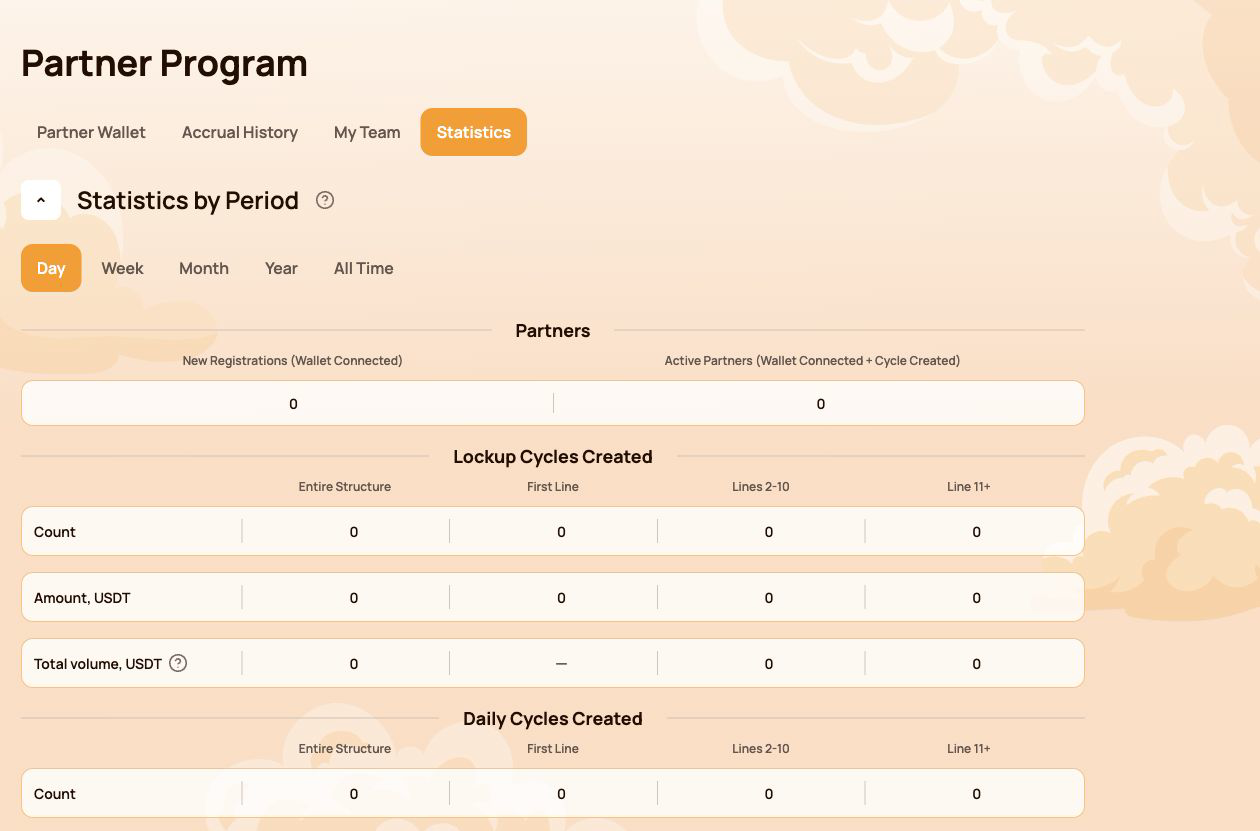
5.4 統計
統計 summarizes partner activity for the selected period. Available filters are Day, Week, Month, Year and All Time.
パートナー
- New Registrations (Wallet Connected) — wallets newly connected through the structure;
- Active Partners (Wallet Connected + Cycle Created) — connected partners who also created a cycle.
作成済みサイクル
Lockup Flow と Daily Flow は別々に表示されます。ダッシュボードでは各フローの活動を次の区分でまとめます:
- 構造全体;
- 第一ライン;
- 第 2~10 ライン;
- 第 11 ライン以降。
表には、サイクル数、USDT 金額、システム指標へ算入された総ボリュームが表示されます。
構造の深さが全体ボリュームに与える影響
The information tooltip next to Total volume explains the coefficients used for structure depth:
| Structure depth | 算入ボリューム |
|---|---|
| 第一ライン | 第一ラインおよび無制限階層の指標は 100% |
| 第 2~5 ライン | 無制限階層の指標は 100% |
| Lines 6–10 | 50% |
| Line 11+ | 10% |
Most Active Lines highlights the leading structure lines and shows their partner count and USDT volume.
5.5 重要事項
- Account Balance in Partner Wallet is a dashboard partner balance; it is not the same as the USDT balance displayed by your wallet application.
- 新しい付与、出金、統計は、ブロックチェーンでの確定とダッシュボード同期後に表示される場合があります。
- パートナーデータを確認する前に、正しいウォレットが接続されているか必ず確認してください。
- 本人の同意なく、紹介情報や参加者のウォレットデータをスクリーンショットで公開しないでください。
- オンチェーン確認には、トランザクションハッシュと公式コントラクトレジストリを使用します。
Status conditions, qualification volumes and reward examples are explained in パートナープログラム. Terms are defined in 用語集.
6. プロフィール
The Profile section stores the participant information used for communication and partner-facing features. It does not store wallet access credentials and does not replace the connected wallet address.
Open Profile from the left navigation. After making changes, select Save at the bottom of the page.
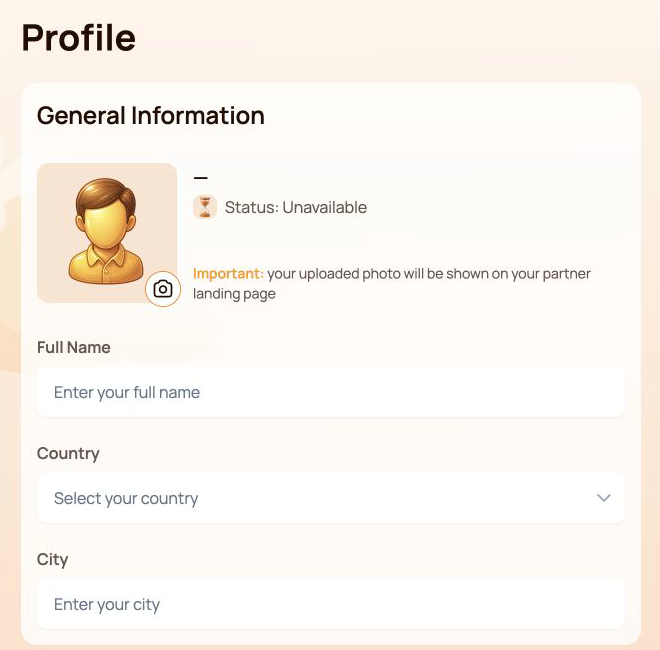
6.1 基本情報
上部パネルに含まれる項目:
- Avatar — select the camera icon to add or replace the profile image;
- Status — the current partner status associated with the connected wallet;
- Full Name;
- Country;
- City.
The interface warns that the uploaded photo may be shown on the participant's partner landing page. Use only an image that you are comfortable displaying there.
6.2 連絡先情報
This section contains Phone Number and Email.
The Visible to partners switch controls the partner visibility setting for the contact information block. Before enabling it, check that the entered details are intended to be shared with partners.
6.3 ソーシャルネットワーク
利用可能な項目:
- Facebook — username or profile link;
- Instagram — username or profile link;
- WhatsApp — phone number or link;
- Telegram — username, link or phone number.
Social networks have their own Visible to partners switch. This setting is separate from the visibility switch in Contact Information.
サービスを利用していない場合やプロフィールへ掲載したくない場合は、項目を空欄にできます。
6.4 通信設定
コミュニケーション言語
コミュニケーション言語 records the participant's preferred language for communication. Select one of the supported Atlas System languages listed in Notifications and interface language below.
This field is different from the language selector in the top bar: the top-bar control changes the dashboard interface language, while コミュニケーション言語 belongs to the saved profile settings.
希望する連絡方法
希望する連絡チャネルを選択します:
- Telegram;
- WhatsApp;
- メール。
希望する連絡方法を選択する前に、対応する連絡先またはソーシャルネットワーク欄を入力してください。複数のチャネルが適している場合は、チェックボックスを複数選択できます。
Select Save after changing the language, communication methods or any other profile field.
6.5 プライバシーとセキュリティ
- Enable Visible to partners only for information you intend to share.
- 二つの公開設定スイッチは個別に使用してください。一方は連絡先情報、もう一方はソーシャルネットワークに適用されます。
- プロフィール欄に、シードフレーズ、秘密鍵、ウォレットパスワード、ワンタイムセキュリティコード、取引所パスワードを絶対に入力しないでください。
- プロフィールの問題を確認するために、Atlas System サポートがウォレットのアクセス認証情報を求めることはありません。
- 上部バーの短縮ウォレットアドレスは接続中のウォレットを識別するもので、Profile から編集するものではありません。
6.6 変更が保存されない場合
- すべての必須項目が指定された形式になっているか確認してください。
- Select Save and wait for the interface response.
- ページを更新し、値が引き続き表示されるか確認します。
- 同じウォレットが引き続き接続されているか確認してください。
- 値が再び消えた場合は、秘密の認証情報が写らないスクリーンショットを添えてサポートへ連絡してください。
Partner status and the partner landing page are explained in パートナープログラム. Safe data sharing is covered in セキュリティ.
7. 通知と表示言語
通知ベルと表示言語選択メニューは上部バーにあり、個人ダッシュボード全体でいつでも利用できます。
7.1 通知
Select the Notifications bell to open the notification center. Messages are grouped into three tabs:
| タブ | What it shows |
|---|---|
| すべてのメッセージ | 利用可能なすべての通知 |
| Read | すでに開いた、または既読にした通知 |
| 未読 | まだ読んでいない通知。括弧内の数字は現在の未読件数です |
If the page shows You have no notifications yet, there are currently no messages for the connected account. This is a normal empty state and does not indicate an error.
重要な制限
ダッシュボードの通知は参考情報です。次の確認に代わるものではありません:
- ウォレットのトランザクションステータス。
- ブロックチェーンでの確定;
- BscScan 上のトランザクション記録。
- the current cycle status in My Support Cycles.
通知とオンチェーントランザクションの内容が食い違う場合は、まずウォレットアドレス、トランザクションハッシュ、スマートコントラクトを確認してください。
7.2 表示言語
上部バーで現在の言語を選択し、使用する表示言語を選びます:
- English;
- Bahasa Indonesia;
- Bahasa Melayu;
- Deutsch;
- Español;
- Français;
- Русский;
- Português;
- Tiếng Việt;
- Türkçe;
- हिन्दी;
- 中文;
- ไทย.
選択した項目により Atlas System 個人ダッシュボードの表示言語が変わります。ウォレット拡張機能、BscScan、その他の外部サービスでは、それぞれの言語設定が維持されます。
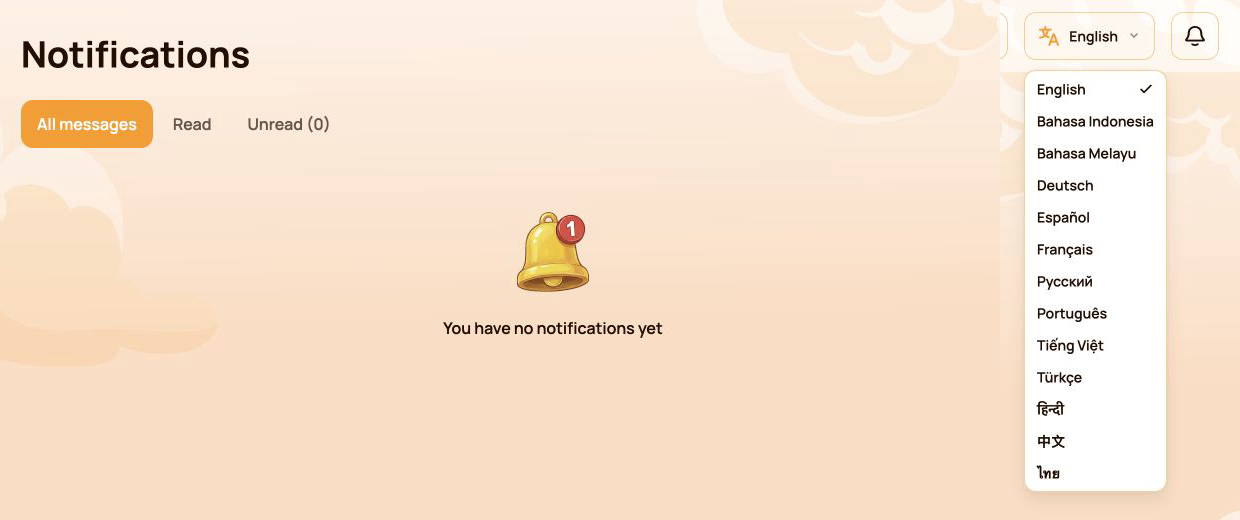
画像には表示言語の完全な一覧が示されています。
7.3 表示言語とコミュニケーション言語の違い
この二つの設定は目的が異なります:
| 設定 | 所在地 | Purpose |
|---|---|---|
| 表示言語 | Top bar | 個人ダッシュボードの表示言語を変更します |
| コミュニケーション言語 | Profile | Records the participant's preferred language for communication |
If you want both settings to match, change the top-bar language and then select the same language in Profile → Communication Language and save the profile.
7.4 通知または翻訳が更新されない場合
- 正しいウォレットが接続されているか確認してください。
- ダッシュボードを更新します。
- 通知センターまたは言語選択メニューを開き直します。
- 選択した言語が上部バーに表示されているか確認します。
- 表示されるはずのメッセージがない場合は、ダッシュボードの該当セクションと BscScan で関連するサイクルまたはトランザクションを確認してください。
- ダッシュボードの表示に不整合が続く場合は、必要に応じてスクリーンショットとトランザクションハッシュを添えてサポートへ連絡してください。
Official translated labels are collected in 用語集. Related issues are covered in トラブルシューティング.
8. システム稼働状況
The Health of System panel is located below the main navigation. It provides an at-a-glance view of system-wide activity and operational status. Use All time or Last 24 hours to select the displayed period.
These indicators describe Atlas System as a whole. They are not the connected participant's wallet balance, personal cycle volume or guaranteed assistance amount.
8.1 指標
| Indicator | What it means |
|---|---|
| サーバー時刻 | 現在の稼働状況スナップショットを表示する際にダッシュボードが使用する日時 |
| 作成済みサイクル数 / 受入支援ボリューム | 表示期間中に作成されたサイクル数と、合計の受入 Support Volume |
| 完了済みサイクル数 / 送出支援ボリューム | 表示期間中に完了したサイクル数と、合計の送出 Assistance Volume |
| スマートコントラクト残高 | The current contract balance shown by the dashboard; it is not the participant's wallet balance |
| 接続済みウォレットの総数 | 表示期間中にダッシュボードへ記録されたウォレット数 |
| 支払済み Delta | 表示期間中に完了した支援操作に含まれる Delta |
| パートナープログラムの支払い | 表示期間中に記録されたパートナー報酬の送金 |
| プラットフォーム手数料 | 表示期間中に記録されたプラットフォーム手数料。ネットワークガス代は別です |
| コントラクト | Current dashboard status of the Atlas System smart contracts, such as Active |
| 最終支払い | システムに記録された最新の支払いからの経過時間 |
| 流動性プール | Current dashboard health status of the liquidity pool, such as OK |
二つのサイクル指標では、最初の値がサイクル数、次の値が USDT ボリュームです。
スクリーンショットには System Health パネル全体が表示されています。すべての数値は撮影時点の例であり、時間とともに変化します。
8.2 パネルの見方
- 緑色の総合ステータスシールドにより、現在のダッシュボードの状態をひと目で確認できます。
- Contracts: Active means the dashboard currently reports the contracts as operational.
- Liquidity Pool: OK means the dashboard currently reports the pool health check as normal.
- 最終支払い is an activity timestamp. A longer interval does not by itself prove that the system is unavailable.
- スマートコントラクト残高とシステム全体のボリュームだけでは、特定の参加者が Claim できるかどうかは決まりません。
- パネルが正常と表示されていても、個別のウォレットトランザクションのステータスは BscScan で確認する必要があります。
8.3 指標の反映が遅い、または利用できない場合
- Check サーバー時刻 to understand when the displayed snapshot was recorded.
- ダッシュボードを一度更新し、指標をもう一度確認します。
- Open the official システムステータス page for service-wide incidents or maintenance.
- 公式コントラクトアドレスと最近のトランザクションを BscScan で確認します。
- For a personal transaction, verify its transaction hash and check My Support Cycles or Operations History.
- If the discrepancy remains, contact support with:
- 影響を受けた指標。
- パネルに表示される Server Time;
- connected wallet address;
- 該当する場合はトランザクションハッシュ。
- パネルのスクリーンショット。
Detailed availability is published in システムステータス. Official addresses and on-chain verification are covered in Contracts & BscScan.
9. クイックタスク一覧
目的は分かっていても、ダッシュボードのどのセクションを開くべきか分からない場合は、この表を使用してください。
| I want to… | Open… |
|---|---|
| 個人活動の全体像を見る | ダッシュボード |
| Lockup または Daily サイクルを作成する | Provide Support and select the required flow |
| 進行中のサイクルまたは Claim を確認する | マイ支援サイクル → アクティブ |
| 完了したサイクルを探す | マイ支援サイクル → 完了 |
| サイクル作成または受け取った支援を確認する | Operations History |
| パートナー報酬、付与、出金を確認する | パートナープログラム → パートナーウォレット / 発生履歴 |
| 紹介リンクをコピーする、またはステータスの進捗を確認する | Partner Program → My Team |
| 構造を検索する、または活動を比較する | パートナープログラム → マイチーム / 統計 |
| 個人情報または公開範囲を更新する | Profile |
| コミュニケーション言語またはチャネルを設定する | プロフィール → 連絡設定 |
| ダッシュボードの言語を変更する | 上部バーの言語選択メニュー |
| システムメッセージを読む | Notifications |
| 全体の稼働指標を確認する | システム稼働状況 → 全期間 / 過去 24 時間 |
| トランザクションを独立して検証する | ウォレットのトランザクション詳細と BscScan |
新規参加者向けの推奨手順
- Open ダッシュボード and confirm that the correct wallet is connected.
- Open Provide Support and review Lockup Flow and Daily Flow before selecting a cycle.
- After the transaction is confirmed, open マイ支援サイクル → アクティブ.
- Use Operations History to review cycle creation and assistance received.
- Use Notifications for system messages and Health of System for overall operational indicators.
For wallet setup, network selection, USDT and BNB requirements, start with クイックスタート before using the personal dashboard.

