
个人仪表板
这 个人仪表板 这是面向参与者的界面,用于查看活动、创建支持周期、跟踪智能周期、请求协助、使用合作伙伴计划以及管理个人资料信息。.
仅使用官方地址: app.atlas-system.tech.
个人仪表板是一个界面,而非加密货币钱包。资金仍然由连接的非托管钱包控制。交易结果可以在 BscScan 上独立验证。.
1. 接口图
主导航在个人仪表板中始终可用。在执行操作之前,请确保已选择正确的钱包和语言。.
顶栏
| 元素 | 它显示的内容 | 为什么这很重要 |
|---|---|---|
| 系统天数 | 钱包首次连接到 Atlas 系统以来的时间 | 显示与连接的钱包关联的参与年龄 |
| 投票余额 | 界面当前显示的投票权重 | 资格和计算遵循当时生效的治理规则 |
| 已连接钱包 | 活动钱包的缩写地址 | 在创建循环或进行认领之前,请务必将其与您打算使用的钱包进行比较 |
| 语言 | 当前界面语言 | 更改个人仪表板的语言 |
| 通知 | 访问系统消息 | 打开所有消息(已读和未读) |
为了保护隐私,指南截图中故意隐去了连接的钱包地址。.
侧边导航栏
| 部分 | 它是用来做什么的 |
|---|---|
| 仪表盘 | 个人活动、活跃周期和合作伙伴指标概述 |
| 提供支持 | 创建新的锁定流程或日常流程周期 |
| 我的支持周期 | 活跃循环、已完成循环和操作历史记录 |
| 合作伙伴计划 | 合作伙伴钱包、应计项目、团队结构与统计数据 |
| 个人资料 | 个人信息、联系人、可见度与通信设置 |
| 知识库 | 打开官方 Atlas 系统知识中心 |
如何浏览仪表板
- 在左侧菜单中选择一个部分。.
- 在任何与交易相关的操作之前,请检查连接的钱包。.
- 如果界面未以所需的语言显示,请使用语言选择器。.
- 返回 仪表盘 每当你需要一个总体概述时。.
- 使用 登出 在共享或公共设备上完成工作后。.
检查什么
- 官方域名是
app.atlas-system.tech. - 已连接预期的钱包。.
- BNB 智能链 被选中用于交易相关操作。.
- 任何个人或客服代表都不应索要您的助记词或私钥。.
截图从顶部栏下方开始截取,因此不显示参与者的钱包地址。它仅聚焦于侧边导航和“系统运行状况”面板。主仪表板区域将在下一个视觉画面中单独展示。.
2. 仪表盘
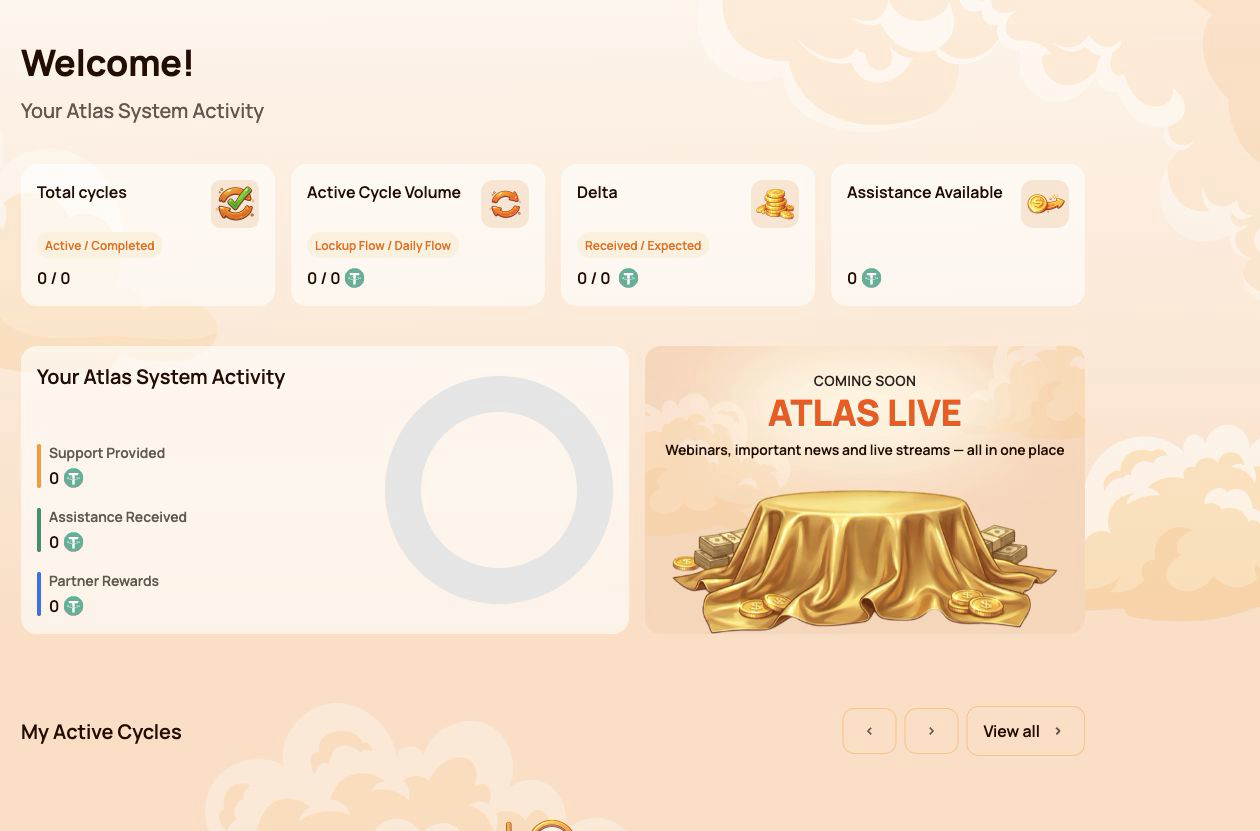
这是什么
仪表盘 是主概览屏幕。它无需用户分别打开各个部分,即可汇总参与者的周期、活动、可用协助和伴侣进展。.
为什么需要它
使用仪表板来:
- 查看活动和已完成的周期数;;
- 比较锁定资金流与日常资金流活动;
- 检查接收到和预期的 Delta;;
- 查看当前是否可以提供协助;;
- 查看全面支持、协助和合作伙伴奖励;;
- 打开当前周期或合作伙伴信息以了解更多详情。.
主摘要卡片
总循环数
显示数量 进行中 / 已完成 循环.
- 活跃 — 当前在其智能合约条件下运行的周期。.
- 已完成 — 在所选流程规则下已完成的周期。.
新创建的周期可能需要短时间才能显示,因为区块链交易正在确认中。.
活动循环容积
显示按以下分类细分的有效支持金额 锁定流程 / 日常流程.
这是分配给活跃周期的价值。它不是所连接钱包中可消费的 USDT 余额。.
德尔塔
显示 收到 / 预期 德尔塔.
- 收到 Delta — 已超出所提供支持金额的额外援助。.
- 期望差额 — 根据当前的智能循环条件计算出的额外援助。.
预期Delta是一个计算值,而不是保证的余额。可用性取决于智能合约规则和可用流动性。.
提供协助
显示当前可通过以下途径申请的金额 申领援助.
在提出索赔之前,请检查:
- 相关周期;
- 已连接钱包;
- BNB Smart Chain 网络;
- 用于燃气费的 BNB 余额;;
- 钱包确认中显示的金额。.
您的 Atlas 系统活动
此区块比较了三种类型的参与者活动:
| 指标 | Meaning |
|---|---|
| Support Provided | Total amount of support directed into Smart Cycles |
| Assistance Received | Assistance already received through completed Claims |
| 合作伙伴奖励 | Rewards received through the Partner Program |
These figures represent different categories and should not be added together as if they were a wallet balance.
My Active Cycles
This block provides quick access to current cycles. Open 我的支持周期 when you need the full cycle card, dates, terms, status, Expected Delta, Claim action or transaction information.
If there are no active cycles, the block may be empty.
合作伙伴状态
The Dashboard shows a compact partner summary:
- Current Partner Status;
- Personal Active Cycle Volume;
- First-Line Active Cycle Volume;
- Partner Structure Active Cycle Volume;
- remaining requirements for the next status.
The detailed qualification rules, weighted Partner Structure Volume, structure coefficients and reward examples belong in the separate 合作伙伴计划 guide.
How to use Dashboard
- 打开 仪表盘 in the side menu.
- Check the four summary cards at the top.
- Review the activity block to distinguish support, assistance and partner rewards.
- 打开 My Active Cycles if a cycle requires attention.
- Open the Partner Program section when the partner summary requires more detail.
What to check when values look incorrect
- Confirm that the same wallet used for the operation is connected.
- Wait for blockchain confirmation and refresh the page.
- Compare the information with My Support Cycles → Operations History.
- Verify the transaction on BscScan.
- If the confirmed transaction is still missing, contact support and provide the transaction hash.
Numeric values shown in screenshots are examples and may change at any time.
3. Provide Support
这是什么
提供支持 is the section used to create a new Smart Cycle. It contains the same basic sequence for both modes: select a flow, review its conditions, enter the Support Amount, accept the terms and confirm the transaction in the connected wallet.
Use this section when you are ready to create a cycle. To review an existing cycle or make a Claim, open 我的支持周期 instead.
为什么需要它
Provide Support allows the participant to:
- choose between Lockup Flow and Daily Flow;
- select or identify the applicable cycle tariff;
- specify the Support Amount in USDT;
- review Expected Assistance before confirming;
- confirm voluntary participation and the terms of use;
- send the transaction request to the connected wallet.
Fields available in both modes
| 字段 | 其含义 | 检查什么 |
|---|---|---|
| Choose Cycle Type | Selects Lockup Flow or Daily Flow | Make sure the required mode is highlighted |
| Select Cycle | Shows the selected tariff and its conditions | Check the tariff name, term and calculation |
| Support Amount, USDT | Amount of support directed into the cycle | Use USDT on BNB Smart Chain and check the minimum amount |
| Expected Assistance (Principal + Delta) | Calculated principal and additional assistance | Treat this as a calculation under the smart contract rules, not a guaranteed wallet balance |
| Terms of use | Rules governing participation | Open and read the terms before accepting |
| Voluntary confirmation | Confirms that the participant is acting voluntarily | Both confirmations are required before the button becomes available |
| 提供支持 | Sends the operation to the connected wallet | The cycle is not created until the wallet transaction is confirmed |
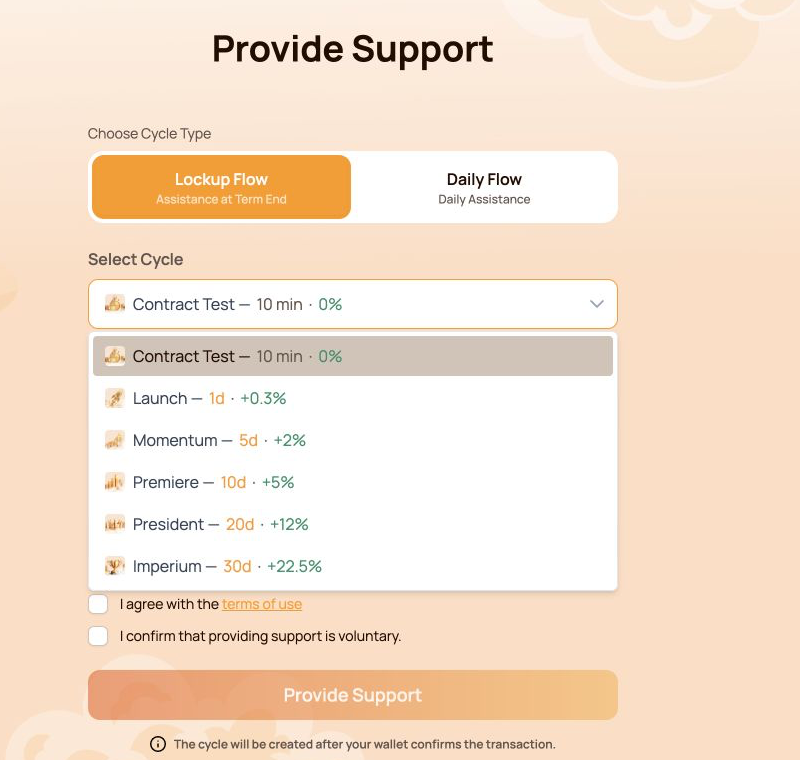
3.1 Lockup Flow
这是什么
锁定流程 creates a cycle with a fixed term. Assistance becomes available for Claim after the selected term ends, subject to the relevant smart contract rules and available liquidity.
What is shown
- Lockup Flow — Assistance at Term End selector;
- cycle tariff with its term and calculated percentage;
- Support Amount in USDT;
- Expected Assistance shown as Principal + Delta;
- required confirmations;
- Provide Support button;
- notice that the cycle is created only after wallet confirmation.
这 契约测试 tariff uses a fixed Support Amount of 10 USDT. Its purpose is to let the participant test the full interaction with the smart contract over a short period. Other Lockup Flow tariffs use their own terms and calculations.
Available Lockup Flow cycles
| Cycle | 条款 | Calculated Delta |
|---|---|---|
| 契约测试 | 10 minutes | — |
| Launch | 1 day | +0.3% |
| Momentum | 5 days | +2% |
| Premiere | 10 days | +5% |
| President | 20 days | +12% |
| Imperium | 30天 | +22.5% |
The open selector in the screenshot shows all six options together. Before choosing, compare the term and calculated Delta with the amount you are prepared to direct into the cycle.
How to use it
- 打开 提供支持.
- Select 锁定流程.
- 打开 Select Cycle and choose the required tariff.
- Check the term and calculated percentage shown next to the tariff.
- Enter the Support Amount. For Contract Test, the amount is fixed at 10 USDT.
- Review Expected Assistance (Principal + Delta).
- Open and accept the terms of use.
- Confirm that providing support is voluntary.
- 点击 提供支持.
- Verify the network, token, amount and gas fee in the wallet, then confirm the transaction.
3.2 Daily Flow
这是什么
每日工作流 creates a 200-day cycle with the right to request assistance daily under the smart contract conditions. The original Support Amount is included in the daily assistance Claims.
What is different from Lockup Flow
- the cycle lasts 200 days;
- the applicable tariff depends on the Support Amount;
- the form shows Daily accrual;
- assistance can be requested daily according to the contract conditions;
- assistance is not deferred to a single end-of-term Claim.
Current tariff ranges:
| Tariff | 支持金额 | 条款 | Daily payout | Calculated Delta |
|---|---|---|---|---|
| 核心 | 10–2,000 USDT | 200天 | 1.1% per day | +120% |
| 精英 | Above 2,000 USDT | 200天 | 1.3% per day | +160% |
The interface may determine the Daily Flow tariff automatically according to the entered Support Amount.
The original Support Amount is included in the daily assistance Claims. The daily payout and Delta shown in the interface are calculations under the current smart contract conditions and available liquidity.
How to use it
- 打开 提供支持.
- Select 每日工作流.
- Check the tariff displayed in Select Cycle.
- Enter the Support Amount. The current minimum is 10 USDT.
- Review Expected Assistance (Principal + Delta) 和 Daily accrual.
- Open and accept the terms of use.
- Confirm that providing support is voluntary.
- 点击 提供支持.
- Verify the transaction details in the wallet and confirm.
- After blockchain confirmation, open 我的支持周期 to check the new cycle.
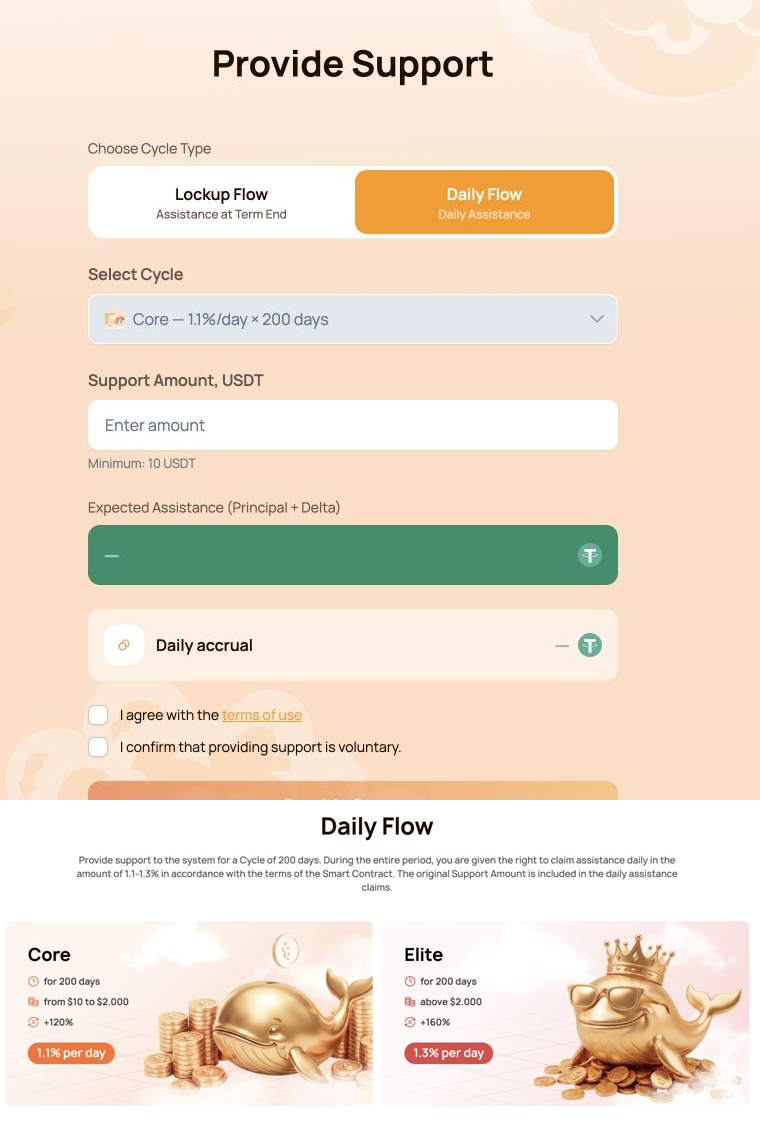
The combined visual shows the Daily Flow form first and the Core/Elite comparison directly below it.
3.3 Wallet confirmation
这 提供支持 button does not move funds by itself. It creates a transaction request that must be reviewed and signed in the connected wallet.
Before confirming, check:
- the wallet is connected to BNB Smart Chain;
- the token is USDT BEP-20;
- the Support Amount matches the form;
- the wallet contains enough BNB for gas;
- the destination is the official Atlas System smart contract;
- the transaction was opened from
app.atlas-system.tech.
For the first USDT operation, the wallet may request two confirmations:
- USDT approval for the smart contract;
- creation of the Smart Cycle.
Both transactions require BNB gas. Never enter a seed phrase or private key into the Atlas System website.
If the button is unavailable
Check that:
- the Support Amount meets the minimum and tariff limits;
- both confirmations are selected;
- the wallet is connected;
- the correct network is active;
- the form does not show a validation error.
Lockup Flow tariffs, Daily Flow calculations, cycle statuses and Claim are covered in the separate Smart Cycle guide.
4. My Support Cycles
这是什么
我的支持周期 is the section for monitoring cycles after they have been created. It separates current cycles, finished cycles and the history of cycle creation and received assistance.
Use this section to:
- confirm that a new cycle appeared after the blockchain transaction;
- track active Lockup Flow and Daily Flow cycles;
- check terms, dates and calculated Delta;
- find completed cycles;
- review cycle creation and assistance history;
- 查找 BscScan 核验或提交支持请求所需的信息。
The section contains three main tabs: 活跃, 已完成 和 操作历史.
4.1 进行中
它显示的内容
Active 标签页包含当前按照智能合约条件运行的周期。
顶部模式选择器区分:
- Lockup Flow — Assistance at Term End;
- Daily Flow — Daily Assistance.
汇总指标:
| 指标 | Meaning |
|---|---|
| 活动循环容积 | 当前分配给所选模式进行中周期的支持金额总额 |
| 期望差额 | 所显示进行中周期的预计额外援助 |
周期信息可能包括:
- 支持金额;
- 条款;
- 开始和结束日期;
- 预计 Delta;
- 当前状态;
- 可用的援助申领操作;
- 相关的区块链交易。
How to use it
- 打开 我的支持周期 → 进行中.
- 选择 Lockup Flow 或 Daily Flow。
- 按支持金额、期限或日期查找所需周期。
- 查看当前状态和计算结果。
- 如果援助申领可用,请核对金额并在钱包中确认交易。
对于 Daily Flow,可用援助可能会根据每日计算结果和已完成的援助申领发生变化。
4.2 已完成
它显示的内容
Completed 标签页包含已按照所选模式规则结束、且不再显示为进行中的周期。
汇总指标:
| 指标 | Meaning |
|---|---|
| 已完成周期数量 | 与所选模式已完成周期关联的支持金额总额 |
| 收到 Delta | 所显示已完成周期中已经收到的 Delta |
这里同样提供 Lockup Flow 和 Daily Flow 选择器。历史周期信息仍可用于检查支持金额、期限、日期、计算结果和相关交易。
How to use it
- 打开 我的支持周期 → 已完成.
- 选择所需模式。
- 按金额、期限或日期查找周期。
- 将其信息与操作历史进行比较。
- 使用交易信息在 BscScan 上进行独立核验。
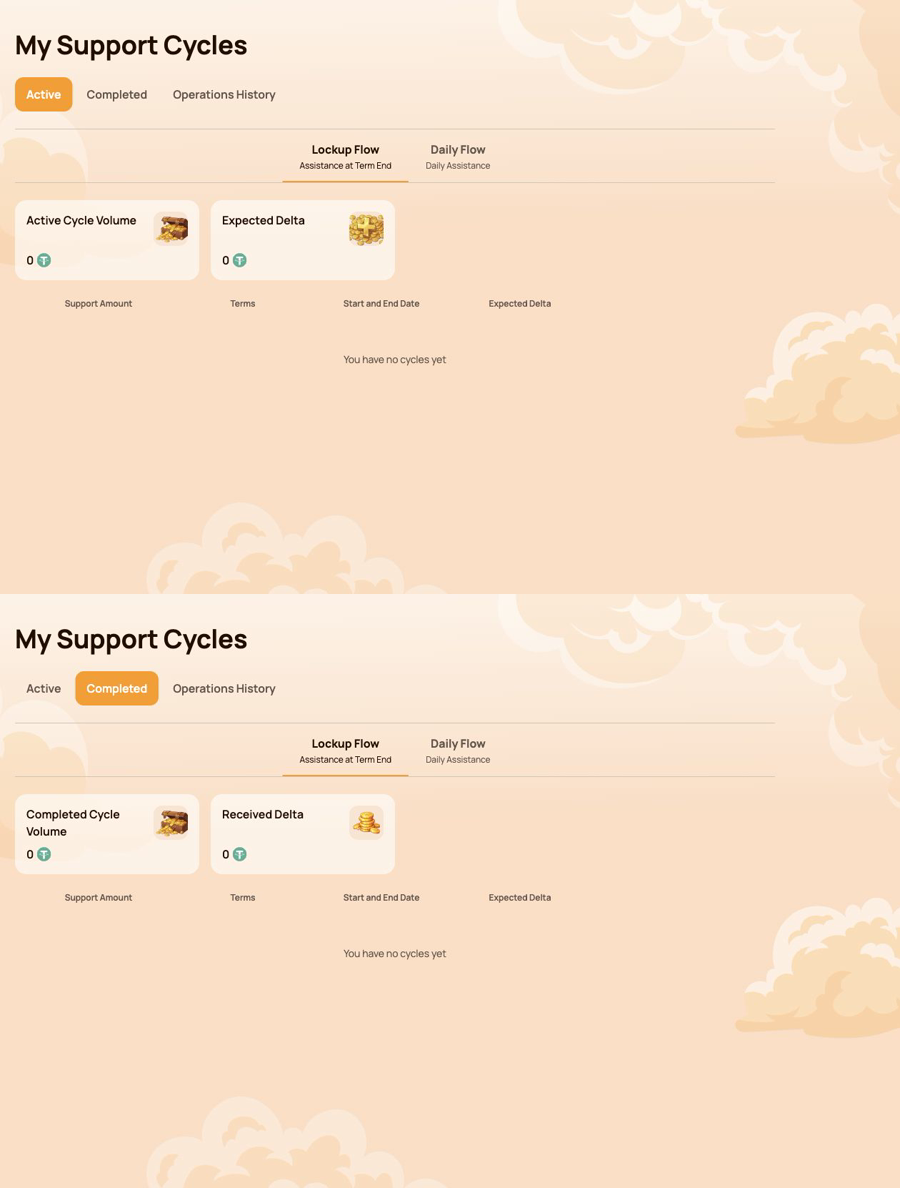
组合图先显示 Active,正下方显示 Completed。示例钱包没有周期,因此截图展示空状态和可用控件,不会暴露参与者数据。
4.3 操作记录
操作历史 records the two main types of participant activity related to Smart Cycles.
周期创建
使用此标签页查看通过已连接钱包创建的周期。
显示的字段:
- 周期创建日期;
- 周期名称;
- 期限;
- 支持金额。
当周期创建交易已确认,而参与者需要查看周期在何时及何种条件下创建时,该视图非常有用。
Assistance Received
使用此标签页查看已完成的援助申领。
汇总指标:
- 收到的援助申领;
- 收到的援助数量。
显示的字段:
- 周期;
- 周期创建日期;
- 支付金额;
- 智能合约;
- 状态。
Smart contract 和 Status 字段有助于将仪表板记录与链上核验对应起来。
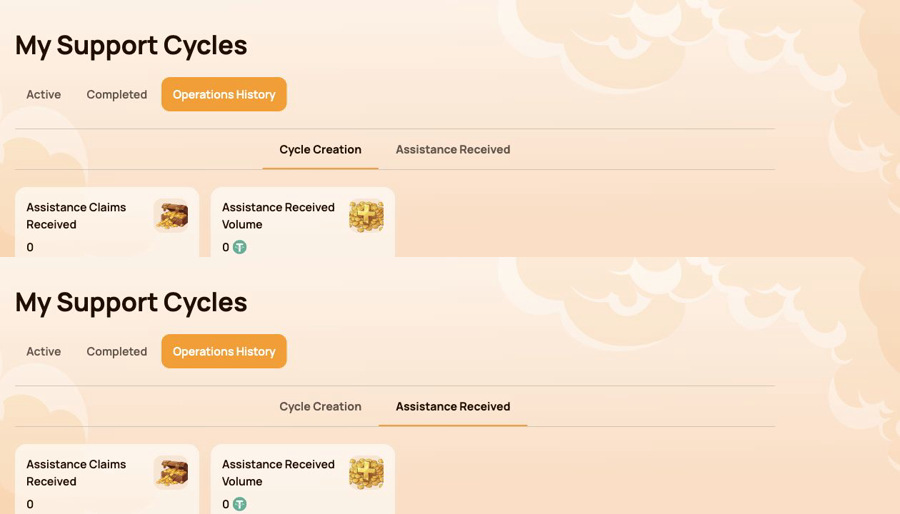
组合图先显示 Cycle Creation,下方显示 Assistance Received。
4.4 如果周期或操作未显示
- 确认已连接执行该交易时使用的同一个钱包。
- 确认已选择 BNB Smart Chain。
- 等待区块链确认并刷新个人仪表板。
- 检查 Lockup Flow 和 Daily Flow 两个筛选器。
- 查看“进行中”“已完成”和“操作历史”。
- 在钱包或 BscScan 中打开交易。
- If the transaction is confirmed but the record is still missing, contact support and provide:
- connected wallet address;
- 交易哈希;
- 周期类型和金额;
- 大致操作时间;
- 相关选项卡的截图。
Cycle statuses and Claim conditions are explained in Smart Cycle. Transaction verification is covered in 合约与 BscScan.
5. 合作伙伴计划
这 合作伙伴计划 section brings together partner rewards, team structure, status progress and activity statistics. Use it to monitor your own partner account and the activity associated with your referral structure.
This section explains the personal dashboard interface. Status rules, qualification volumes, reward calculation and worked examples are covered in the separate 合作伙伴计划 guide.
该部分包含四个标签页:
- 合作伙伴钱包;
- 应计历史;
- 我的团队;
- 统计数据.
5.1 合作伙伴钱包
合作伙伴钱包 shows the current state of partner rewards.
| 指标 | Meaning |
|---|---|
| Account Balance | 仪表板当前显示为可用的合作伙伴奖励 |
| Total Accrued | 按照计划规则累计的合作伙伴奖励总额 |
| Rewards Received | 已经收到的合作伙伴奖励 |
这 Withdrawal History table records withdrawals and displays:
- 提现日期;
- 提现金额;
- 状态;
- Tx Hash。
使用 Tx Hash to open the related transaction on BscScan and verify it independently. The information tooltip next to Account Balance explains how automatic payouts work.
5.2 奖励计提记录
应计历史 shows how partner rewards were accrued. When accruals are available, the table includes:
- 应计日;;
- 奖励;
- 已累积奖励金额.
需要确认产生某笔累积的奖励类型时,请使用此标签页。奖励累积与收到支付是不同阶段:先在此查看累积,再查看 Partner Wallet 及其 Withdrawal History。
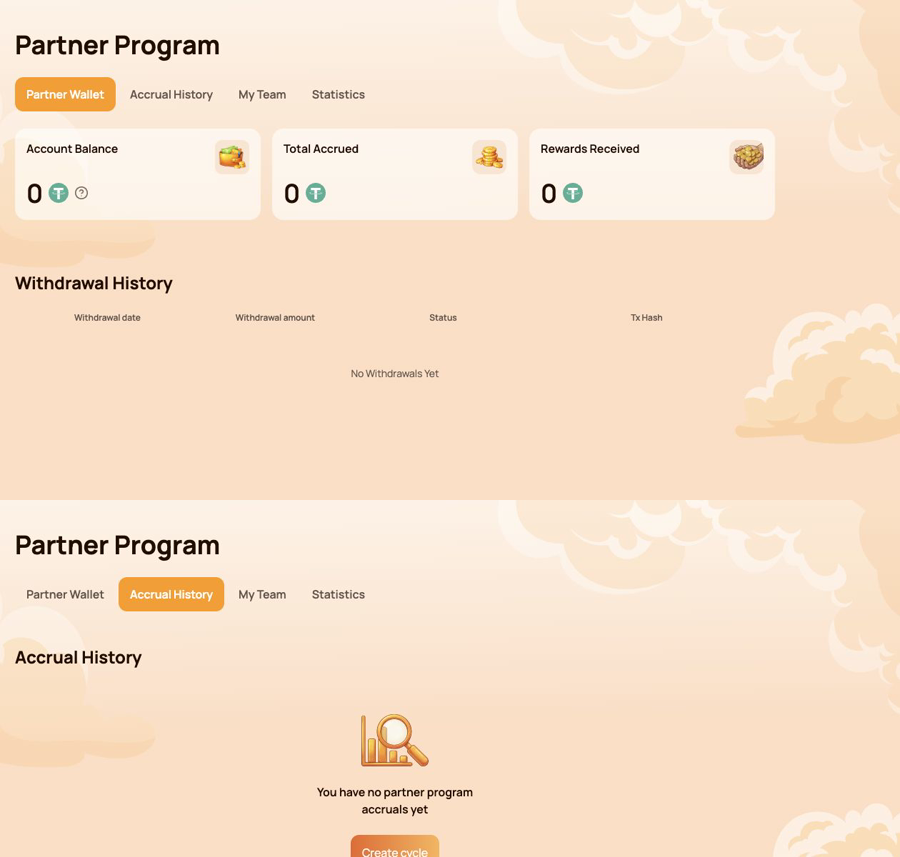
组合图先显示 Partner Wallet,正下方显示 Accrual History。
5.3 我的团队
我的团队 is the main workspace for status progress and referral structure.
合作伙伴信息
顶部面板显示:
- 合作伙伴状态 — the current status and its reward rate;
- 我的推荐链接 — the personal link used to invite new participants;
- 我的推荐人(钱包地址) — the wallet whose referral link was used;
- 引荐来源状态 — the current status of that referrer.
The personal referral link becomes available after the first qualifying Smart Cycle of 10 USDT or more. If the field shows 暂无, check the cycle and status conditions described in the Partner Program guide.
下一状态的要求
进度由三种数量显示:
- Personal Active Cycle Volume;
- First-Line Active Cycle Volume;
- Partner Structure Active Cycle Volume.
For each requirement, compare 当前, Required 和 Remaining. This makes it clear which condition has already been met and which volume is still needed for the next status.
状态要求与结构
这 Status Requirements table compares all statuses by:
- 个人活跃周期数量;
- 第一线活跃周期数量;
- 合作伙伴结构中的活跃周期数量;
- 不限层级的结构奖励比例;
- 匹配奖励比例。
Below the table, use Structure Lines 和 Search by Wallet Address to navigate the structure. The results identify the participant wallet and status. The Leaders statistics in the structure section helps identify the most active parts of the team.
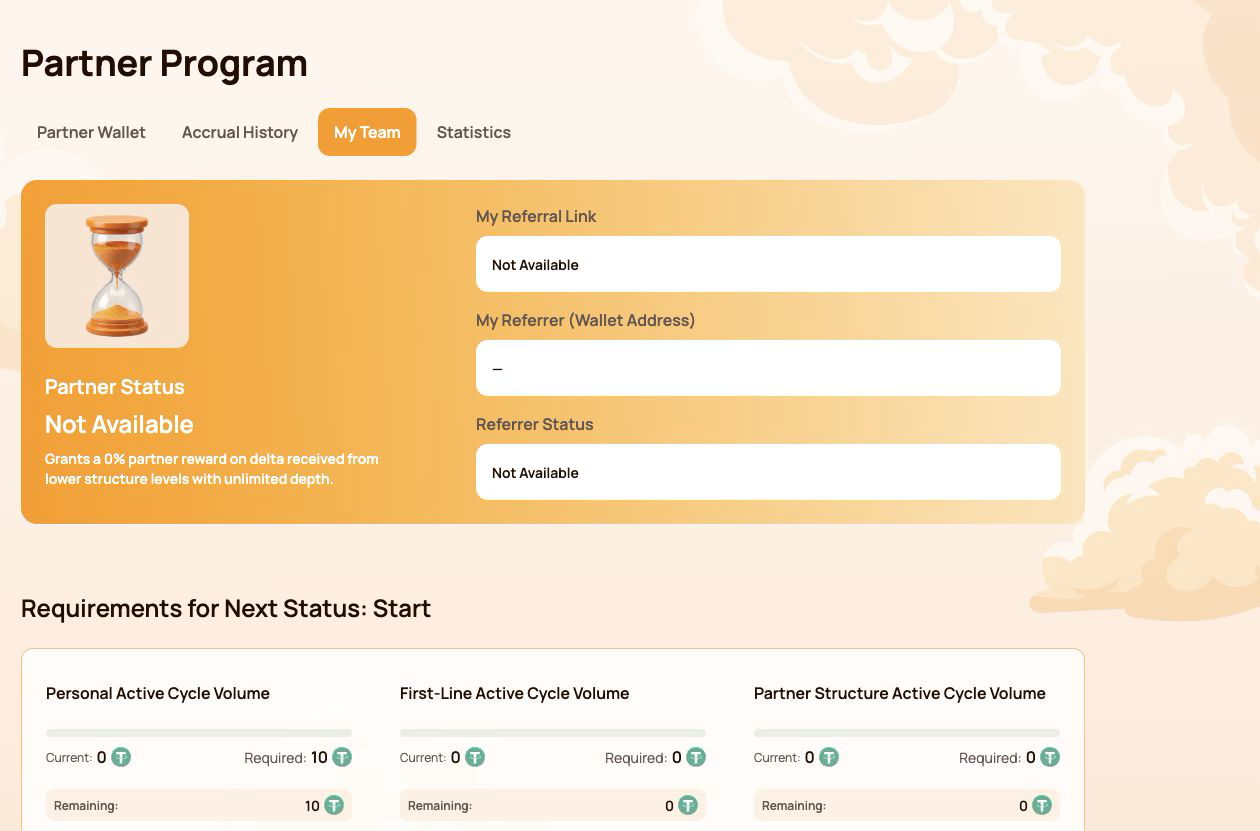
截图使用没有有效合作伙伴状态的账户,不会暴露参与者钱包地址。
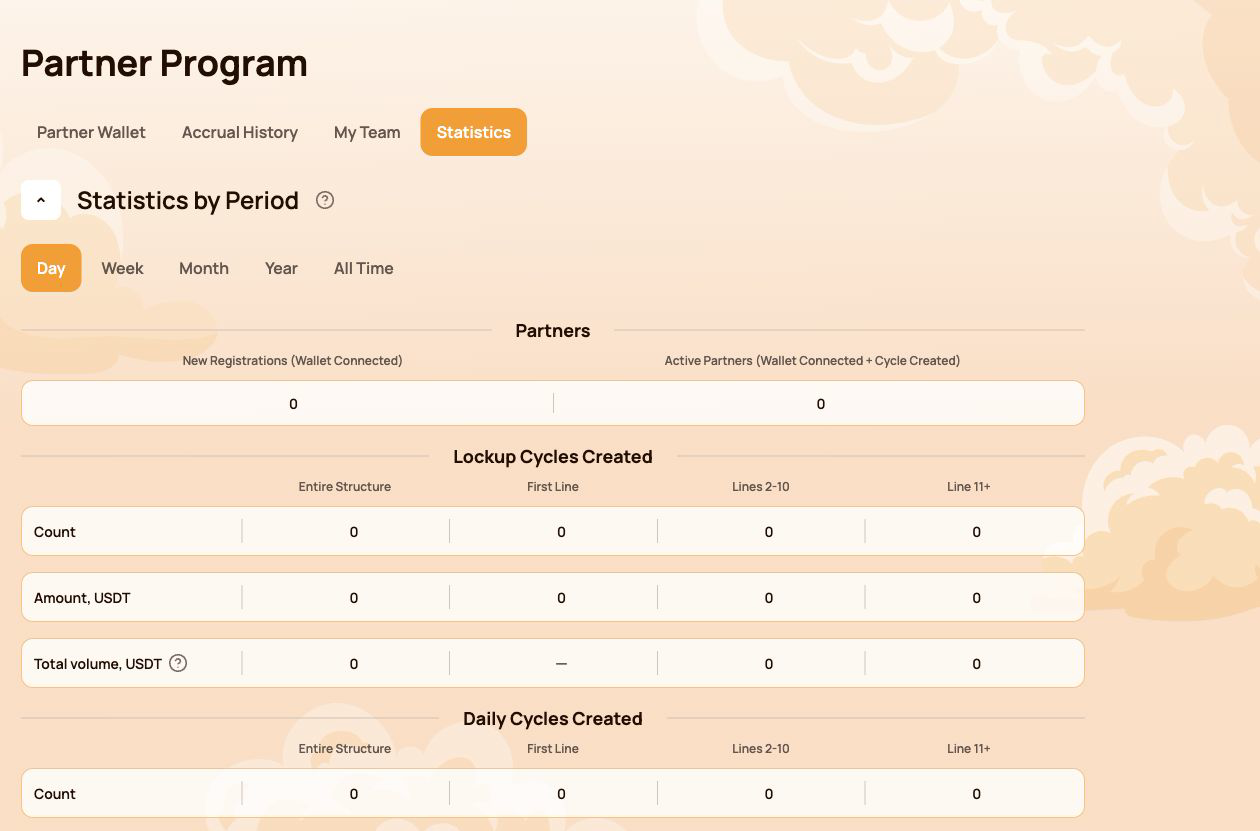
5.4 统计数据
统计数据 summarizes partner activity for the selected period. Available filters are Day, Week, Month, Year 和 历史总计.
合作伙伴
- New Registrations (Wallet Connected) — wallets newly connected through the structure;
- Active Partners (Wallet Connected + Cycle Created) — connected partners who also created a cycle.
已创建周期
Lockup Flow 和 Daily Flow 分开显示。对于每种模式,仪表板按以下方式汇总活动:
- 整个结构;
- 第一线;
- 第 2–10 线;
- 第 11+ 线。
表格显示周期数量、USDT 金额以及计入系统指标的总量。
结构深度如何影响完整数量
The information tooltip next to Total volume explains the coefficients used for structure depth:
| Structure depth | 计入数量 |
|---|---|
| 第一线 | 第一线和无限深度指标按 100% 计入 |
| 第 2–5 线 | 无限深度指标按 100% 计入 |
| Lines 6–10 | 50% |
| Line 11+ | 10% |
Most Active Lines highlights the leading structure lines and shows their partner count and USDT volume.
5.5 重要说明
- Account Balance in Partner Wallet is a dashboard partner balance; it is not the same as the USDT balance displayed by your wallet application.
- 新的累积、提现和统计数据可能会在区块链确认并完成仪表板同步后显示。
- 查看合作伙伴数据前,请始终确认连接的是正确的钱包。
- 未经同意,不要在截图中公开推荐关系或参与者钱包数据。
- 进行链上核查时,请使用交易哈希和官方合约登记册。
Status conditions, qualification volumes and reward examples are explained in 合作伙伴计划. Terms are defined in 术语表.
6. 个人资料
这 个人资料 section stores the participant information used for communication and partner-facing features. It does not store wallet access credentials and does not replace the connected wallet address.
打开 个人资料 from the left navigation. After making changes, select Save at the bottom of the page.
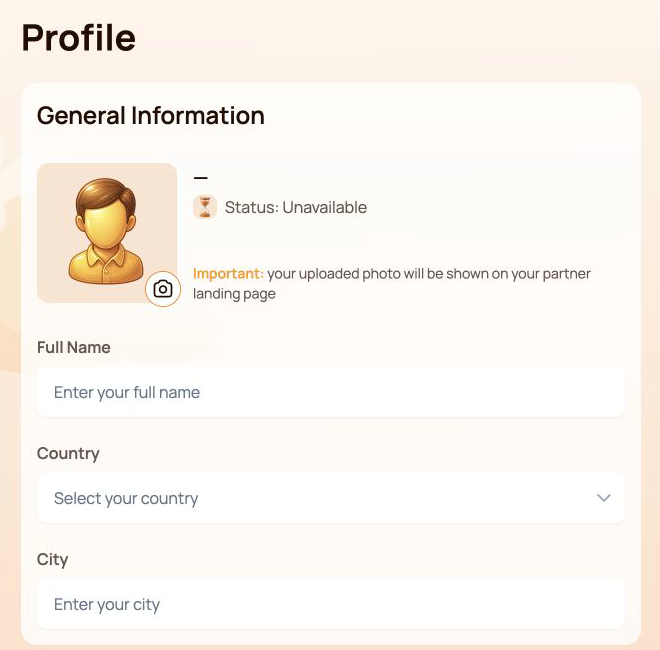
6.1 基本信息
顶部面板包含:
- Avatar — select the camera icon to add or replace the profile image;
- 状态 — the current partner status associated with the connected wallet;
- Full Name;
- Country;
- City.
The interface warns that the uploaded photo may be shown on the participant's partner landing page. Use only an image that you are comfortable displaying there.
6.2 联系信息
This section contains Phone Number 和 Email.
这 Visible to partners switch controls the partner visibility setting for the contact information block. Before enabling it, check that the entered details are intended to be shared with partners.
6.3 社交网络
可用字段包括:
- Facebook — username or profile link;
- Instagram — username or profile link;
- WhatsApp — phone number or link;
- Telegram — username, link or phone number.
Social networks have their own Visible to partners switch. This setting is separate from the visibility switch in Contact Information.
如果您不使用某项服务,或不希望它显示在个人资料中,可以将相应字段留空。
6.4 通信设置
通信语言
通信语言 records the participant's preferred language for communication. Select one of the supported Atlas System languages listed in Notifications and interface language below.
This field is different from the language selector in the top bar: the top-bar control changes the dashboard interface language, while 通信语言 belongs to the saved profile settings.
首选沟通方式
选择您偏好的沟通渠道:
- Telegram;
- WhatsApp;
- 电子邮件。
选择首选方式前,请先填写相应的联系方式或社交网络字段。如果多个渠道均合适,可以勾选多个选项。
Select Save after changing the language, communication methods or any other profile field.
6.5 隐私与安全
- Enable Visible to partners only for information you intend to share.
- 两个可见性开关应独立使用:一个适用于联系方式,另一个适用于社交网络。
- 绝不要在任何个人资料字段中输入助记词、私钥、钱包密码、一次性安全码或交易所密码。
- Atlas System 支持人员检查个人资料问题时,不需要钱包访问凭证。
- 顶部栏中的缩短钱包地址用于标识已连接钱包,不能在 Profile 中编辑。
6.6 如果更改未保存
- 确认所有必填字段均使用预期格式。
- Select Save and wait for the interface response.
- 刷新页面并检查这些数值是否仍然显示。
- 确认仍连接着同一个钱包。
- 如果数值再次消失,请联系支持并附上截图,但不要泄露私密凭证。
Partner status and the partner landing page are explained in 合作伙伴计划. Safe data sharing is covered in 安全.
7. 通知与界面语言
通知铃铛和界面语言选择器位于顶部栏,并在整个个人仪表板中始终可用。
7.1 通知
Select the 通知 bell to open the notification center. Messages are grouped into three tabs:
| 标签页 | 它显示的内容 |
|---|---|
| 所有消息 | 所有可用通知 |
| Read | 已经打开或标记为已读的通知 |
| 未读 | 尚未阅读的通知;括号中的数字是当前未读数量 |
If the page shows You have no notifications yet, there are currently no messages for the connected account. This is a normal empty state and does not indicate an error.
重要限制
仪表盘通知仅供参考,不能取代:
- 钱包交易状态;
- 区块链确认;
- BscScan 上的交易记录;
- the current cycle status in 我的支持周期.
当通知与链上交易看起来不一致时,请先核验钱包地址、交易哈希和智能合约。
7.2 界面语言
选择顶部栏中的当前语言,然后选择所需的界面语言:
- English;
- Bahasa Indonesia;
- Bahasa Melayu;
- Deutsch;
- Español;
- Français;
- Русский;
- Português;
- Tiếng Việt;
- Türkçe;
- हिन्दी;
- 中文;
- ไทย.
所选选项会更改 Atlas System 个人仪表板的语言。钱包扩展程序、BscScan 和其他外部服务保留各自的语言设置。
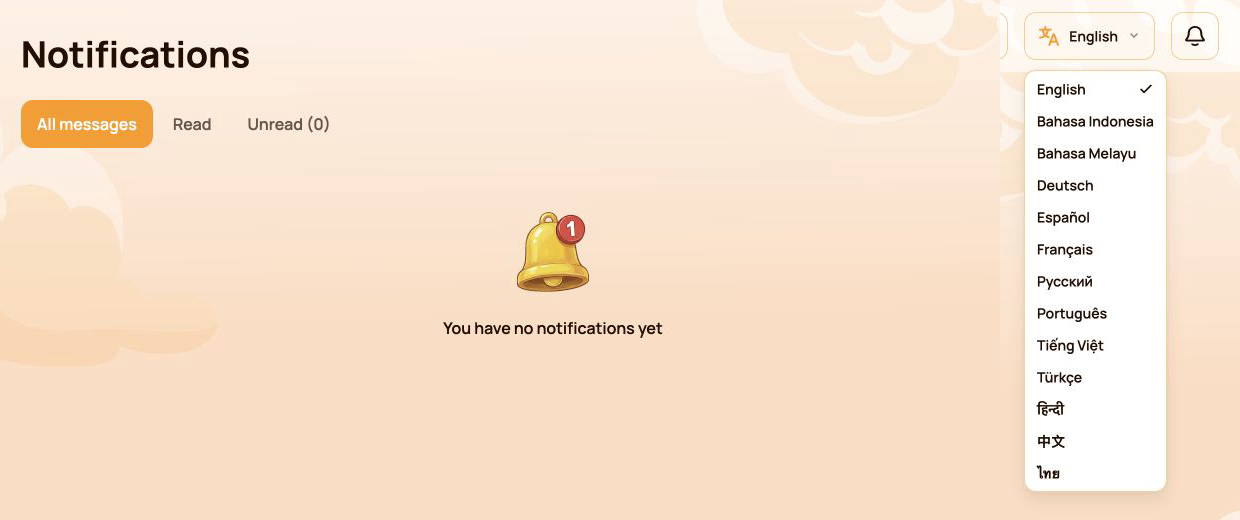
图片显示完整的界面语言列表。
7.3 界面语言与通信语言的区别
这两个设置用途不同:
| 设置 | 位置 | Purpose |
|---|---|---|
| 界面语言 | 顶栏 | 更改个人仪表板界面所使用的语言 |
| 通信语言 | 个人资料 | Records the participant's preferred language for communication |
If you want both settings to match, change the top-bar language and then select the same language in Profile → Communication Language and save the profile.
7.4 如果通知或翻译未更新
- 确认连接的是正确的钱包。
- 刷新仪表板。
- 重新打开通知中心或语言选择器。
- 检查顶部栏是否显示所选语言。
- 如果预期消息未出现,请在仪表板相关部分和 BscScan 上核验对应周期或交易。
- 如果仪表板仍不一致,请联系支持,并在适用时提供截图和交易哈希。
Official translated labels are collected in 术语表. Related issues are covered in 故障排查.
8. 系统健康状态
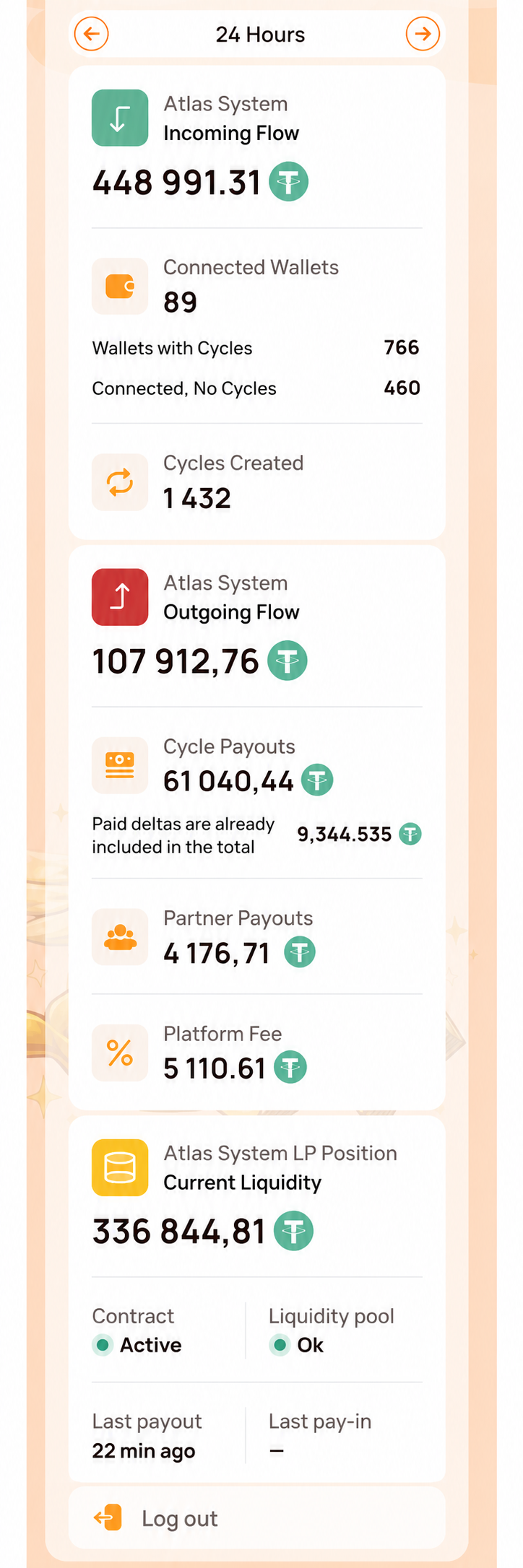
这 系统健康状况 panel is located below the main navigation. It provides an at-a-glance view of system-wide activity and operational status. Use All time 或 Last 24 hours to select the displayed period.
These indicators describe Atlas System as a whole. They are not the connected participant's wallet balance, personal cycle volume or guaranteed assistance amount.
8.1 指标
| 指标 | 其含义 |
|---|---|
| 服务器时间 | 仪表板显示当前健康状态快照时使用的日期和时间 |
| 已创建周期数 / 收到支持数量 | 所显示期间已创建周期的数量及其收到支持总量 |
| 已完成周期数 / 对外援助数量 | 所显示期间已完成周期的数量及其对外援助总量 |
| 智能合约余额 | The current contract balance shown by the dashboard; it is not the participant's wallet balance |
| 所有已连接钱包 | 仪表板在所显示期间记录的钱包数量 |
| 已支付的 Delta | 所显示期间已完成援助操作中包含的 Delta |
| 合作伙伴计划支付 | 所显示期间记录的合作伙伴奖励转账 |
| 平台费用 | 所显示期间记录的平台费用;网络 Gas 费另行计算 |
| 合约 | Current dashboard status of the Atlas System smart contracts, such as 活跃 |
| 最近一次支付 | 自系统中最近一次记录支付以来经过的时间 |
| 流动性池 | Current dashboard health status of the liquidity pool, such as OK |
在两个周期指标中,第一个值是周期数量,第二个值是 USDT 数量。
截图显示完整的 System Health 面板。所有数值均为截取时的示例,会随时间变化。
8.2 如何解读面板
- 绿色的整体健康状态盾牌可直观概览当前仪表板状态。
- Contracts: Active means the dashboard currently reports the contracts as operational.
- Liquidity Pool: OK means the dashboard currently reports the pool health check as normal.
- 最近一次支付 is an activity timestamp. A longer interval does not by itself prove that the system is unavailable.
- 智能合约余额和系统整体数量不能决定某位特定参与者能否申领援助。
- 面板显示正常并不能替代在 BscScan 上核查具体钱包交易的状态。
8.3 如果指标延迟或不可用
- 检查 服务器时间 to understand when the displayed snapshot was recorded.
- 刷新一次仪表板,然后重新查看各项指标。
- Open the official 系统状态 page for service-wide incidents or maintenance.
- 在 BscScan 上核查官方合约地址及其近期交易。
- For a personal transaction, verify its transaction hash and check 我的支持周期 或 操作历史.
- If the discrepancy remains, contact support with:
- 受影响的指标;
- 面板中显示的服务器时间;
- connected wallet address;
- 交易哈希(如适用);
- 面板截图。
Detailed availability is published in 系统状态. Official addresses and on-chain verification are covered in 合约与 BscScan.
9. 快速任务索引
当您知道要执行什么操作,却不确定应打开仪表板哪个部分时,可使用此表。
| 我想…… | 打开… |
|---|---|
| 查看个人整体活动 | 仪表盘 |
| 创建 Lockup 或 Daily 周期 | 提供支持 and select the required flow |
| 查看进行中的周期或援助申领 | 我的支持周期 → 进行中 |
| 查找已完成周期 | 我的支持周期 → 已完成 |
| 查看周期创建或收到援助 | 操作历史 |
| 查看合作伙伴奖励、累积或提现 | 合作伙伴计划 → 合作伙伴钱包 / 累积历史 |
| 复制推荐链接或查看状态进度 | 合作伙伴计划 → 我的团队 |
| 搜索结构或比较活动 | 合作伙伴计划 → 我的团队 / 统计 |
| 更新个人信息或可见性 | 个人资料 |
| 设置沟通语言或渠道 | 个人资料 → 通信设置 |
| 更改仪表板语言 | 顶部栏语言选择器 |
| 阅读系统消息 | 通知 |
| 查看整体运行指标 | Health of System → All time / Last 24 hours |
| 独立核验交易 | 钱包交易详情与 BscScan |
新参与者推荐路径
- 打开 仪表盘 and confirm that the correct wallet is connected.
- 打开 提供支持 and review Lockup Flow and Daily Flow before selecting a cycle.
- After the transaction is confirmed, open 我的支持周期 → 进行中.
- 使用 操作历史 to review cycle creation and assistance received.
- 使用 通知 for system messages and 系统健康状况 for overall operational indicators.
For wallet setup, network selection, USDT and BNB requirements, start with 快速入门 before using the personal dashboard.

