
Dasbor Pribadi
Itu Dasbor Pribadi adalah antarmuka yang menghadap ke peserta untuk melihat aktivitas, membuat siklus dukungan, melacak Siklus Cerdas, meminta bantuan, menggunakan Program Mitra, dan mengelola informasi profil.
Gunakan hanya alamat resmi: app.atlas-system.tech.
Dasbor pribadi adalah sebuah antarmuka, bukan dompet kripto. Dana tetap dikendalikan melalui dompet nir-kustodian yang terhubung. Hasil transaksi dapat diverifikasi secara mandiri di BscScan.
1. Peta antarmuka
Navigasi utama tetap tersedia di seluruh dasbor pribadi. Sebelum melakukan tindakan, pastikan dompet dan bahasa yang benar telah dipilih.
Bilah atas
| Elemen | Apa yang ditunjukkannya | Mengapa hal ini penting |
|---|---|---|
| Hari dalam sistem | Waktu sejak dompet pertama kali terhubung ke Sistem Atlas | Menampilkan usia partisipasi yang terkait dengan dompet yang terhubung |
| Saldo Voting | Bobot suara yang saat ini ditampilkan oleh antarmuka | Kelayakan dan perhitungan mengikuti aturan tata kelola yang aktif pada saat itu |
| Dompet terhubung | Alamat dompet aktif yang disingkat | Selalu bandingkan dengan dompet yang ingin Anda gunakan sebelum membuat siklus atau melakukan Klaim |
| Bahasa | Bahasa antarmuka saat ini | Mengubah bahasa dasbor pribadi |
| Pemberitahuan | Akses ke pesan sistem | Buka Semua, Baca dan Belum dibaca |
Alamat dompet yang terhubung sengaja disembunyikan dari tangkapan layar panduan.
Navigasi samping
| Bagian | Untuk apa itu |
|---|---|
| Dasbor | Ikhtisar aktivitas pribadi, siklus aktif, dan indikator mitra |
| Berikan Dukungan | Pembuatan Alur Penguncian (Lockup Flow) atau siklus Alur Harian (Daily Flow) yang baru |
| Siklus Dukungan Saya | Siklus aktif, siklus selesai, dan Riwayat Operasi |
| Program Mitra | Dompet mitra, akrual, struktur tim, dan statistik |
| Profil | Informasi pribadi, kontak, pengaturan visibilitas dan komunikasi |
| Basis pengetahuan | Membuka Pusat Pengetahuan Sistem Atlas Resmi |
Cara berpindah di sekitar dasbor
- Pilih bagian di menu sebelah kiri.
- Periksa dompet yang terhubung sebelum melakukan tindakan apa pun yang terkait dengan transaksi.
- Gunakan pemilih bahasa jika antarmuka tidak ditampilkan dalam bahasa yang diminta.
- Kembali ke Dasbor kapan pun Anda membutuhkan gambaran umum.
- Gunakan Keluar ketika Anda selesai bekerja pada perangkat bersama atau publik.
Yang harus diperiksa
- Domain resminya adalah
app.atlas-system.tech. - Dompet yang diharapkan sudah terhubung.
- BNB Smart Chain dipilih untuk tindakan yang terkait dengan transaksi.
- Tidak ada orang atau perwakilan dukungan yang boleh meminta frasa sandi (seed phrase) atau kunci pribadi Anda.
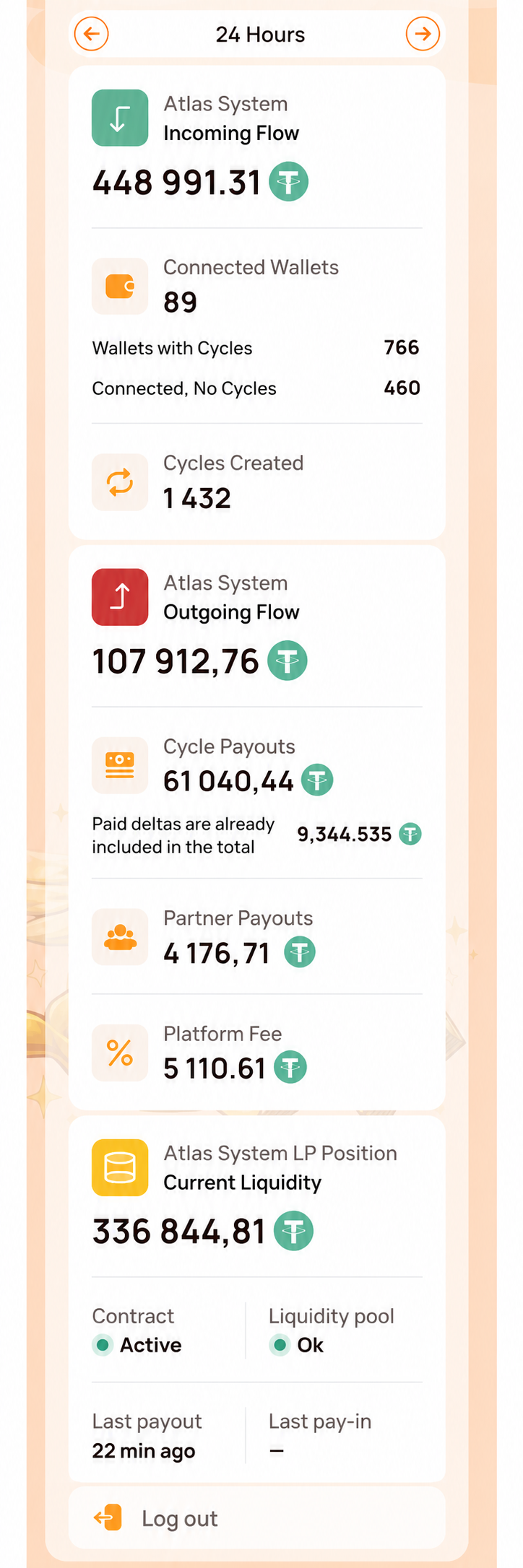
Tangkapan layar dimulai di bawah bilah atas agar alamat dompet peserta tidak ditampilkan. Ini hanya berfokus pada navigasi samping dan panel Kesehatan Sistem. Area Dasbor utama ditampilkan secara terpisah pada visual berikutnya.
2. Dasbor
Apa itu
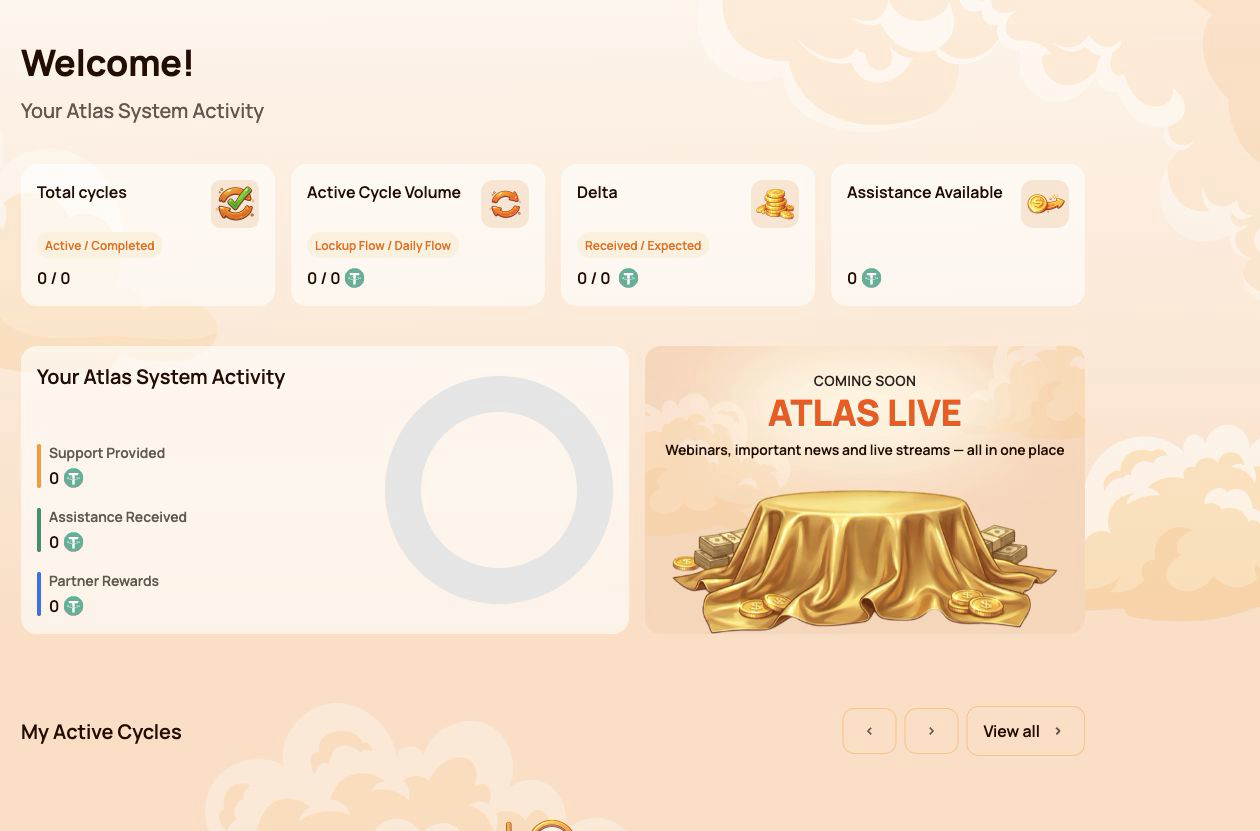
Dasbor adalah layar ikhtisar utama. Layar ini merangkum siklus, aktivitas, bantuan yang tersedia, dan kemajuan mitra peserta tanpa mengharuskan pengguna untuk membuka setiap bagian secara terpisah.
Mengapa itu diperlukan
Gunakan Dasbor untuk:
- lihat jumlah siklus yang aktif dan yang telah diselesaikan;
- bandingkan aktivitas Lockup Flow dan Daily Flow;
- periksa Delta yang diterima dan diharapkan;
- lihat apakah bantuan saat ini tersedia;
- tinjau dukungan penuh, bantuan, dan hadiah mitra;
- buka siklus saat ini atau informasi mitra untuk detail lebih lanjut.
Kartu ringkasan utama
Jumlah siklus
Menampilkan jumlah Aktif / Selesai siklus.
- Aktif — siklus yang saat ini sedang berjalan sesuai ketentuan kontrak pintar mereka.
- Selesai — siklus yang telah selesai sesuai dengan aturan alur yang dipilih.
Siklus yang baru dibuat mungkin memerlukan waktu sebentar untuk muncul sementara transaksi blockchain sedang dikonfirmasi.
Volume Siklus Aktif
Menunjukkan Jumlah Dukungan aktif yang dirinci berdasarkan Arus Penahanan / Arus Harian.
Ini adalah nilai yang ditetapkan untuk siklus aktif. Nilai ini bukanlah saldo USDT yang dapat dibelanjakan di dompet yang terhubung.
Delta
Acara Telah Diterima / Diharapkan Delta.
- Telah menerima Delta — bantuan tambahan yang telah diterima di atas jumlah dukungan yang diberikan.
- Delta yang Diperkirakan — bantuan tambahan yang dihitung berdasarkan ketentuan Smart Cycle yang berlaku saat ini.
Delta yang Diperkirakan merupakan hasil perhitungan, bukan saldo yang dijamin. Ketersediaannya bergantung pada aturan kontrak pintar dan likuiditas yang tersedia.
Bantuan Tersedia
Menampilkan jumlah yang saat ini tersedia untuk diajukan melalui Minta Bantuan.
Sebelum mengajukan Klaim, periksa:
- siklus yang bersangkutan;
- dompet terhubung;
- Jaringan BNB Smart Chain;
- Saldo BNB untuk biaya gas;
- jumlah yang tertera pada konfirmasi dompet.
Aktivitas Sistem Atlas Anda
Blok ini membandingkan tiga jenis aktivitas partisipan:
| Indikator | Arti |
|---|---|
| Dukungan yang Diberikan | Total amount of support directed into Smart Cycles |
| Assistance Received | Assistance already received through completed Claims |
| Hadiah Mitra | Rewards received through the Partner Program |
These figures represent different categories and should not be added together as if they were a wallet balance.
My Active Cycles
This block provides quick access to current cycles. Open Siklus Dukungan Saya when you need the full cycle card, dates, terms, status, Expected Delta, Claim action or transaction information.
If there are no active cycles, the block may be empty.
Status Kemitraan
The Dashboard shows a compact partner summary:
- Current Partner Status;
- Personal Active Cycle Volume;
- First-Line Active Cycle Volume;
- Partner Structure Active Cycle Volume;
- remaining requirements for the next status.
The detailed qualification rules, weighted Partner Structure Volume, structure coefficients and reward examples belong in the separate Program Mitra guide.
How to use Dashboard
- Buka Dasbor in the side menu.
- Check the four summary cards at the top.
- Review the activity block to distinguish support, assistance and partner rewards.
- Buka My Active Cycles if a cycle requires attention.
- Open the Partner Program section when the partner summary requires more detail.
What to check when values look incorrect
- Confirm that the same wallet used for the operation is connected.
- Wait for blockchain confirmation and refresh the page.
- Compare the information with My Support Cycles → Operations History.
- Verify the transaction on BscScan.
- If the confirmed transaction is still missing, contact support and provide the transaction hash.
Numeric values shown in screenshots are examples and may change at any time.
3. Provide Support
Apa itu
Berikan Dukungan is the section used to create a new Smart Cycle. It contains the same basic sequence for both modes: select a flow, review its conditions, enter the Support Amount, accept the terms and confirm the transaction in the connected wallet.
Use this section when you are ready to create a cycle. To review an existing cycle or make a Claim, open Siklus Dukungan Saya instead.
Mengapa itu diperlukan
Provide Support allows the participant to:
- choose between Lockup Flow and Daily Flow;
- select or identify the applicable cycle tariff;
- specify the Support Amount in USDT;
- review Expected Assistance before confirming;
- confirm voluntary participation and the terms of use;
- send the transaction request to the connected wallet.
Fields available in both modes
| Lapangan | Apa artinya | Yang harus diperiksa |
|---|---|---|
| Choose Cycle Type | Selects Lockup Flow or Daily Flow | Make sure the required mode is highlighted |
| Select Cycle | Shows the selected tariff and its conditions | Check the tariff name, term and calculation |
| Support Amount, USDT | Amount of support directed into the cycle | Use USDT on BNB Smart Chain and check the minimum amount |
| Expected Assistance (Principal + Delta) | Calculated principal and additional assistance | Treat this as a calculation under the smart contract rules, not a guaranteed wallet balance |
| Terms of use | Rules governing participation | Open and read the terms before accepting |
| Voluntary confirmation | Confirms that the participant is acting voluntarily | Both confirmations are required before the button becomes available |
| Berikan Dukungan | Sends the operation to the connected wallet | The cycle is not created until the wallet transaction is confirmed |
3.1 Lockup Flow
Apa itu
Alur Penahanan creates a cycle with a fixed term. Assistance becomes available for Claim after the selected term ends, subject to the relevant smart contract rules and available liquidity.
What is shown
- Lockup Flow — Assistance at Term End selector;
- cycle tariff with its term and calculated percentage;
- Support Amount in USDT;
- Expected Assistance shown as Principal + Delta;
- required confirmations;
- Provide Support button;
- notice that the cycle is created only after wallet confirmation.
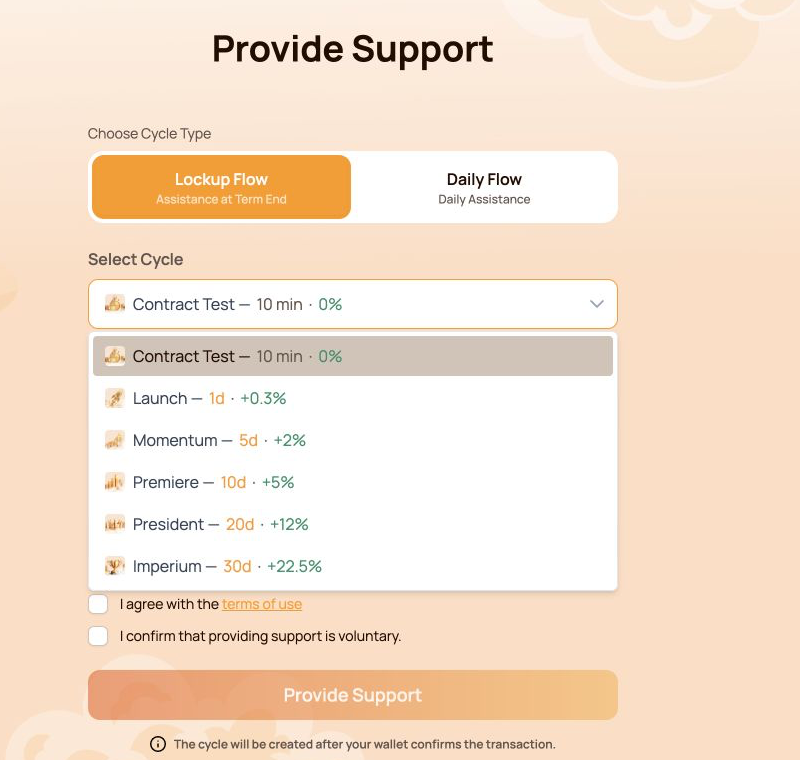
Itu Uji Kontrak tariff uses a fixed Support Amount of 10 USDT. Its purpose is to let the participant test the full interaction with the smart contract over a short period. Other Lockup Flow tariffs use their own terms and calculations.
Available Lockup Flow cycles
| Cycle | Istilah | Calculated Delta |
|---|---|---|
| Uji Kontrak | 10 minutes | — |
| Launch | 1 day | +0.3% |
| Momentum | 5 days | +2% |
| Premiere | 10 days | +5% |
| President | 20 days | +12% |
| Imperium | 30 hari | +22.5% |
The open selector in the screenshot shows all six options together. Before choosing, compare the term and calculated Delta with the amount you are prepared to direct into the cycle.
How to use it
- Buka Berikan Dukungan.
- Pilih Alur Penahanan.
- Buka Select Cycle and choose the required tariff.
- Check the term and calculated percentage shown next to the tariff.
- Enter the Support Amount. For Contract Test, the amount is fixed at 10 USDT.
- Review Expected Assistance (Principal + Delta).
- Open and accept the terms of use.
- Confirm that providing support is voluntary.
- Klik Berikan Dukungan.
- Verify the network, token, amount and gas fee in the wallet, then confirm the transaction.
3.2 Daily Flow
Apa itu
Arus Harian creates a 200-day cycle with the right to request assistance daily under the smart contract conditions. The original Support Amount is included in the daily assistance Claims.
What is different from Lockup Flow
- the cycle lasts 200 days;
- the applicable tariff depends on the Support Amount;
- the form shows Daily accrual;
- assistance can be requested daily according to the contract conditions;
- assistance is not deferred to a single end-of-term Claim.
Current tariff ranges:
| Tariff | Jumlah Bantuan | Istilah | Daily payout | Calculated Delta |
|---|---|---|---|---|
| Inti | 10–2,000 USDT | 200 hari | 1.1% per day | +120% |
| Elit | Above 2,000 USDT | 200 hari | 1.3% per day | +160% |
The interface may determine the Daily Flow tariff automatically according to the entered Support Amount.
The original Support Amount is included in the daily assistance Claims. The daily payout and Delta shown in the interface are calculations under the current smart contract conditions and available liquidity.
How to use it
- Buka Berikan Dukungan.
- Pilih Arus Harian.
- Check the tariff displayed in Select Cycle.
- Enter the Support Amount. The current minimum is 10 USDT.
- Review Expected Assistance (Principal + Delta) dan Daily accrual.
- Open and accept the terms of use.
- Confirm that providing support is voluntary.
- Klik Berikan Dukungan.
- Verify the transaction details in the wallet and confirm.
- After blockchain confirmation, open Siklus Dukungan Saya to check the new cycle.
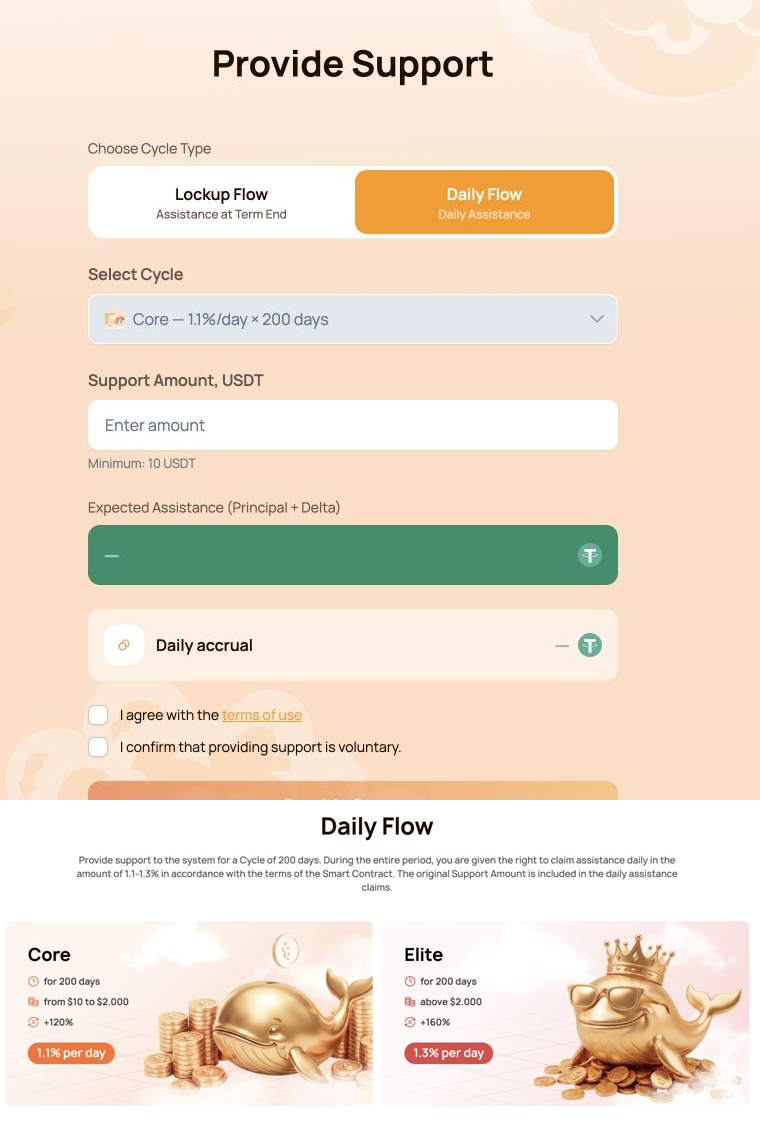
The combined visual shows the Daily Flow form first and the Core/Elite comparison directly below it.
3.3 Wallet confirmation
Itu Berikan Dukungan button does not move funds by itself. It creates a transaction request that must be reviewed and signed in the connected wallet.
Before confirming, check:
- the wallet is connected to BNB Smart Chain;
- the token is USDT BEP-20;
- the Support Amount matches the form;
- the wallet contains enough BNB for gas;
- the destination is the official Atlas System smart contract;
- the transaction was opened from
app.atlas-system.tech.
For the first USDT operation, the wallet may request two confirmations:
- USDT approval for the smart contract;
- creation of the Smart Cycle.
Both transactions require BNB gas. Never enter a seed phrase or private key into the Atlas System website.
If the button is unavailable
Check that:
- the Support Amount meets the minimum and tariff limits;
- both confirmations are selected;
- the wallet is connected;
- the correct network is active;
- the form does not show a validation error.
Lockup Flow tariffs, Daily Flow calculations, cycle statuses and Claim are covered in the separate Smart Cycle guide.
4. My Support Cycles
Apa itu
Siklus Dukungan Saya is the section for monitoring cycles after they have been created. It separates current cycles, finished cycles and the history of cycle creation and received assistance.
Use this section to:
- confirm that a new cycle appeared after the blockchain transaction;
- track active Lockup Flow and Daily Flow cycles;
- check terms, dates and calculated Delta;
- find completed cycles;
- review cycle creation and assistance history;
- menemukan informasi yang diperlukan untuk verifikasi BscScan atau permintaan dukungan.
The section contains three main tabs: Aktif, Selesai dan Riwayat Operasional.
4.1 Aktif
Apa yang ditunjukkannya
Tab Aktif memuat siklus yang sedang berjalan sesuai ketentuan smart contract masing-masing.
Pemilih alur di bagian atas memisahkan:
- Lockup Flow — Assistance at Term End;
- Daily Flow — Daily Assistance.
Ringkasan indikator:
| Indikator | Arti |
|---|---|
| Volume Siklus Aktif | Total Jumlah Dukungan yang saat ini dialokasikan pada siklus aktif dalam alur yang dipilih |
| Delta yang Diperkirakan | Bantuan tambahan terhitung untuk siklus aktif yang ditampilkan |
Informasi siklus dapat mencakup:
- Jumlah Dukungan;
- ketentuan;
- tanggal mulai dan berakhir;
- Delta yang Diharapkan;
- status saat ini;
- tindakan permintaan bantuan yang tersedia;
- transaksi blockchain terkait.
How to use it
- Buka Siklus Dukungan Saya → Aktif.
- Pilih Lockup Flow atau Daily Flow.
- Temukan siklus yang diperlukan berdasarkan Jumlah Dukungan, jangka waktu, atau tanggalnya.
- Periksa status dan perhitungan saat ini.
- Jika permintaan bantuan tersedia, periksa jumlahnya lalu konfirmasikan transaksi di dompet.
Pada Daily Flow, bantuan yang tersedia dapat berubah sesuai perhitungan harian dan permintaan bantuan yang telah selesai.
4.2 Selesai
Apa yang ditunjukkannya
Tab Selesai memuat siklus yang telah berakhir sesuai aturan alur yang dipilih dan tidak lagi ditampilkan sebagai aktif.
Ringkasan indikator:
| Indikator | Arti |
|---|---|
| Volume Siklus Selesai | Total Jumlah Dukungan yang terkait dengan siklus selesai pada alur yang dipilih |
| Telah menerima Delta | Delta yang sudah diterima dari siklus selesai yang ditampilkan |
Pemilih Lockup Flow dan Daily Flow yang sama tersedia. Informasi siklus historis tetap berguna untuk memeriksa Jumlah Dukungan, jangka waktu, tanggal, perhitungan, dan transaksi terkait.
How to use it
- Buka Siklus Dukungan Saya → Selesai.
- Pilih alur yang diperlukan.
- Temukan siklus berdasarkan jumlah, jangka waktu, atau tanggal.
- Bandingkan informasinya dengan Riwayat Operasi.
- Gunakan informasi transaksi untuk verifikasi independen di BscScan.
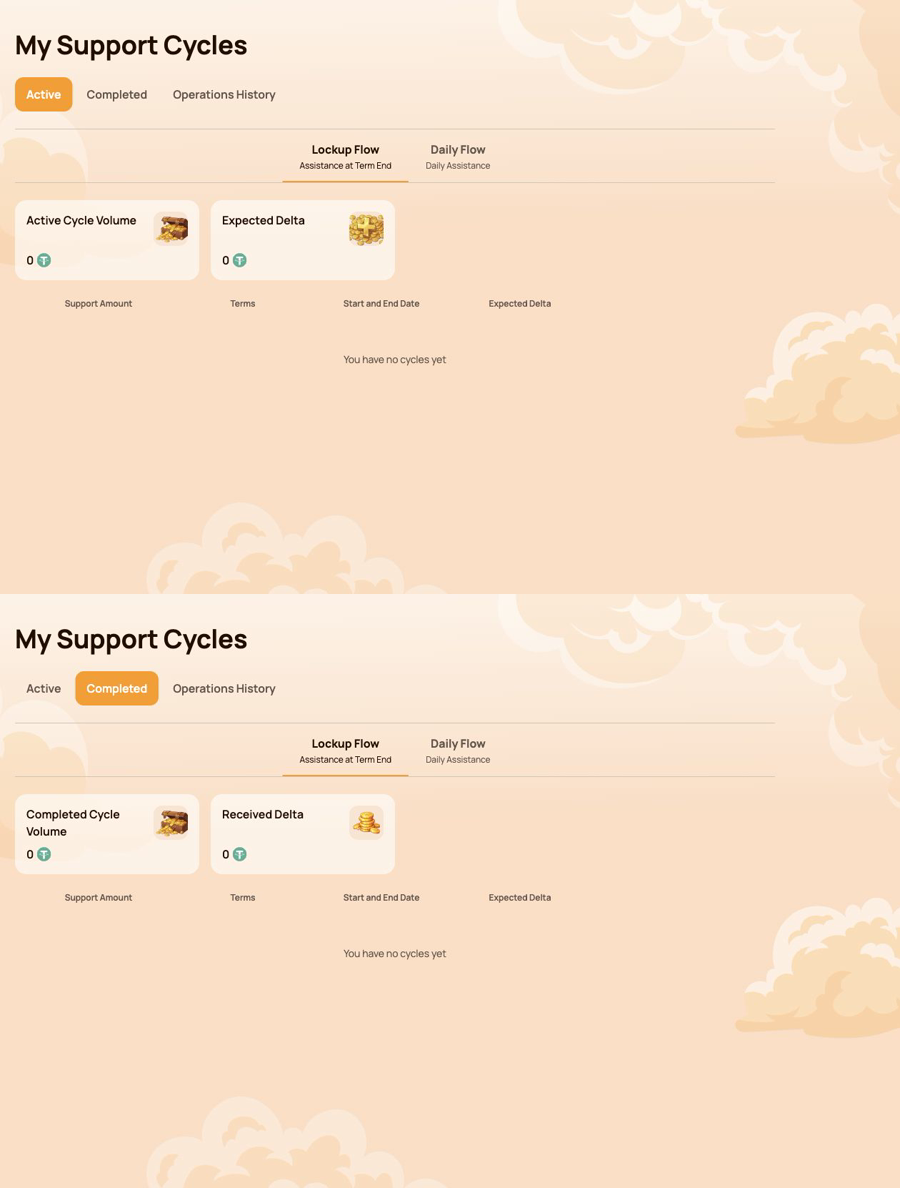
Visual gabungan menampilkan Aktif terlebih dahulu dan Selesai tepat di bawahnya. Dompet contoh tidak memiliki siklus, sehingga tangkapan layar menunjukkan keadaan kosong dan kontrol yang tersedia tanpa mengungkapkan data peserta.
4.3 Riwayat Operasi
Riwayat Operasional records the two main types of participant activity related to Smart Cycles.
Pembuatan Siklus
Gunakan tab ini untuk memeriksa siklus yang dibuat dari dompet yang terhubung.
Kolom yang ditampilkan:
- Tanggal Pembuatan Siklus;
- Nama Siklus;
- Jangka waktu;
- Jumlah Dukungan.
Tampilan ini berguna ketika transaksi pembuatan siklus telah dikonfirmasi, tetapi peserta perlu memeriksa kapan dan dengan ketentuan apa siklus dibuat.
Assistance Received
Gunakan tab ini untuk meninjau permintaan bantuan yang telah selesai.
Ringkasan indikator:
- Permintaan Bantuan yang Diterima;
- Volume Bantuan yang Diterima.
Kolom yang ditampilkan:
- Siklus;
- Tanggal Pembuatan Siklus;
- Jumlah Pembayaran;
- Smart Contract;
- Status.
Kolom Smart contract dan Status membantu menghubungkan catatan dasbor dengan verifikasi on-chain.
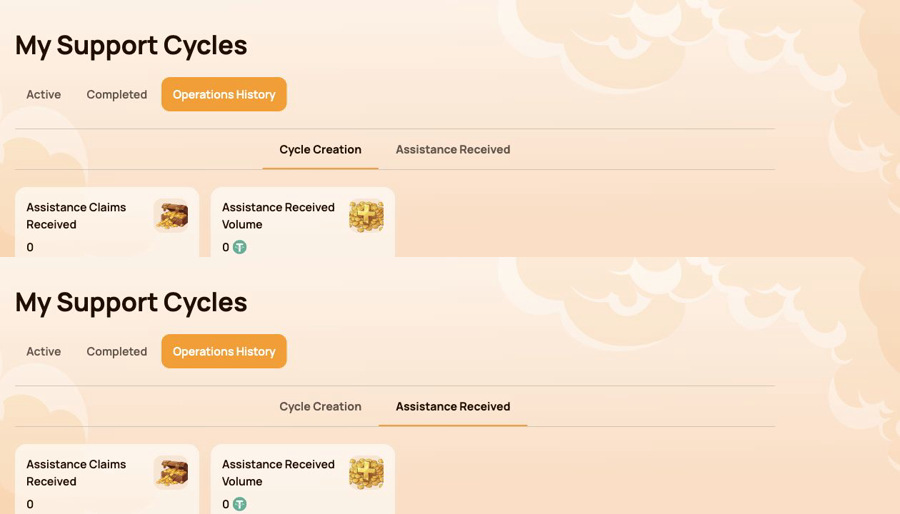
Visual gabungan menampilkan Pembuatan Siklus terlebih dahulu dan Bantuan Diterima di bawahnya.
4.4 Jika siklus atau operasi tidak ditemukan
- Pastikan dompet yang digunakan untuk transaksi tersebut sedang terhubung.
- Pastikan BNB Smart Chain dipilih.
- Tunggu konfirmasi blockchain, lalu muat ulang dasbor pribadi.
- Periksa filter Lockup Flow dan Daily Flow.
- Periksa Aktif, Selesai, dan Riwayat Operasi.
- Buka transaksi di dompet atau BscScan.
- If the transaction is confirmed but the record is still missing, contact support and provide:
- connected wallet address;
- hash transaksi;
- jenis dan jumlah siklus;
- perkiraan waktu operasi;
- tangkapan layar tab terkait.
Cycle statuses and Claim conditions are explained in Smart Cycle. Transaction verification is covered in Kontrak & BscScan.
5. Program Mitra
Itu Program Mitra section brings together partner rewards, team structure, status progress and activity statistics. Use it to monitor your own partner account and the activity associated with your referral structure.
This section explains the personal dashboard interface. Status rules, qualification volumes, reward calculation and worked examples are covered in the separate Program Mitra guide.
Bagian ini memuat empat tab:
- Dompet Mitra;
- Riwayat Akrual;
- Tim Saya;
- Statistik.
5.1 Dompet Mitra
Dompet Mitra shows the current state of partner rewards.
| Indikator | Arti |
|---|---|
| Account Balance | Imbalan Mitra yang saat ini ditampilkan sebagai tersedia di dasbor |
| Total Accrued | Total Imbalan Mitra yang diakru sesuai aturan program |
| Rewards Received | Imbalan Mitra yang sudah diterima |
Itu Withdrawal History table records withdrawals and displays:
- Tanggal penarikan;
- Jumlah penarikan;
- Status;
- Tx Hash.
Gunakan Tx Hash to open the related transaction on BscScan and verify it independently. The information tooltip next to Account Balance explains how automatic payouts work.
5.2 Riwayat Akrual
Riwayat Akrual shows how partner rewards were accrued. When accruals are available, the table includes:
- Tanggal Akrual;
- Bonus;
- Jumlah Hadiah Akrual.
Gunakan tab ini untuk mengidentifikasi bonus yang menghasilkan akrual. Imbalan yang diakru dan pembayaran yang diterima merupakan tahap berbeda: periksa akrual di sini terlebih dahulu, lalu periksa Dompet Mitra dan Riwayat Penarikannya.
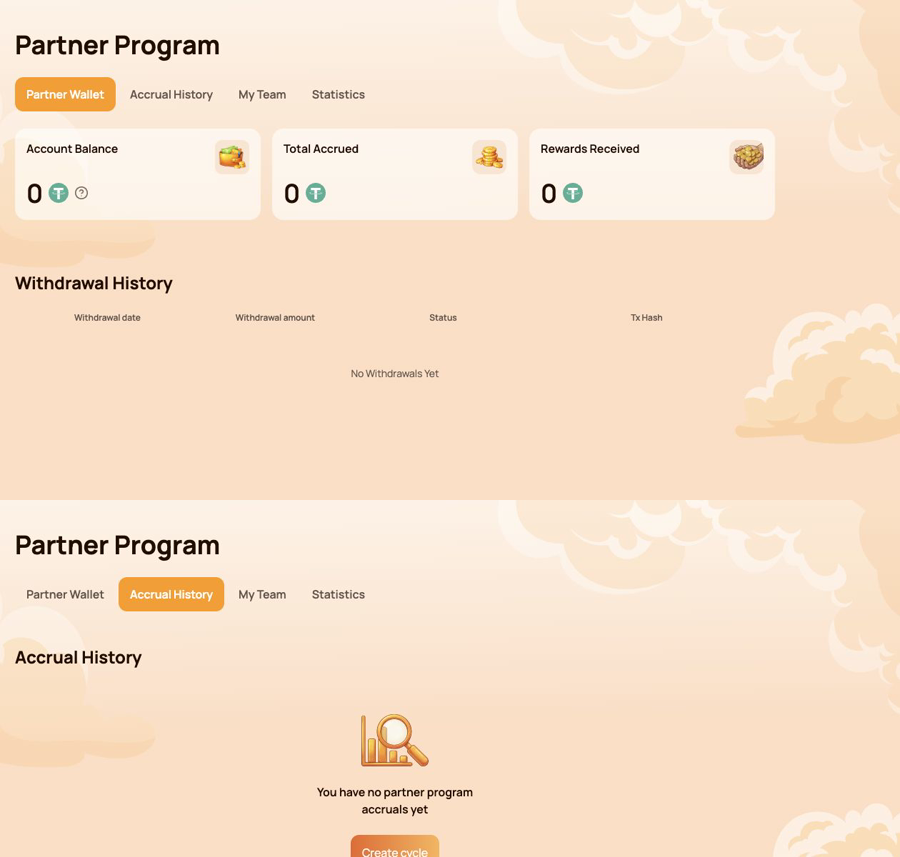
Visual gabungan menampilkan Dompet Mitra terlebih dahulu dan Riwayat Akrual tepat di bawahnya.
5.3 Tim Saya
Tim Saya is the main workspace for status progress and referral structure.
Informasi mitra
Panel atas menampilkan:
- Status Kemitraan — the current status and its reward rate;
- Tautan Referensi Saya — the personal link used to invite new participants;
- Referrer Saya (Alamat Dompet) — the wallet whose referral link was used;
- Status Perujuk — the current status of that referrer.
The personal referral link becomes available after the first qualifying Smart Cycle of 10 USDT or more. If the field shows Tidak Tersedia, check the cycle and status conditions described in the Partner Program guide.
Persyaratan untuk Status Berikutnya
Perkembangan ditampilkan untuk tiga jenis volume:
- Personal Active Cycle Volume;
- First-Line Active Cycle Volume;
- Partner Structure Active Cycle Volume.
For each requirement, compare Saat ini, Required dan Remaining. This makes it clear which condition has already been met and which volume is still needed for the next status.
Persyaratan Status dan struktur
Itu Status Requirements table compares all statuses by:
- volume siklus aktif pribadi;
- volume siklus aktif baris pertama;
- volume siklus aktif dalam Struktur Mitra;
- tingkat Imbalan Struktur dengan kedalaman tanpa batas;
- tingkat Matching Reward.
Below the table, use Structure Lines dan Search by Wallet Address to navigate the structure. The results identify the participant wallet and status. The Leaders statistics in the structure section helps identify the most active parts of the team.
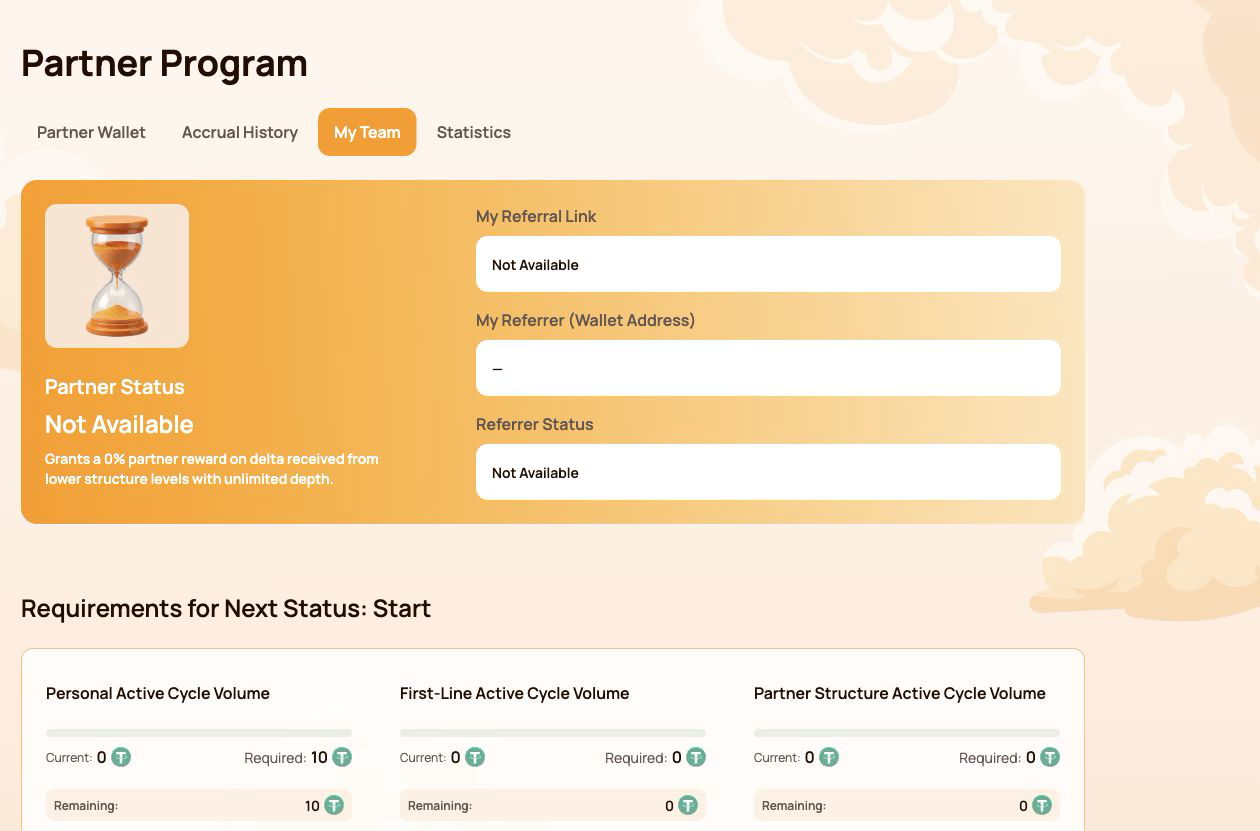
Tangkapan layar menggunakan akun tanpa status mitra aktif dan tidak memperlihatkan alamat dompet peserta.
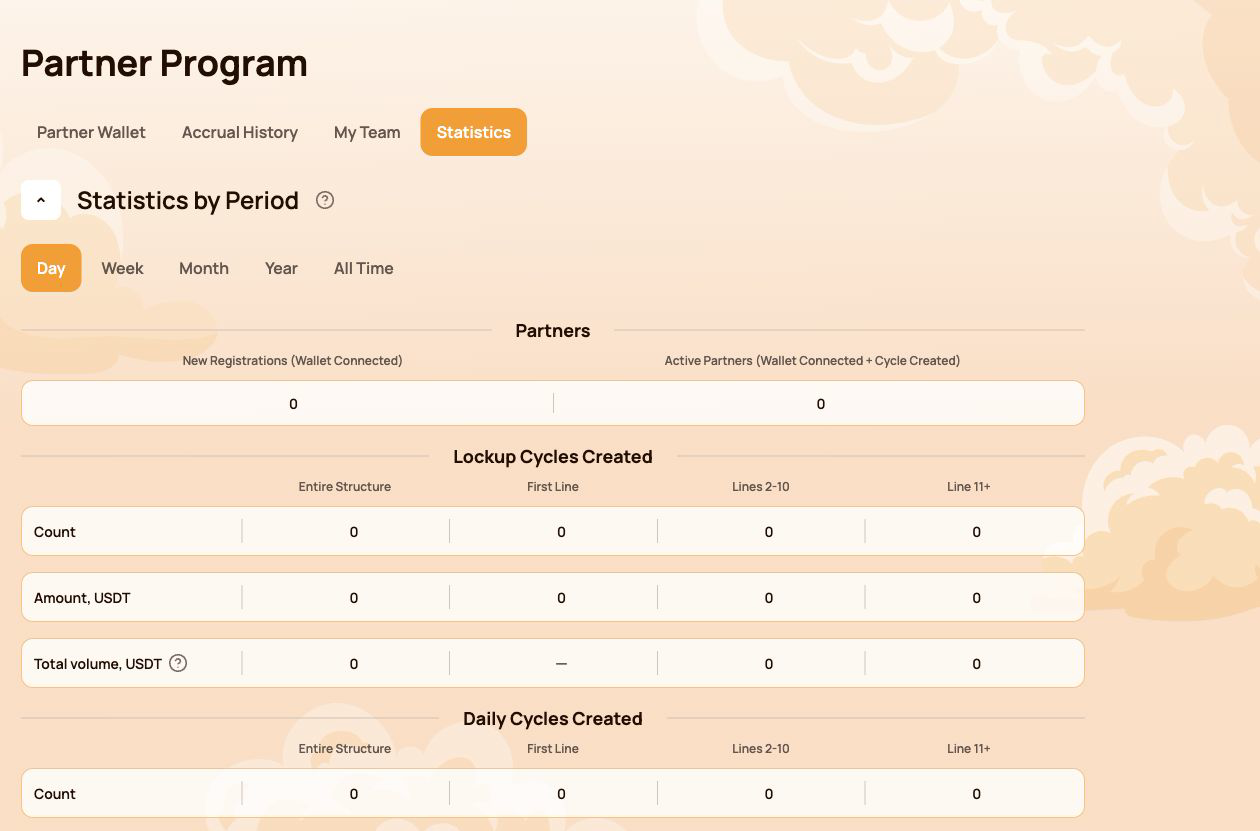
5.4 Statistik
Statistik summarizes partner activity for the selected period. Available filters are Day, Week, Month, Year dan Sepanjang Waktu.
Mitra
- New Registrations (Wallet Connected) — wallets newly connected through the structure;
- Active Partners (Wallet Connected + Cycle Created) — connected partners who also created a cycle.
Siklus dibuat
Lockup Flow dan Daily Flow ditampilkan secara terpisah. Untuk setiap alur, dasbor mengelompokkan aktivitas berdasarkan:
- Seluruh Struktur;
- Baris Pertama;
- Baris 2–10;
- Baris 11+.
Tabel menampilkan jumlah siklus, jumlah dalam USDT, dan volume total yang termasuk dalam metrik sistem.
Pengaruh kedalaman struktur terhadap volume penuh
The information tooltip next to Total volume explains the coefficients used for structure depth:
| Structure depth | Volume yang dihitung |
|---|---|
| Baris Pertama | 100% untuk metrik lini pertama dan kedalaman tidak terbatas |
| Baris 2–5 | 100% untuk metrik kedalaman tidak terbatas |
| Lines 6–10 | 50% |
| Line 11+ | 10% |
Most Active Lines highlights the leading structure lines and shows their partner count and USDT volume.
5.5 Catatan penting
- Account Balance in Partner Wallet is a dashboard partner balance; it is not the same as the USDT balance displayed by your wallet application.
- Akrual, penarikan, dan statistik baru dapat muncul setelah konfirmasi blockchain dan sinkronisasi dasbor.
- Selalu pastikan dompet yang benar telah terhubung sebelum memeriksa data mitra.
- Jangan memublikasikan data rujukan atau data dompet peserta dalam tangkapan layar tanpa persetujuan.
- Untuk pemeriksaan on-chain, gunakan hash transaksi dan registri kontrak resmi.
Status conditions, qualification volumes and reward examples are explained in Program Mitra. Terms are defined in Glosarium.
6. Profil
Itu Profil section stores the participant information used for communication and partner-facing features. It does not store wallet access credentials and does not replace the connected wallet address.
Buka Profil from the left navigation. After making changes, select Save at the bottom of the page.
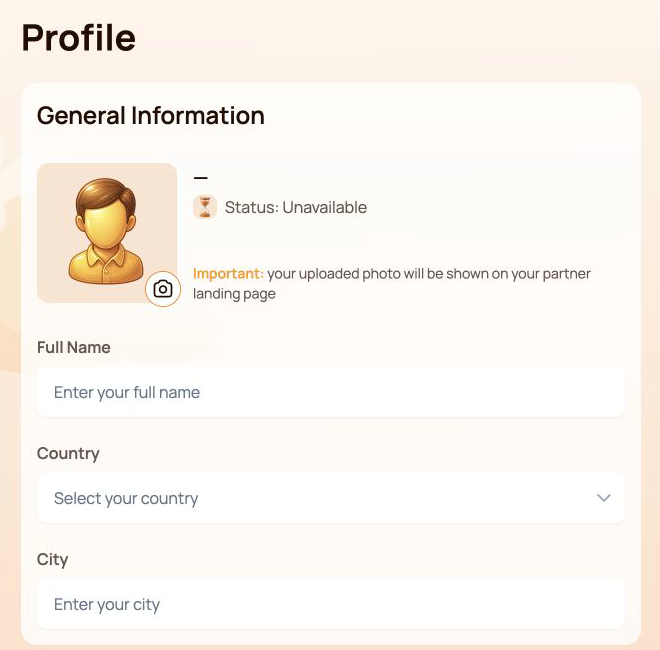
6.1 Informasi Umum
Panel atas memuat:
- Avatar — select the camera icon to add or replace the profile image;
- Status — the current partner status associated with the connected wallet;
- Full Name;
- Country;
- City.
The interface warns that the uploaded photo may be shown on the participant's partner landing page. Use only an image that you are comfortable displaying there.
6.2 Informasi Kontak
This section contains Phone Number dan Email.
Itu Visible to partners switch controls the partner visibility setting for the contact information block. Before enabling it, check that the entered details are intended to be shared with partners.
6.3 Jejaring Sosial
Kolom yang tersedia adalah:
- Facebook — username or profile link;
- Instagram — username or profile link;
- WhatsApp — phone number or link;
- Telegram — username, link or phone number.
Social networks have their own Visible to partners switch. This setting is separate from the visibility switch in Contact Information.
Anda dapat membiarkan kolom kosong jika tidak menggunakan suatu layanan atau tidak ingin mencantumkannya dalam profil.
6.4 Pengaturan Komunikasi
Bahasa Komunikasi
Bahasa Komunikasi records the participant's preferred language for communication. Select one of the supported Atlas System languages listed in Notifications and interface language below.
This field is different from the language selector in the top bar: the top-bar control changes the dashboard interface language, while Bahasa Komunikasi belongs to the saved profile settings.
Metode Komunikasi Pilihan
Pilih saluran komunikasi yang Anda inginkan:
- Telegram;
- WhatsApp;
- Email.
Lengkapi kolom kontak atau jejaring sosial yang sesuai sebelum memilih metode pilihan. Anda dapat memilih lebih dari satu kotak centang jika beberapa saluran dapat digunakan.
Pilih Save after changing the language, communication methods or any other profile field.
6.5 Privasi dan keamanan
- Enable Visible to partners only for information you intend to share.
- Gunakan kedua sakelar visibilitas secara terpisah: satu berlaku untuk detail kontak dan satu lagi untuk jejaring sosial.
- Jangan pernah memasukkan seed phrase, kunci privat, kata sandi dompet, kode keamanan sekali pakai, atau kata sandi bursa dalam kolom profil apa pun.
- Dukungan Atlas System tidak memerlukan kredensial akses dompet untuk memeriksa masalah profil.
- Alamat dompet yang dipendekkan pada bilah atas menunjukkan dompet yang terhubung; alamat tersebut tidak diedit melalui Profil.
6.6 Jika perubahan tidak tersimpan
- Pastikan semua kolom wajib menggunakan format yang sesuai.
- Pilih Save and wait for the interface response.
- Muat ulang halaman dan periksa apakah nilainya tetap ditampilkan.
- Pastikan dompet yang sama masih terhubung.
- Jika nilai kembali menghilang, hubungi dukungan dan lampirkan tangkapan layar tanpa memperlihatkan kredensial pribadi.
Partner status and the partner landing page are explained in Program Mitra. Safe data sharing is covered in Keamanan.
7. Notifikasi dan bahasa antarmuka
Ikon lonceng notifikasi dan pemilih bahasa antarmuka berada pada bilah atas dan tetap tersedia di seluruh Dasbor Pribadi.
7.1 Notifikasi
Select the Pemberitahuan bell to open the notification center. Messages are grouped into three tabs:
| Tab | Apa yang ditunjukkannya |
|---|---|
| Semua pesan | Semua notifikasi yang tersedia |
| Read | Notifikasi yang sudah dibuka atau ditandai sebagai telah dibaca |
| Belum dibaca | Notifikasi yang belum dibaca; angka dalam tanda kurung menunjukkan jumlah notifikasi belum dibaca saat ini |
If the page shows You have no notifications yet, there are currently no messages for the connected account. This is a normal empty state and does not indicate an error.
Batasan penting
Notifikasi dasbor bersifat informatif. Notifikasi tersebut tidak menggantikan:
- status transaksi dompet;
- konfirmasi blockchain;
- catatan transaksi di BscScan;
- the current cycle status in Siklus Dukungan Saya.
Jika notifikasi dan transaksi on-chain tampak tidak konsisten, verifikasi terlebih dahulu alamat dompet, hash transaksi, dan smart contract.
7.2 Bahasa antarmuka
Pilih bahasa saat ini pada bilah atas, lalu pilih bahasa antarmuka yang diperlukan:
- English;
- Bahasa Indonesia;
- Bahasa Melayu;
- Deutsch;
- Español;
- Français;
- Русский;
- Português;
- Tiếng Việt;
- Türkçe;
- हिन्दी;
- 中文;
- ไทย.
Opsi yang dipilih mengubah bahasa Dasbor Pribadi Atlas System. Ekstensi dompet, BscScan, dan layanan eksternal lain tetap menggunakan pengaturan bahasanya masing-masing.
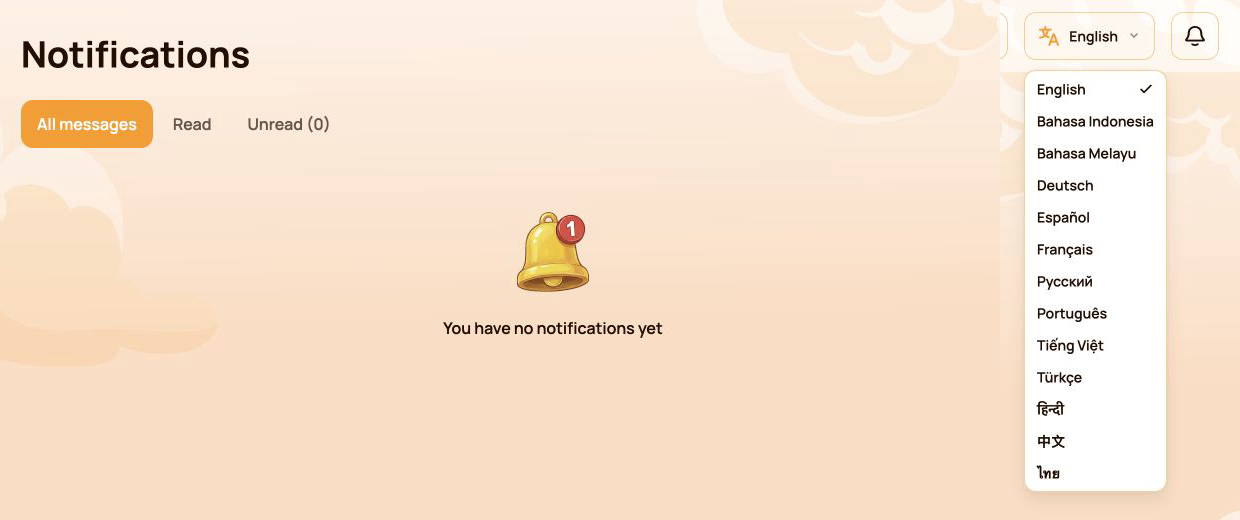
Visual menampilkan daftar lengkap bahasa antarmuka.
7.3 Bahasa antarmuka dan Bahasa Komunikasi
Kedua pengaturan ini memiliki fungsi yang berbeda:
| Pengaturan | Lokasi | Purpose |
|---|---|---|
| Bahasa antarmuka | Bilah atas | Mengubah bahasa yang digunakan antarmuka dasbor pribadi |
| Bahasa Komunikasi | Profil | Records the participant's preferred language for communication |
If you want both settings to match, change the top-bar language and then select the same language in Profile → Communication Language and save the profile.
7.4 Jika notifikasi atau terjemahan tidak diperbarui
- Pastikan dompet yang benar telah terhubung.
- Muat ulang dasbor.
- Buka kembali pusat notifikasi atau pemilih bahasa.
- Periksa apakah bahasa yang dipilih ditampilkan di bilah atas.
- Jika pesan yang diharapkan tidak muncul, verifikasi siklus atau transaksi terkait pada bagian dasbor yang sesuai dan di BscScan.
- Hubungi dukungan jika dasbor masih menampilkan data yang tidak konsisten, dengan menyertakan tangkapan layar dan hash transaksi jika tersedia.
Official translated labels are collected in Glosarium. Related issues are covered in Pemecahan Masalah.
8. Kondisi Sistem
Itu Kesehatan Sistem panel is located below the main navigation. It provides an at-a-glance view of system-wide activity and operational status. Use All time atau Last 24 hours to select the displayed period.
These indicators describe Atlas System as a whole. They are not the connected participant's wallet balance, personal cycle volume or guaranteed assistance amount.
8.1 Indikator
| Indikator | Apa artinya |
|---|---|
| Waktu Server | Tanggal dan waktu yang digunakan dasbor saat menampilkan ringkasan kesehatan saat ini |
| Siklus Dibuat / Volume Dukungan Masuk | Jumlah siklus yang dibuat dan gabungan Volume Dukungan masuk untuk periode yang ditampilkan |
| Siklus Selesai / Volume Bantuan Keluar | Jumlah siklus yang selesai dan gabungan Volume Bantuan keluar untuk periode yang ditampilkan |
| Saldo smart contract | The current contract balance shown by the dashboard; it is not the participant's wallet balance |
| Semua dompet terhubung | Jumlah dompet yang dicatat dasbor untuk periode yang ditampilkan |
| Delta yang dibayarkan | Delta yang termasuk dalam operasi bantuan yang selesai pada periode yang ditampilkan |
| Pembayaran Program Mitra | Transfer Imbalan Mitra yang tercatat untuk periode yang ditampilkan |
| Biaya platform | Biaya platform yang tercatat untuk periode yang ditampilkan; biaya gas jaringan dihitung terpisah |
| Kontrak | Current dashboard status of the Atlas System smart contracts, such as Aktif |
| Pembayaran terakhir | Waktu yang berlalu sejak pembayaran terakhir yang tercatat dalam sistem |
| Pool Likuiditas | Current dashboard health status of the liquidity pool, such as OK |
Pada dua indikator siklus, nilai pertama adalah jumlah siklus dan nilai kedua adalah volume USDT.
Tangkapan layar menampilkan panel Kesehatan Sistem lengkap. Semua angka adalah contoh pada saat tangkapan dibuat dan akan berubah seiring waktu.
8.2 Cara membaca panel
- Perisai kondisi keseluruhan berwarna hijau memberikan ringkasan visual singkat tentang keadaan dasbor saat ini.
- Contracts: Active means the dashboard currently reports the contracts as operational.
- Liquidity Pool: OK means the dashboard currently reports the pool health check as normal.
- Pembayaran terakhir is an activity timestamp. A longer interval does not by itself prove that the system is unavailable.
- Saldo smart contract dan volume seluruh sistem tidak menentukan apakah peserta tertentu dapat meminta bantuan.
- Panel yang menunjukkan kondisi baik tidak menggantikan pemeriksaan status transaksi dompet tertentu di BscScan.
8.3 Jika indikator tampak terlambat atau tidak tersedia
- Periksa Waktu Server to understand when the displayed snapshot was recorded.
- Muat ulang dasbor satu kali, lalu periksa kembali indikatornya.
- Open the official Status Sistem page for service-wide incidents or maintenance.
- Periksa alamat kontrak resmi dan transaksi terbarunya di BscScan.
- For a personal transaction, verify its transaction hash and check Siklus Dukungan Saya atau Riwayat Operasional.
- If the discrepancy remains, contact support with:
- indikator yang terdampak;
- Waktu Server yang ditampilkan pada panel;
- connected wallet address;
- hash transaksi, jika berlaku;
- tangkapan layar panel.
Detailed availability is published in Status Sistem. Official addresses and on-chain verification are covered in Kontrak & BscScan.
9. Indeks tugas cepat
Gunakan tabel ini ketika Anda mengetahui tindakan yang ingin dilakukan tetapi belum yakin bagian dasbor mana yang harus dibuka.
| Saya ingin… | Buka… |
|---|---|
| Lihat keseluruhan aktivitas pribadi | Dasbor |
| Buat siklus Lockup atau Daily | Berikan Dukungan and select the required flow |
| Periksa siklus yang sedang berjalan atau permintaan bantuan | Siklus Dukungan Saya → Aktif |
| Temukan siklus yang telah selesai | Siklus Dukungan Saya → Selesai |
| Periksa pembuatan siklus atau bantuan yang diterima | Riwayat Operasional |
| Periksa imbalan mitra, akrual, atau penarikan | Program Mitra → Dompet Mitra / Riwayat Akrual |
| Salin tautan referensi atau periksa perkembangan status | Program Mitra → Tim Saya |
| Cari dalam struktur atau bandingkan aktivitas | Program Mitra → Tim Saya / Statistik |
| Perbarui informasi pribadi atau visibilitas | Profil |
| Atur bahasa atau saluran komunikasi | Profil → Pengaturan Komunikasi |
| Ubah bahasa dasbor | Pemilih bahasa pada bilah atas |
| Baca pesan sistem | Pemberitahuan |
| Periksa indikator operasional keseluruhan | Kesehatan Sistem → Sepanjang waktu / 24 jam terakhir |
| Verifikasi transaksi secara independen | Detail transaksi dompet dan BscScan |
Langkah yang disarankan bagi peserta baru
- Buka Dasbor and confirm that the correct wallet is connected.
- Buka Berikan Dukungan and review Lockup Flow and Daily Flow before selecting a cycle.
- After the transaction is confirmed, open Siklus Dukungan Saya → Aktif.
- Gunakan Riwayat Operasional to review cycle creation and assistance received.
- Gunakan Pemberitahuan for system messages and Kesehatan Sistem for overall operational indicators.
For wallet setup, network selection, USDT and BNB requirements, start with Mulai Cepat before using the personal dashboard.

