
Personal Dashboard
The Personal Dashboard is the participant-facing interface for viewing activity, creating support cycles, tracking Smart Cycles, requesting assistance, using the Partner Program and managing profile information.
Use only the official address: app.atlas-system.tech.
The personal dashboard is an interface, not a crypto wallet. Funds remain controlled through the connected non-custodial wallet. Transaction results can be independently verified on BscScan.
1. Interface map
The main navigation remains available across the personal dashboard. Before performing an action, make sure the correct wallet and language are selected.
Top bar
| Element | What it shows | Why it matters |
|---|---|---|
| Days in the system | Time since the wallet first connected to Atlas System | Shows the participation age associated with the connected wallet |
| Voting Balance | The voting weight currently displayed by the interface | Eligibility and calculation follow the governance rules active at that time |
| Connected wallet | Shortened address of the active wallet | Always compare it with the wallet you intend to use before creating a cycle or making a Claim |
| Language | Current interface language | Changes the language of the personal dashboard |
| Notifications | Access to system messages | Opens All, Read and Unread messages |
The connected wallet address is intentionally excluded from the guide screenshots.
Side navigation
| Section | What it is for |
|---|---|
| Panel | Overview of personal activity, active cycles and partner indicators |
| Provide Support | Creation of a new Lockup Flow or Daily Flow cycle |
| My Support Cycles | Active cycles, completed cycles and Operations History |
| Program partnerski | Partner wallet, accruals, team structure and statistics |
| Profile | Personal information, contacts, visibility and communication settings |
| Knowledge base | Opens the official Atlas System Knowledge Hub |
How to move around the dashboard
- Select a section in the left menu.
- Check the connected wallet before any transaction-related action.
- Use the language selector if the interface is not displayed in the required language.
- Return to Panel whenever you need a general overview.
- Use Logout when you finish working on a shared or public device.
What to check
- The official domain is
app.atlas-system.tech. - The expected wallet is connected.
- BNB Smart Chain is selected for transaction-related actions.
- No person or support representative should request your seed phrase or private key.
The screenshot begins below the top bar so that the participant's wallet address is not displayed. It focuses only on the side navigation and System Health panel. The main Dashboard area is shown separately in the next visual.
2. Dashboard
What it is
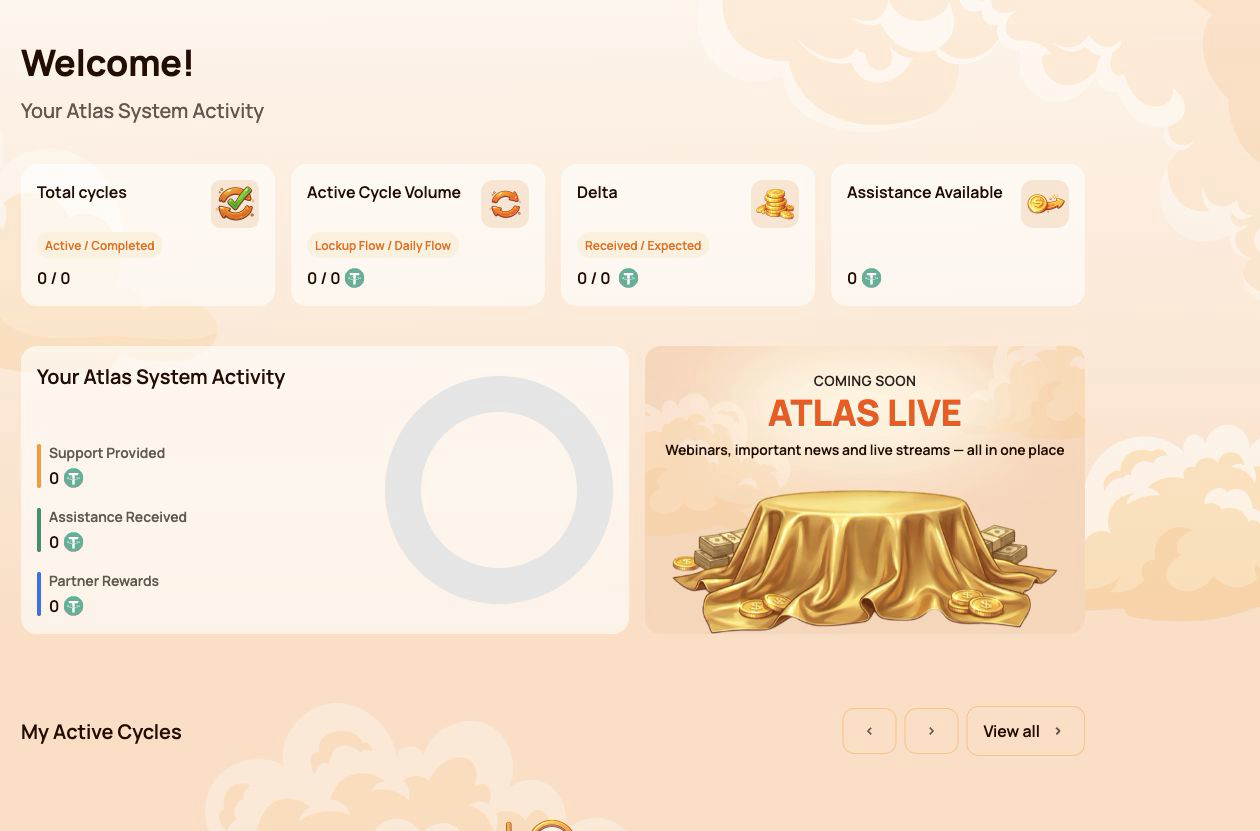
Panel is the main overview screen. It summarises the participant's cycles, activity, available assistance and partner progress without requiring the user to open each section separately.
Why it is needed
Use Dashboard to:
- see the number of active and completed cycles;
- compare Lockup Flow and Daily Flow activity;
- check received and expected Delta;
- see whether assistance is currently available;
- review total support, assistance and partner rewards;
- open current cycles or partner information for more detail.
Main summary cards
Total cycles
Shows the number of Active / Completed cycles.
- Active — cycles currently running under their smart contract conditions.
- Completed — cycles that have finished under the rules of the selected flow.
A newly created cycle may take a short time to appear while the blockchain transaction is being confirmed.
Active Cycle Volume
Shows the active Support Amount broken down by Lockup Flow / Daily Flow.
This is the value assigned to active cycles. It is not the spendable USDT balance in the connected wallet.
Delta
Shows Received / Expected Delta.
- Received Delta — additional assistance already received above the amount of provided support.
- Expected Delta — additional assistance calculated under the current Smart Cycle conditions.
Expected Delta is a calculation, not a guaranteed balance. Availability depends on the smart contract rules and available liquidity.
Assistance Available
Shows the amount currently available to request through Claim.
Before making a Claim, check:
- the relevant cycle;
- connected wallet;
- BNB Smart Chain network;
- BNB balance for gas;
- the amount shown in the wallet confirmation.
Your Atlas System Activity
This block compares three types of participant activity:
| Indicator | Meaning |
|---|---|
| Support Provided | Total amount of support directed into Smart Cycles |
| Assistance Received | Assistance already received through completed Claims |
| Partner Rewards | Rewards received through the Partner Program |
These figures represent different categories and should not be added together as if they were a wallet balance.
My Active Cycles
This block provides quick access to current cycles. Open My Support Cycles when you need the full cycle card, dates, terms, status, Expected Delta, Claim action or transaction information.
If there are no active cycles, the block may be empty.
Partner Status
The Dashboard shows a compact partner summary:
- Current Partner Status;
- Personal Active Cycle Volume;
- First-Line Active Cycle Volume;
- Partner Structure Active Cycle Volume;
- remaining requirements for the next status.
The detailed qualification rules, weighted Partner Structure Volume, structure coefficients and reward examples belong in the separate Program partnerski guide.
How to use Dashboard
- Open Panel in the side menu.
- Check the four summary cards at the top.
- Review the activity block to distinguish support, assistance and partner rewards.
- Open My Active Cycles if a cycle requires attention.
- Open the Partner Program section when the partner summary requires more detail.
What to check when values look incorrect
- Confirm that the same wallet used for the operation is connected.
- Wait for blockchain confirmation and refresh the page.
- Compare the information with My Support Cycles → Operations History.
- Verify the transaction on BscScan.
- If the confirmed transaction is still missing, contact support and provide the transaction hash.
Numeric values shown in screenshots are examples and may change at any time.
3. Provide Support
What it is
Provide Support is the section used to create a new Smart Cycle. It contains the same basic sequence for both modes: select a flow, review its conditions, enter the Support Amount, accept the terms and confirm the transaction in the connected wallet.
Use this section when you are ready to create a cycle. To review an existing cycle or make a Claim, open My Support Cycles instead.
Why it is needed
Provide Support allows the participant to:
- choose between Lockup Flow and Daily Flow;
- select or identify the applicable cycle tariff;
- specify the Support Amount in USDT;
- review Expected Assistance before confirming;
- confirm voluntary participation and the terms of use;
- send the transaction request to the connected wallet.
Fields available in both modes
| Field | What it means | What to check |
|---|---|---|
| Choose Cycle Type | Selects Lockup Flow or Daily Flow | Make sure the required mode is highlighted |
| Select Cycle | Shows the selected tariff and its conditions | Check the tariff name, term and calculation |
| Support Amount, USDT | Amount of support directed into the cycle | Use USDT on BNB Smart Chain and check the minimum amount |
| Expected Assistance (Principal + Delta) | Calculated principal and additional assistance | Treat this as a calculation under the smart contract rules, not a guaranteed wallet balance |
| Terms of use | Rules governing participation | Open and read the terms before accepting |
| Voluntary confirmation | Confirms that the participant is acting voluntarily | Both confirmations are required before the button becomes available |
| Provide Support | Sends the operation to the connected wallet | The cycle is not created until the wallet transaction is confirmed |
3.1 Lockup Flow
What it is
Lockup Flow creates a cycle with a fixed term. Assistance becomes available for Claim after the selected term ends, subject to the relevant smart contract rules and available liquidity.
What is shown
- Lockup Flow — Assistance at Term End selector;
- cycle tariff with its term and calculated percentage;
- Support Amount in USDT;
- Expected Assistance shown as Principal + Delta;
- required confirmations;
- Provide Support button;
- notice that the cycle is created only after wallet confirmation.
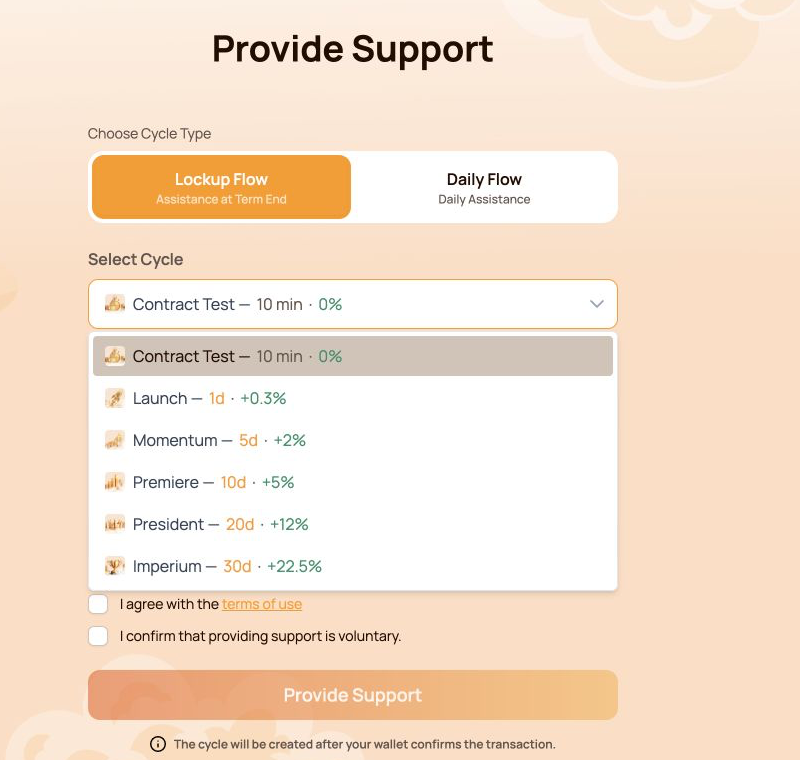
The Contract Test tariff uses a fixed Support Amount of 10 USDT. Its purpose is to let the participant test the full interaction with the smart contract over a short period. Other Lockup Flow tariffs use their own terms and calculations.
Available Lockup Flow cycles
| Cycle | Term | Calculated Delta |
|---|---|---|
| Contract Test | 10 minutes | — |
| Launch | 1 day | +0.3% |
| Momentum | 5 days | +2% |
| Premiere | 10 days | +5% |
| President | 20 days | +12% |
| Imperium | 30 days | +22.5% |
The open selector in the screenshot shows all six options together. Before choosing, compare the term and calculated Delta with the amount you are prepared to direct into the cycle.
How to use it
- Open Provide Support.
- Select Lockup Flow.
- Open Select Cycle and choose the required tariff.
- Check the term and calculated percentage shown next to the tariff.
- Enter the Support Amount. For Contract Test, the amount is fixed at 10 USDT.
- Review Expected Assistance (Principal + Delta).
- Open and accept the terms of use.
- Confirm that providing support is voluntary.
- Click Provide Support.
- Verify the network, token, amount and gas fee in the wallet, then confirm the transaction.
3.2 Daily Flow
What it is
Daily Flow creates a 200-day cycle with the right to request assistance daily under the smart contract conditions. The original Support Amount is included in the daily assistance Claims.
What is different from Lockup Flow
- the cycle lasts 200 days;
- the applicable tariff depends on the Support Amount;
- the form shows Daily accrual;
- assistance can be requested daily according to the contract conditions;
- assistance is not deferred to a single end-of-term Claim.
Current tariff ranges:
| Tariff | Support Amount | Term | Daily payout | Calculated Delta |
|---|---|---|---|---|
| Core | 10–2,000 USDT | 200 days | 1.1% per day | +120% |
| Elite | Above 2,000 USDT | 200 days | 1.3% per day | +160% |
The interface may determine the Daily Flow tariff automatically according to the entered Support Amount.
The original Support Amount is included in the daily assistance Claims. The daily payout and Delta shown in the interface are calculations under the current smart contract conditions and available liquidity.
How to use it
- Open Provide Support.
- Select Daily Flow.
- Check the tariff displayed in Select Cycle.
- Enter the Support Amount. The current minimum is 10 USDT.
- Review Expected Assistance (Principal + Delta) and Daily accrual.
- Open and accept the terms of use.
- Confirm that providing support is voluntary.
- Click Provide Support.
- Verify the transaction details in the wallet and confirm.
- After blockchain confirmation, open My Support Cycles to check the new cycle.
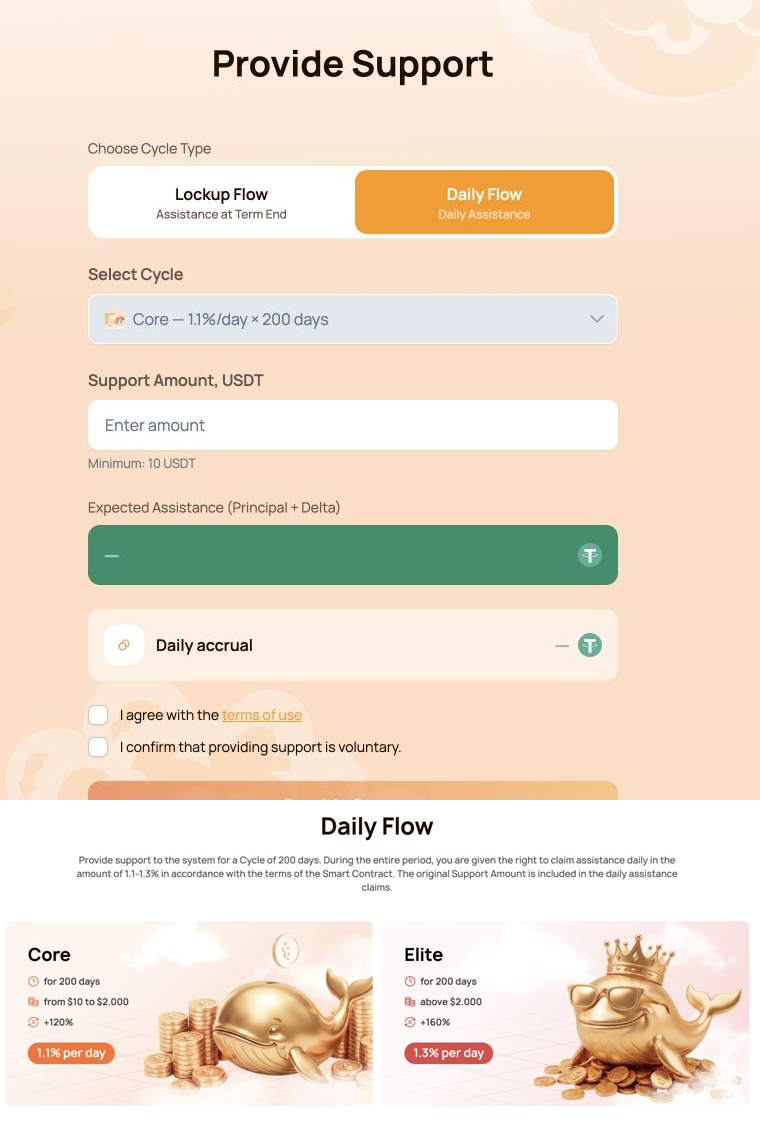
The combined visual shows the Daily Flow form first and the Core/Elite comparison directly below it.
3.3 Wallet confirmation
The Provide Support button does not move funds by itself. It creates a transaction request that must be reviewed and signed in the connected wallet.
Before confirming, check:
- the wallet is connected to BNB Smart Chain;
- the token is USDT BEP-20;
- the Support Amount matches the form;
- the wallet contains enough BNB for gas;
- the destination is the official Atlas System smart contract;
- the transaction was opened from
app.atlas-system.tech.
For the first USDT operation, the wallet may request two confirmations:
- USDT approval for the smart contract;
- creation of the Smart Cycle.
Both transactions require BNB gas. Never enter a seed phrase or private key into the Atlas System website.
If the button is unavailable
Check that:
- the Support Amount meets the minimum and tariff limits;
- both confirmations are selected;
- the wallet is connected;
- the correct network is active;
- the form does not show a validation error.
Lockup Flow tariffs, Daily Flow calculations, cycle statuses and Claim are covered in the separate Smart Cycle guide.
4. My Support Cycles
What it is
My Support Cycles is the section for monitoring cycles after they have been created. It separates current cycles, finished cycles and the history of cycle creation and received assistance.
Use this section to:
- confirm that a new cycle appeared after the blockchain transaction;
- track active Lockup Flow and Daily Flow cycles;
- check terms, dates and calculated Delta;
- find completed cycles;
- review cycle creation and assistance history;
- znaleźć informacje potrzebne do weryfikacji w BscScan lub zgłoszenia do pomocy technicznej.
The section contains three main tabs: Active, Completed and Operations History.
4.1 Aktywne
What it shows
Karta Aktywne zawiera cykle, które obecnie działają zgodnie z warunkami swoich smart kontraktów.
Górny selektor przepływu rozdziela:
- Lockup Flow — Assistance at Term End;
- Daily Flow — Daily Assistance.
Wskaźniki podsumowujące:
| Indicator | Meaning |
|---|---|
| Active Cycle Volume | Łączny Support Amount przypisany obecnie do aktywnych cykli wybranego przepływu |
| Expected Delta | Obliczone dodatkowe wsparcie dla pokazanych aktywnych cykli |
Informacje o cyklu mogą obejmować:
- Support Amount;
- warunki;
- datę rozpoczęcia i zakończenia;
- Oczekiwana Delta;
- bieżący status;
- dostępną operację Claim;
- powiązaną transakcję blockchain.
How to use it
- Open Moje cykle wsparcia → Aktywne.
- Wybierz Lockup Flow lub Daily Flow.
- Znajdź wymagany cykl według jego Support Amount, okresu lub daty.
- Sprawdź bieżący status i obliczenie.
- Jeśli Claim jest dostępny, sprawdź kwotę i potwierdź transakcję w portfelu.
W Daily Flow dostępna pomoc może zmieniać się zgodnie z dziennymi obliczeniami i wykonanymi Claim.
4.2 Zakończone
What it shows
Karta Zakończone zawiera cykle, które zakończyły się zgodnie z zasadami wybranego przepływu i nie są już wyświetlane jako aktywne.
Wskaźniki podsumowujące:
| Indicator | Meaning |
|---|---|
| Wolumen zakończonych cykli | Łączny Support Amount powiązany z zakończonymi cyklami wybranego przepływu |
| Received Delta | Delta otrzymana już z pokazanych zakończonych cykli |
Dostępny jest ten sam selektor Lockup Flow i Daily Flow. Historyczne informacje o cyklu nadal pomagają sprawdzać Support Amount, okres, daty, obliczenia i powiązane transakcje.
How to use it
- Open Moje cykle wsparcia → Zakończone.
- Wybierz wymagany przepływ.
- Znajdź cykl według kwoty, okresu lub dat.
- Porównaj te informacje z Historią operacji.
- Użyj informacji o transakcji do niezależnej weryfikacji w BscScan.
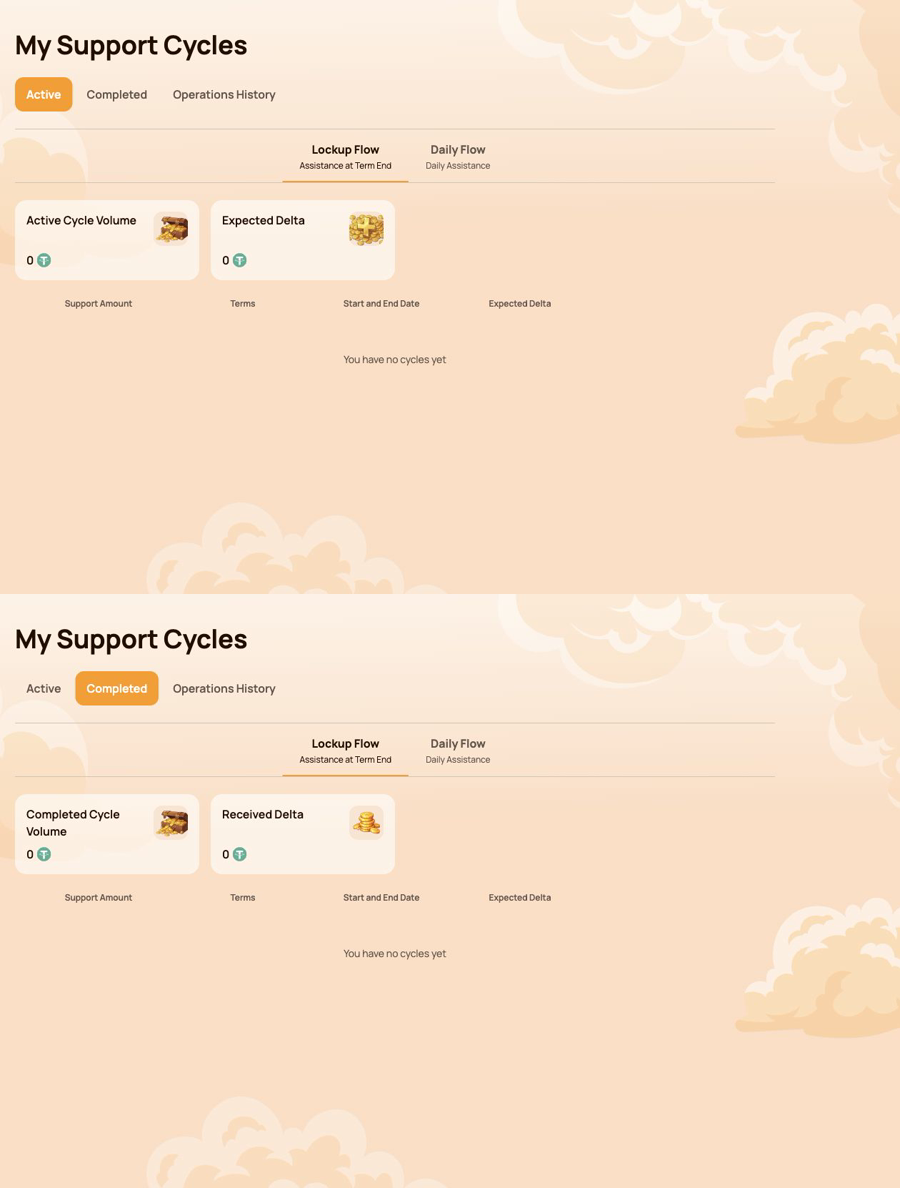
Połączona ilustracja pokazuje najpierw kartę Aktywne, a bezpośrednio pod nią Zakończone. Przykładowy portfel nie ma cykli, dlatego zrzuty pokazują puste stany i dostępne elementy sterujące bez ujawniania danych uczestników.
4.3 Historia operacji
Operations History records the two main types of participant activity related to Smart Cycles.
Utworzenie cyklu
Użyj tej karty, aby sprawdzić cykle utworzone z podłączonego portfela.
Wyświetlane pola:
- Data utworzenia cyklu;
- Nazwa cyklu;
- Okresy;
- Support Amount.
Ten widok jest przydatny, gdy transakcja utworzenia cyklu została potwierdzona, ale uczestnik chce sprawdzić, kiedy i na jakich warunkach cykl utworzono.
Assistance Received
Użyj tej karty, aby przejrzeć zakończone Claim pomocy.
Wskaźniki podsumowujące:
- Otrzymane Claims wsparcia;
- Wolumen otrzymanego wsparcia.
Wyświetlane pola:
- Cykl;
- Data utworzenia cyklu;
- Kwota wypłaty;
- Smart kontrakt;
- Status.
Pola Smart kontrakt i Status pomagają powiązać zapis w Panelu z weryfikacją on-chain.
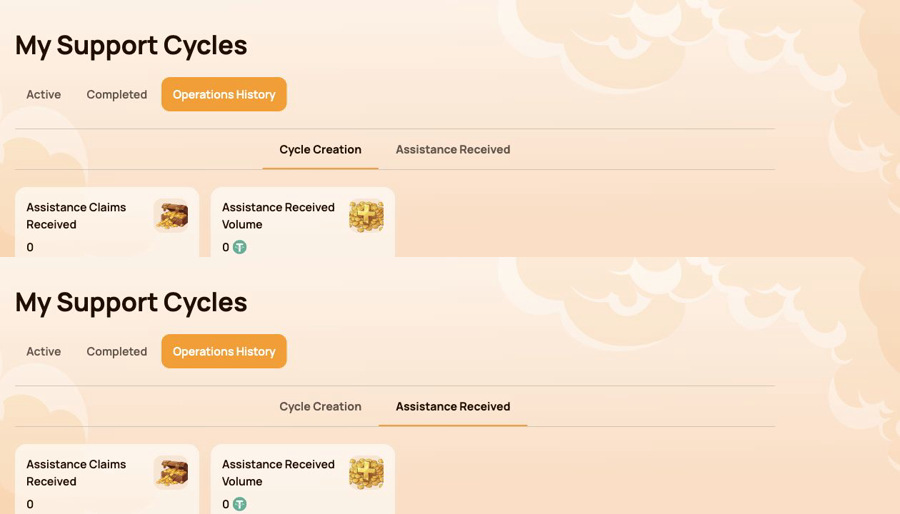
Połączona ilustracja pokazuje najpierw Tworzenie cyklu, a poniżej Otrzymaną pomoc.
4.4 Gdy brakuje cyklu lub operacji
- Upewnij się, że podłączony jest ten sam portfel, którego użyto do transakcji.
- Sprawdź, czy wybrano BNB Smart Chain.
- Poczekaj na potwierdzenie w blockchainie i odśwież Panel użytkownika.
- Sprawdź filtry Lockup Flow i Daily Flow.
- Sprawdź sekcje Aktywne, Zakończone i Historia operacji.
- Otwórz transakcję w portfelu lub w BscScan.
- If the transaction is confirmed but the record is still missing, contact support and provide:
- connected wallet address;
- hash transakcji;
- typ i kwotę cyklu;
- przybliżony czas operacji;
- zrzut ekranu odpowiedniej karty.
Cycle statuses and Claim conditions are explained in Smart Cycle. Transaction verification is covered in Contracts & BscScan.
5. Program partnerski
The Program partnerski section brings together partner rewards, team structure, status progress and activity statistics. Use it to monitor your own partner account and the activity associated with your referral structure.
This section explains the personal dashboard interface. Status rules, qualification volumes, reward calculation and worked examples are covered in the separate Program partnerski guide.
Sekcja zawiera cztery karty:
- Partner Wallet;
- Accrual History;
- My Team;
- Statystyki.
5.1 Portfel partnerski
Partner Wallet shows the current state of partner rewards.
| Indicator | Meaning |
|---|---|
| Account Balance | Nagrody partnerskie obecnie wyświetlane jako dostępne w Panelu |
| Total Accrued | Łączne nagrody partnerskie naliczone zgodnie z zasadami programu |
| Rewards Received | Otrzymane już nagrody partnerskie |
The Withdrawal History table records withdrawals and displays:
- Data wypłaty;
- Kwota wypłaty;
- Status;
- Tx Hash.
Use Tx Hash to open the related transaction on BscScan and verify it independently. The information tooltip next to Account Balance explains how automatic payouts work.
5.2 Historia naliczeń
Accrual History shows how partner rewards were accrued. When accruals are available, the table includes:
- Accrual Date;
- Bonus;
- Accrued Reward Amount.
Użyj tej karty, gdy chcesz ustalić premię, która utworzyła naliczenie. Naliczona nagroda i otrzymana wypłata to różne etapy: najpierw sprawdź naliczenie tutaj, a następnie Portfel partnerski i Historię wypłat.
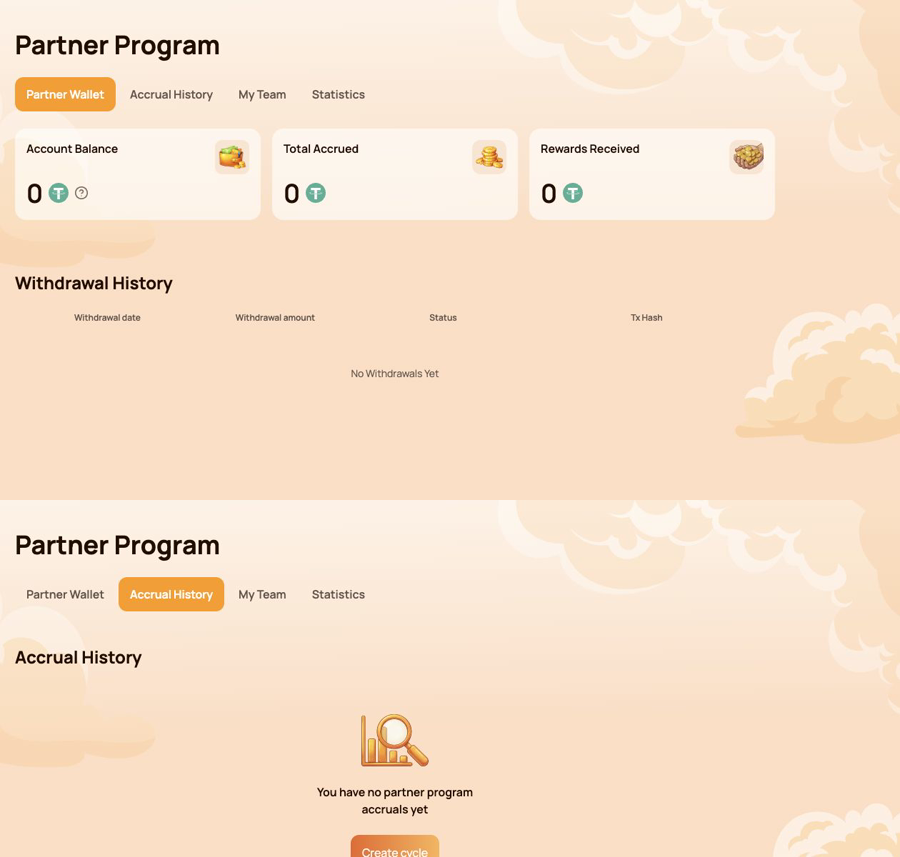
Połączona ilustracja pokazuje najpierw Portfel partnerski, a bezpośrednio pod nim Historię naliczeń.
5.3 Mój zespół
My Team is the main workspace for status progress and referral structure.
Informacje partnerskie
Górny panel wyświetla:
- Partner Status — the current status and its reward rate;
- My Referral Link — the personal link used to invite new participants;
- My Referrer (Wallet Address) — the wallet whose referral link was used;
- Referrer Status — the current status of that referrer.
The personal referral link becomes available after the first qualifying Smart Cycle of 10 USDT or more. If the field shows Not Available, check the cycle and status conditions described in the Partner Program guide.
Wymagania dla następnego statusu
Postęp jest wyświetlany dla trzech wolumenów:
- Personal Active Cycle Volume;
- First-Line Active Cycle Volume;
- Partner Structure Active Cycle Volume.
For each requirement, compare Current, Required and Remaining. This makes it clear which condition has already been met and which volume is still needed for the next status.
Wymagania statusu i struktura
The Status Requirements table compares all statuses by:
- osobisty aktywny wolumen cykli;
- aktywny wolumen cykli pierwszej linii;
- aktywny wolumen cykli struktury partnerskiej;
- stawkę nagrody strukturalnej przy nieograniczonej głębokości;
- stawka Matching Reward.
Below the table, use Structure Lines and Search by Wallet Address to navigate the structure. The results identify the participant wallet and status. The Leaders statistics in the structure section helps identify the most active parts of the team.
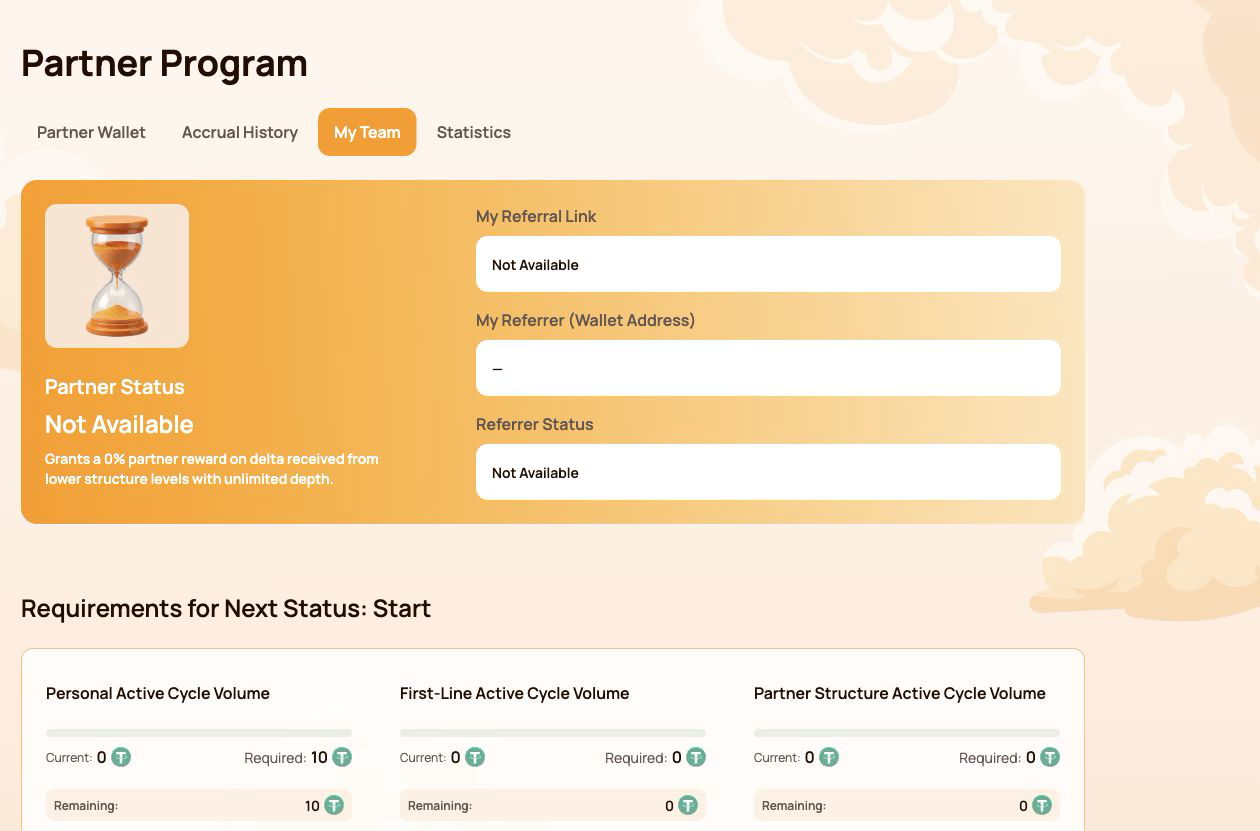
Zrzut ekranu przedstawia konto bez aktywnego statusu partnerskiego i nie ujawnia adresu portfela uczestnika.
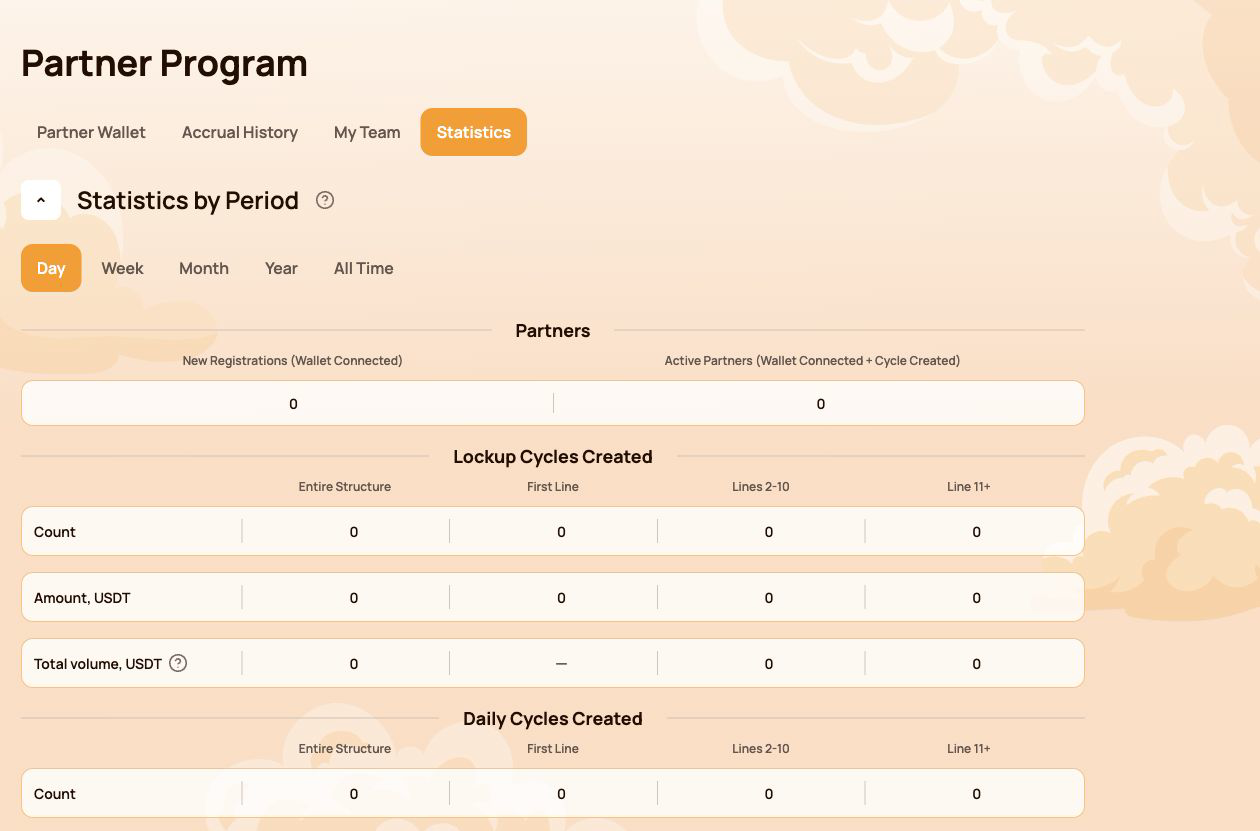
5.4 Statystyki
Statystyki summarizes partner activity for the selected period. Available filters are Day, Week, Month, Year and All Time.
Partnerzy
- New Registrations (Wallet Connected) — wallets newly connected through the structure;
- Active Partners (Wallet Connected + Cycle Created) — connected partners who also created a cycle.
Utworzone cykle
Lockup Flow i Daily Flow są wyświetlane osobno. Dla każdego przepływu Panel grupuje aktywność według:
- Cała struktura;
- Pierwsza linia;
- Linie 2–10;
- Linia 11+.
Tabele pokazują liczbę cykli, kwotę w USDT i całkowity wolumen uwzględniany w metrykach systemu.
Jak głębokość struktury wpływa na pełny wolumen
The information tooltip next to Total volume explains the coefficients used for structure depth:
| Structure depth | Zaliczony wolumen |
|---|---|
| Pierwsza linia | 100% dla metryk pierwszej linii i nieograniczonej głębokości |
| Linie 2–5 | 100% dla metryki nieograniczonej głębokości |
| Lines 6–10 | 50% |
| Line 11+ | 10% |
Most Active Lines highlights the leading structure lines and shows their partner count and USDT volume.
5.5 Ważne uwagi
- Account Balance in Partner Wallet is a dashboard partner balance; it is not the same as the USDT balance displayed by your wallet application.
- Nowe naliczenia, wypłaty i statystyki mogą pojawić się po potwierdzeniu w blockchainie i synchronizacji Panelu.
- Przed sprawdzeniem danych partnerskich zawsze upewnij się, że podłączony jest właściwy portfel.
- Nie publikuj na zrzutach ekranu danych polecających ani portfeli uczestników bez ich zgody.
- Do weryfikacji on-chain użyj hasha transakcji i oficjalnego rejestru smart kontraktów.
Status conditions, qualification volumes and reward examples are explained in Program partnerski. Terms are defined in Słownik.
6. Profil
The Profile section stores the participant information used for communication and partner-facing features. It does not store wallet access credentials and does not replace the connected wallet address.
Open Profile from the left navigation. After making changes, select Save at the bottom of the page.
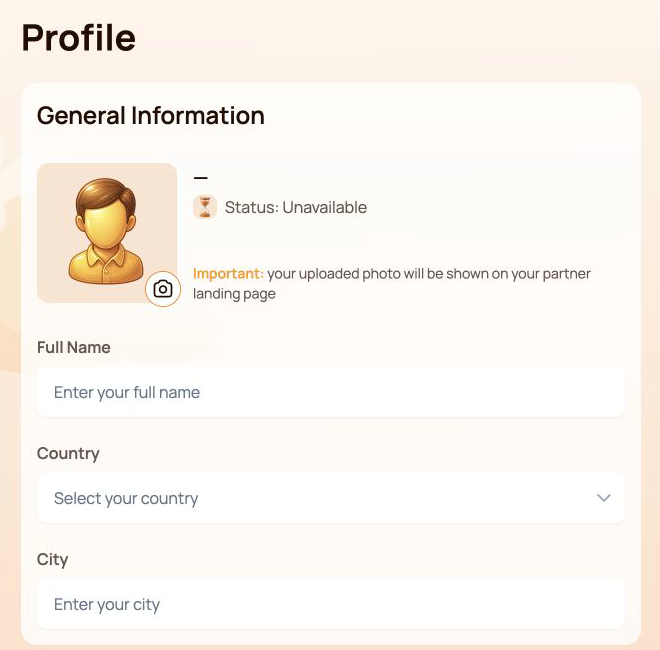
6.1 Informacje ogólne
Górny panel zawiera:
- Avatar — select the camera icon to add or replace the profile image;
- Status — the current partner status associated with the connected wallet;
- Full Name;
- Country;
- City.
The interface warns that the uploaded photo may be shown on the participant's partner landing page. Use only an image that you are comfortable displaying there.
6.2 Dane kontaktowe
This section contains Phone Number and Email.
The Visible to partners switch controls the partner visibility setting for the contact information block. Before enabling it, check that the entered details are intended to be shared with partners.
6.3 Sieci społecznościowe
Dostępne pola:
- Facebook — username or profile link;
- Instagram — username or profile link;
- WhatsApp — phone number or link;
- Telegram — username, link or phone number.
Social networks have their own Visible to partners switch. This setting is separate from the visibility switch in Contact Information.
Możesz pozostawić pola puste, jeśli nie korzystasz z danej usługi lub nie chcesz umieszczać jej w profilu.
6.4 Ustawienia komunikacji
Język komunikacji
Język komunikacji records the participant's preferred language for communication. Select one of the supported Atlas System languages listed in Notifications and interface language below.
This field is different from the language selector in the top bar: the top-bar control changes the dashboard interface language, while Język komunikacji belongs to the saved profile settings.
Preferowana metoda komunikacji
Wybierz kanały, przez które chcesz się komunikować:
- Telegram;
- WhatsApp;
- E-mail.
Przed wybraniem preferowanej metody uzupełnij odpowiednie pole kontaktowe lub pole sieci społecznościowej. Jeśli odpowiednich jest kilka kanałów, można zaznaczyć więcej niż jedno pole wyboru.
Select Save after changing the language, communication methods or any other profile field.
6.5 Prywatność i bezpieczeństwo
- Enable Visible to partners only for information you intend to share.
- Używaj dwóch przełączników widoczności niezależnie: jeden dotyczy danych kontaktowych, a drugi sieci społecznościowych.
- Nigdy nie wpisuj w polach profilu frazy seed, klucza prywatnego, hasła portfela, jednorazowego kodu bezpieczeństwa ani hasła do giełdy.
- Wsparcie Atlas System nie potrzebuje danych dostępowych do portfela, aby sprawdzić problem z profilem.
- Skrócony adres portfela na górnym pasku identyfikuje podłączony portfel; nie edytuje się go w Profilu.
6.6 Gdy zmiany nie zostają zapisane
- Upewnij się, że wszystkie wymagane pola mają oczekiwany format.
- Select Save and wait for the interface response.
- Odśwież stronę i sprawdź, czy wartości nadal są widoczne.
- Upewnij się, że nadal podłączony jest ten sam portfel.
- Jeśli wartości ponownie znikną, skontaktuj się z pomocą techniczną i dołącz zrzut ekranu bez ujawniania prywatnych danych uwierzytelniających.
Partner status and the partner landing page are explained in Program partnerski. Safe data sharing is covered in Bezpieczeństwo.
7. Powiadomienia i język interfejsu
Dzwonek powiadomień i selektor języka interfejsu znajdują się na górnym pasku i są dostępne w całym Panelu użytkownika.
7.1 Powiadomienia
Select the Notifications bell to open the notification center. Messages are grouped into three tabs:
| Karta | What it shows |
|---|---|
| Wszystkie wiadomości | Wszystkie dostępne powiadomienia |
| Read | Powiadomienia, które zostały już otwarte lub oznaczone jako przeczytane |
| Nieprzeczytane | Powiadomienia, które nie zostały jeszcze przeczytane; liczba w nawiasie oznacza bieżącą liczbę nieprzeczytanych wiadomości |
If the page shows You have no notifications yet, there are currently no messages for the connected account. This is a normal empty state and does not indicate an error.
Ważne ograniczenie
Powiadomienie w Panelu ma charakter informacyjny. Nie zastępuje:
- status transakcji w portfelu;
- potwierdzenie w blockchainie;
- zapis transakcji w BscScan;
- the current cycle status in My Support Cycles.
Jeśli powiadomienie i transakcja on-chain wydają się niespójne, najpierw sprawdź adres portfela, hash transakcji i smart kontrakt.
7.2 Język interfejsu
Wybierz bieżący język na górnym pasku, a następnie wybierz wymagany język interfejsu:
- English;
- Bahasa Indonesia;
- Bahasa Melayu;
- Deutsch;
- Español;
- Français;
- Русский;
- Português;
- Tiếng Việt;
- Türkçe;
- हिन्दी;
- 中文;
- ไทย.
Wybrana opcja zmienia język Panelu użytkownika Atlas System. Rozszerzenie portfela, BscScan i inne usługi zewnętrzne zachowują własne ustawienia językowe.
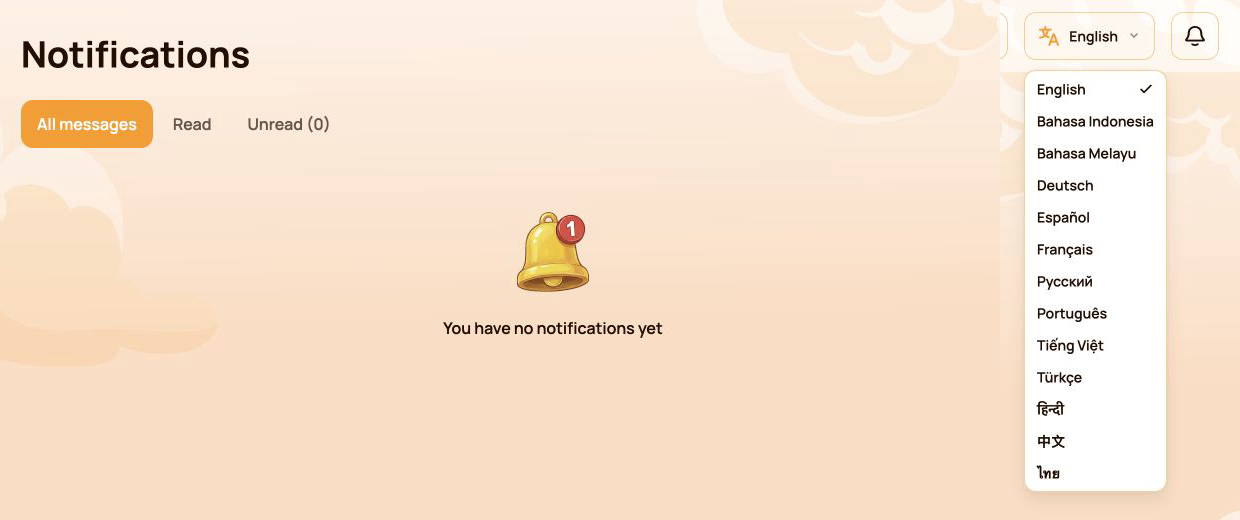
Ilustracja pokazuje pełną listę języków interfejsu.
7.3 Język interfejsu a język komunikacji
Te dwa ustawienia służą różnym celom:
| Ustawienie | Lokalizacja | Purpose |
|---|---|---|
| Język interfejsu | Top bar | Zmienia język interfejsu panelu użytkownika |
| Język komunikacji | Profile | Records the participant's preferred language for communication |
If you want both settings to match, change the top-bar language and then select the same language in Profile → Communication Language and save the profile.
7.4 Gdy powiadomienia lub tłumaczenia nie są aktualizowane
- Upewnij się, że podłączony jest właściwy portfel.
- Odśwież Panel.
- Ponownie otwórz centrum powiadomień lub selektor języka.
- Sprawdź, czy wybrany język jest widoczny na górnym pasku.
- Jeśli oczekiwany komunikat się nie pojawia, sprawdź powiązany cykl lub transakcję w odpowiedniej sekcji Panelu oraz w BscScan.
- Jeśli dane w Panelu nadal są niespójne, skontaktuj się ze wsparciem i w stosownych przypadkach dołącz zrzut ekranu oraz hash transakcji.
Official translated labels are collected in Słownik. Related issues are covered in Rozwiązywanie problemów.
8. Kondycja systemu
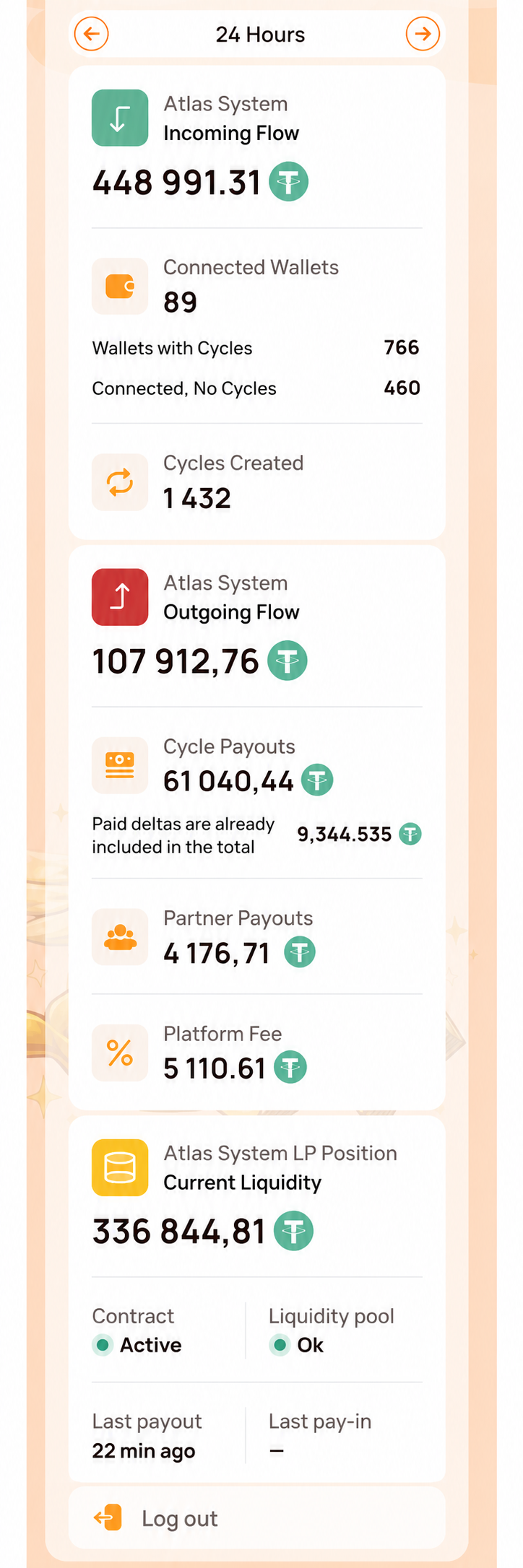
The Health of System panel is located below the main navigation. It provides an at-a-glance view of system-wide activity and operational status. Use All time or Last 24 hours to select the displayed period.
These indicators describe Atlas System as a whole. They are not the connected participant's wallet balance, personal cycle volume or guaranteed assistance amount.
8.1 Wskaźniki
| Indicator | What it means |
|---|---|
| Czas serwera | Data i godzina używane przez Panel podczas prezentowania bieżącego obrazu kondycji systemu |
| Utworzone cykle / wolumen przychodzącego wsparcia | Liczba utworzonych cykli i ich łączny przychodzący wolumen wsparcia za wyświetlany okres |
| Zakończone cykle / wolumen wychodzącej pomocy | Liczba zakończonych cykli i ich łączny wychodzący wolumen pomocy za wyświetlany okres |
| Saldo smart kontraktu | The current contract balance shown by the dashboard; it is not the participant's wallet balance |
| Wszystkie podłączone portfele | Liczba portfeli zarejestrowanych przez Panel w wyświetlanym okresie |
| Wypłacona Delta | Delta uwzględniona w zakończonych operacjach pomocy za wyświetlany okres |
| Wypłaty programu partnerskiego | Transfery nagród partnerskich zarejestrowane w wyświetlanym okresie |
| Opłaty platformy | Opłaty platformy zarejestrowane w wyświetlanym okresie; opłata gas sieci jest rozliczana osobno |
| Kontrakty | Current dashboard status of the Atlas System smart contracts, such as Active |
| Ostatnia wypłata | Czas, jaki upłynął od ostatniej zarejestrowanej wypłaty w systemie |
| Pula płynności | Current dashboard health status of the liquidity pool, such as OK |
W przypadku dwóch wskaźników cyklu pierwsza wartość oznacza liczbę cykli, a druga — wolumen USDT.
Zrzut ekranu pokazuje pełny panel Kondycji systemu. Wszystkie liczby są przykładami z chwili wykonania zrzutu i z czasem się zmienią.
8.2 Jak interpretować panel
- Zielona tarcza ogólnej kondycji zapewnia szybkie wizualne podsumowanie bieżącego stanu Panelu.
- Contracts: Active means the dashboard currently reports the contracts as operational.
- Liquidity Pool: OK means the dashboard currently reports the pool health check as normal.
- Ostatnia wypłata is an activity timestamp. A longer interval does not by itself prove that the system is unavailable.
- Saldo smart kontraktu i wolumeny całego systemu nie określają, czy konkretny uczestnik może wykonać Claim.
- Prawidłowy stan panelu nie zastępuje sprawdzenia statusu konkretnej transakcji portfela w BscScan.
8.3 Gdy wskaźnik wydaje się opóźniony lub niedostępny
- Check Czas serwera to understand when the displayed snapshot was recorded.
- Odśwież Panel jeden raz i ponownie sprawdź wskaźniki.
- Open the official Status systemu page for service-wide incidents or maintenance.
- Sprawdź oficjalne adresy kontraktów i ich ostatnie transakcje w BscScan.
- For a personal transaction, verify its transaction hash and check My Support Cycles or Operations History.
- If the discrepancy remains, contact support with:
- wskaźnik, którego dotyczy problem;
- Czas serwera wyświetlany w panelu;
- connected wallet address;
- hash transakcji, jeśli dotyczy;
- zrzut ekranu panelu.
Detailed availability is published in Status systemu. Official addresses and on-chain verification are covered in Contracts & BscScan.
9. Szybki indeks zadań
Skorzystaj z tej tabeli, gdy wiesz, co chcesz zrobić, ale nie masz pewności, którą sekcję Panelu otworzyć.
| I want to… | Open… |
|---|---|
| Zobacz ogólną aktywność osobistą | Panel |
| Utwórz cykl Lockup lub Daily | Provide Support and select the required flow |
| Sprawdź trwający cykl lub Claim | Moje cykle wsparcia → Aktywne |
| Znajdź zakończony cykl | Moje cykle wsparcia → Zakończone |
| Sprawdź utworzenie cyklu lub otrzymane wsparcie | Operations History |
| Sprawdź nagrody partnerskie, naliczenia lub wypłaty | Program partnerski → Portfel partnerski / Historia naliczeń |
| Skopiuj link polecający lub sprawdź postęp statusu | Partner Program → My Team |
| Przeszukaj strukturę lub porównaj aktywność | Program partnerski → Mój zespół / Statystyki |
| Zaktualizuj dane osobowe lub widoczność | Profile |
| Ustaw język lub kanał komunikacji | Profil → Ustawienia komunikacji |
| Zmień język Panelu | Selektor języka na górnym pasku |
| Przeczytaj komunikat systemowy | Notifications |
| Sprawdź ogólne wskaźniki operacyjne | Kondycja systemu → Cały okres / Ostatnie 24 godziny |
| Zweryfikuj transakcję niezależnie | Szczegóły transakcji w portfelu i BscScan |
Zalecana ścieżka dla nowego uczestnika
- Open Panel and confirm that the correct wallet is connected.
- Open Provide Support and review Lockup Flow and Daily Flow before selecting a cycle.
- After the transaction is confirmed, open Moje cykle wsparcia → Aktywne.
- Use Operations History to review cycle creation and assistance received.
- Use Notifications for system messages and Health of System for overall operational indicators.
For wallet setup, network selection, USDT and BNB requirements, start with Szybki start before using the personal dashboard.

